
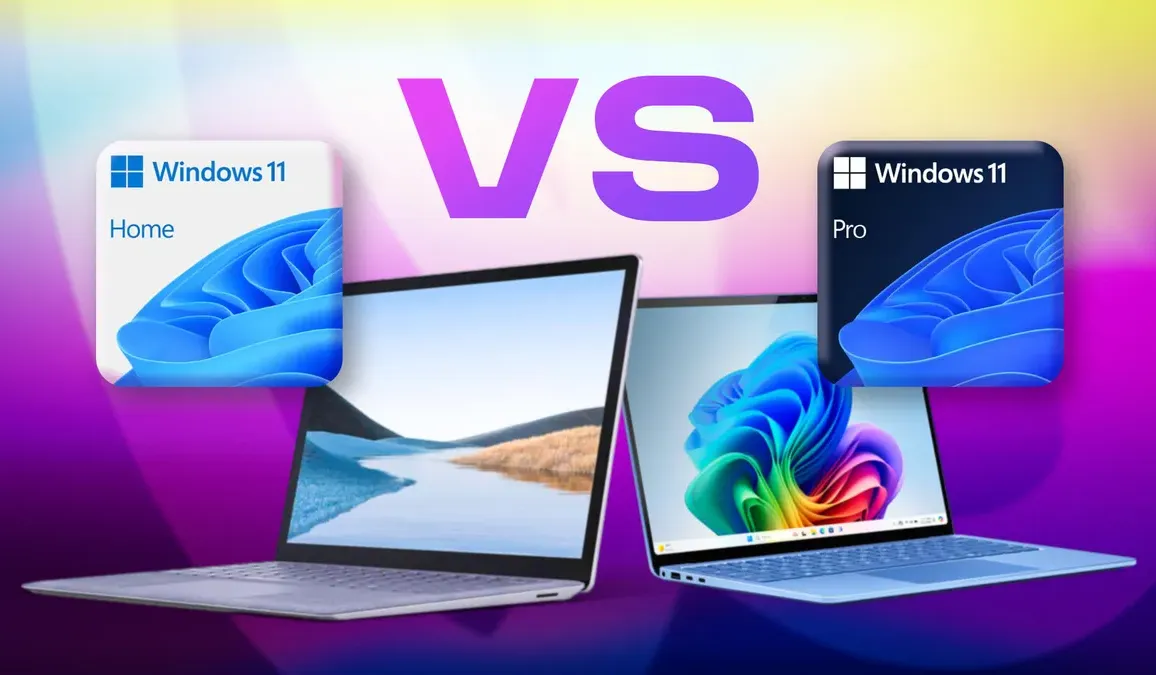
Windows 11 Home vs Pro 2026: Key Differences & Which to Choose
What Is the Difference Between Windows 11 Home and Pro?
If you are about to upgrade to Windows 11, no doubt the question "What is the difference between Windows 11 Home and Pro?" has crossed your mind. Clearly, by name, the Windows 11 Home version is the default one aimed at the ordinary user, while the Pro version is the advanced, professional one. But what makes the Pro version professional in itself? And what additional features does it give the user? It is easy to assume that Windows 11 Pro is the better, more powerful, and faster version. But do we recommend upgrading to it, or is it better to invest your money in improving your computer's hardware specs instead? We will answer all of this in this detailed article.
How Do Home and Pro Differ in Features?
The Pro version surpasses Home in features, as there is no feature in Home that is not in Pro, but the reverse is not true. These features can be divided into security features, management and control features, and virtualization and remote-control features.
What Are the Security Features Exclusive to Pro?
Windows 11 Home offers enough security features for most users, but Pro includes special additional ones, especially since Pro is aimed at companies and organizations where security matters more. The most important are BitLocker encryption and Windows Information Protection. BitLocker encryption lets you encrypt files, various disks, and even external storage units, and you can lock the computer remotely; Microsoft cares about this feature, giving it regular updates and being expected to support it for many years, and unlike other Pro features it is very useful even for the ordinary user (though there are other ways to encrypt files, like using additional programs). Windows Information Protection (WIP) was designed specifically for companies as a tool to protect important data from loss and to prevent the leakage of sensitive corporate information.
What Management and Control Features Does Pro Add?
Windows 11 Pro includes several extra features for controlling and managing the computer, most of which are absent from Home because they are usually not useful for personal use. They include Enterprise State Roaming, a sync tool that syncs settings across more than one Windows 11 Pro device; Windows Update for Business, which lets an admin control which updates reach devices and when they are installed, keeping all computers updated especially for security; Group Policy, an old feature that lets administrators set limits on ordinary user accounts; Mobile Device Management, which lets technicians control multiple devices (laptop, desktop, mobile, and so on) remotely without seeing their users' personal information; Assigned Access and Kiosk mode, which let an admin restrict other users to only a specific app or group of apps; and Dynamic Provisioning, which lets admins quickly and easily set up accounts for networked devices, a Pro-only feature useful only for companies.
What Virtualization and Remote-Control Features Are in Pro?
Pro includes three notable ones. Hyper-V is very useful if you want to run more than one operating system on the same computer without affecting the main Windows 11 install, letting you install other Windows copies, Linux, or FreeBSD; if you use Home, the free VirtualBox can do the same task, provided your computer's specs and processor can handle it. Remote Desktop lets you control your computer remotely using your phone, tablet, or even Linux, Mac, or iOS devices, and the other device does not need to run Pro (it can be Home); it is useful even for ordinary users but is Pro-only, and Home users can use free alternatives like AnyDesk. Microsoft also developed the Remote Desktop Protocol, a set of instructions enabling secure, encrypted communication between the two devices, which distinguishes it from other remote-control programs. Windows Sandbox is theoretically similar to Hyper-V, providing an isolated virtual environment separate from the original system, useful for trying and downloading suspicious apps in isolation before installing them on the real system, or discarding them entirely by closing the environment.
How Do Home and Pro Differ in Hardware Limits?
Both versions share the same minimum requirements needed to run them, so as long as your device meets the Windows 11 requirements, you do not have to worry about whether it can run Pro. However, the two differ in handling high-spec devices. Windows 11 Home can handle computers with a maximum of 128 GB of RAM, while Pro can handle computers with 2 TB of RAM. From another angle, Home can handle computers with only one processor and a maximum of 64 cores, while Pro can handle two processors and 128 cores. In any case, these very high specs do not matter to the ordinary user and are only important for advanced users and business owners, but they were worth noting.
The Final Answer: Windows 11 Home or Pro?
Despite the many features Pro has, most ordinary users will not need these features in the first place. And even if you need them occasionally, there are many free applications that perform these functions and can be downloaded, some of which we mentioned in this article. So unless you need to use your computer within a network of company computers, and unless security is an important issue for you, we recommend staying on the ordinary Windows 11 Home version.
Can You Upgrade From Windows Home to Pro?
Yes, Microsoft allows upgrading from Home to Pro. But you will then have to buy a new activation code, which may make the total price higher than if you had bought Windows 11 Pro from the start. First, open Settings, then choose System, then Activation, and under "Upgrade your edition of Windows" choose "Open Store." The Microsoft Store will then open and you will be able to buy the Pro version.
FAQs
CONTACT US
Download the app


CONTACT US


Payment Methods








Shipping with

©2026 MobiTech Integrated Solutions. . All Rights Reserved
©2026 MobiTech Integrated Solutions. . All Rights Reserved