
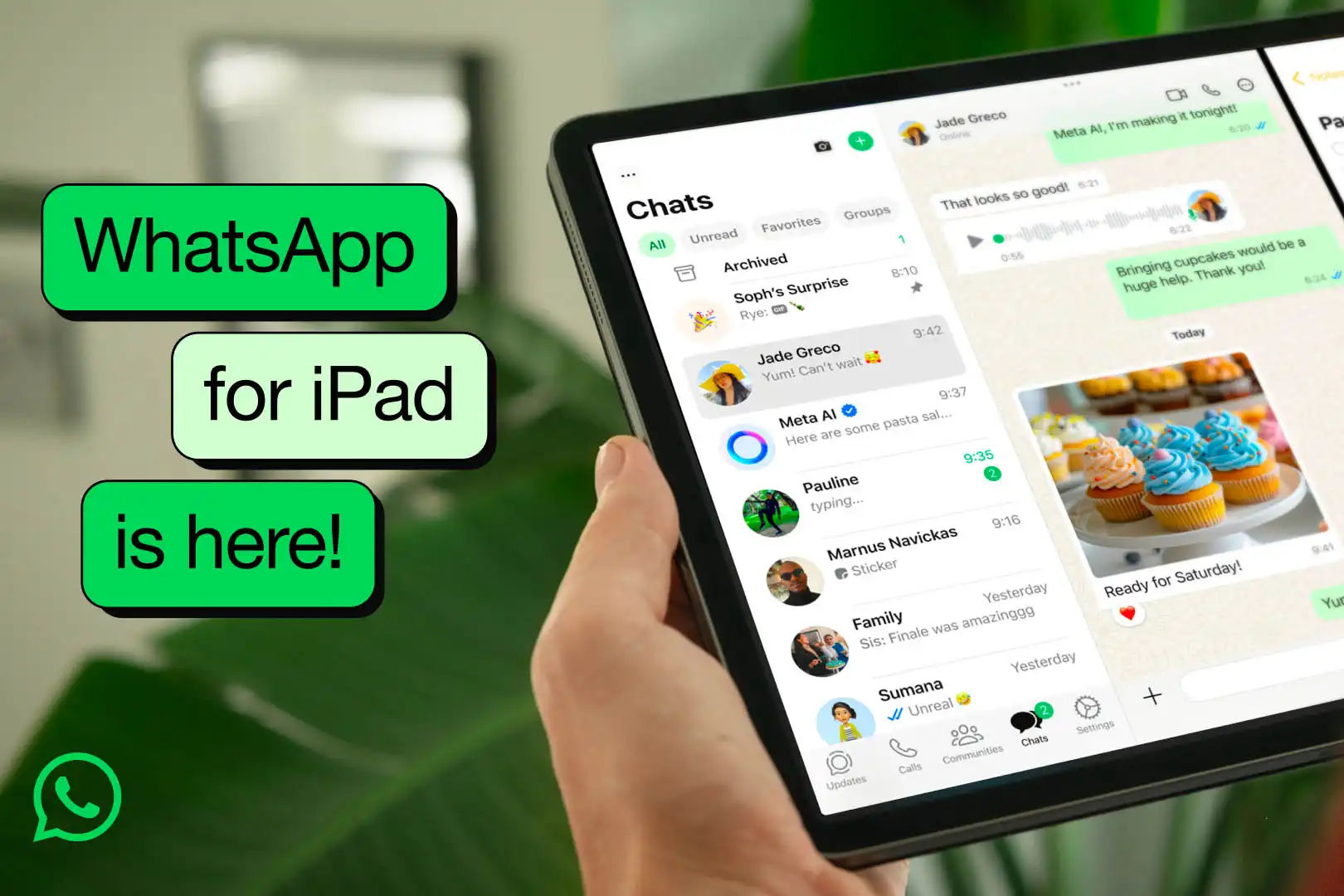
WhatsApp for iPad 2026 — No Official App But WhatsApp Web via Safari Fully Solves the Problem in 5 Steps
Is There an Official WhatsApp App for iPad?
The short answer: No — as of 2026, Meta (WhatsApp's developer) has not released an official dedicated app for iPad on the App Store. If you search the App Store you'll find apps from other developers claiming to be WhatsApp for iPad — but they're all unofficial, don't provide all of WhatsApp's features, and may have communication issues.
The only guaranteed and official solution: WhatsApp Web via Safari browser on iPad — the same solution that works on computers, but works excellently on iPad thanks to its large screen.
Why Has WhatsApp Delayed Releasing an iPad App?
Meta focused and continues to focus on developing iPhone and Android apps along with the desktop version. The iPad was historically considered a "secondary device" in terms of user base compared to phones. Dedicated iPad apps require a different user interface suited to the larger screen — additional development effort. Meanwhile WhatsApp Web serves the purpose excellently on iPad without needing a separate app.
The Official Solution — WhatsApp Web on iPad
WhatsApp's "Linked Devices" feature allows connecting your account to additional independent devices — up to 4 devices at once. Each device operates independently even if your phone is off or without internet.
Steps to Open WhatsApp on iPad
Step 1 — Open WhatsApp Web on iPad
On your iPad open Safari browser. In the address bar type: web.whatsapp.com or search for "WhatsApp Web" in Google and choose the official site from the first result. A white screen with a QR code (square barcode) in the center will appear — this is the linking code.
Step 2 — Open WhatsApp on Your iPhone
Open the WhatsApp app on your iPhone. Tap the three dots (⋮) at the top of the screen or Settings. Choose "Linked Devices."
Step 3 — Link the iPad
Tap "Link a Device." The iPhone camera will open automatically ready to scan the QR code. Point the iPhone camera toward the iPad screen displaying the QR code. Within a few seconds the iPhone will recognize the code and begin the linking process.
Step 4 — Wait for Chats to Load
After successfully scanning the QR code your conversations will begin loading gradually on iPad. A screen will inform you of the loading progress. Depending on the number of your conversations this may take from a few seconds to two minutes.
Step 5 — Start Using
After loading completes you'll find all your conversations organized exactly as they are on your phone. You can tap any conversation and immediately start communicating with friends and family from your iPad. The WhatsApp Web interface on iPad is spacious and comfortable thanks to the large screen.
WhatsApp Web on iPad Features
Full independence is the standout feature — no need to keep your phone connected to the internet after linking. iPad operates as an independent entity with your account. Up to 4 different devices can be linked at the same time — laptop, iPad, desktop and any other device that supports browsers. Most WhatsApp features are available: sending messages, photos, videos, files, voice notes, and voice calls.
Important Note — Add the Site to Your Home Screen
For a better and faster experience you can add the WhatsApp Web site to the iPad home screen: in Safari after opening the site tap the Share icon ← choose "Add to Home Screen." You'll find a WhatsApp icon on your home screen that opens conversations directly with a single tap just like any regular app.
FAQs
CONTACT US
©2026 MobiTech Integrated Solutions. . All Rights Reserved