
What is an IP address and how to find it on Windows, Android, and iPhone — A comprehensive guide 2026
What Is an IP Address and How to Find Yours — Complete 2026 Guide
An IP (Internet Protocol) address is the unique numerical identifier assigned to your device on a network — like a postal address for your home in the physical world. Without it, data packets would have no way to reach their destination.
Types of IP Addresses
IPv4 vs. IPv6: IPv4 is the current standard and looks like this: 192.168.1.1 — four numbers separated by dots, each between 0 and 255. IPv6 is the newer generation addressing IPv4 exhaustion and looks like: 2001:0db8:85a3:0000:0000:8a2e:0370:7334 — longer and more complex.
Public IP vs. Private IP:
- Public IP: The address that identifies you on the internet — assigned by your ISP (Internet Service Provider). All devices on your home network share the same public IP.
- Private IP: The internal address your router assigns to each device on your local network — typically starts with 192.168.x.x or 10.0.x.x.
Static vs. Dynamic IP:
- Static: Never changes — used for servers and businesses.
- Dynamic: Changes with each new connection — the most common type for regular users.
Method 1: Find Your Public IP (What the Internet Sees)
Fastest and simplest — via browser: Open any browser and go to whatismyip.com or ipinfo.io, or simply type "what is my IP address" into Google — the result appears instantly at the top of the page.
Method 2: Find Your Local IP on Windows
Via Command Prompt:
- Press Windows + R → type cmd → press Enter
- Type the command: ipconfig
- Find "IPv4 Address" under your active network connection — this is your local IP
Via Settings: Settings → Network & Internet → Wi-Fi or Ethernet → click on the network name → scroll down to see the IPv4 address
Method 3: Find Your Local IP on Mac
- Click the Apple icon in the top-left corner
- System Preferences → Network
- Select the active connection (Wi-Fi or Ethernet)
- Your IP address is displayed directly on screen
Or via Terminal: type ifconfig | grep inet
Method 4: Find Your IP on Android
Via Settings: Settings → Network & Internet → Wi-Fi → tap on the connected network → scroll down to find the IP Address field
On some Samsung phones: Settings → Connections → Wi-Fi → tap the Settings icon next to the network → View More → your IP and Gateway are listed there.
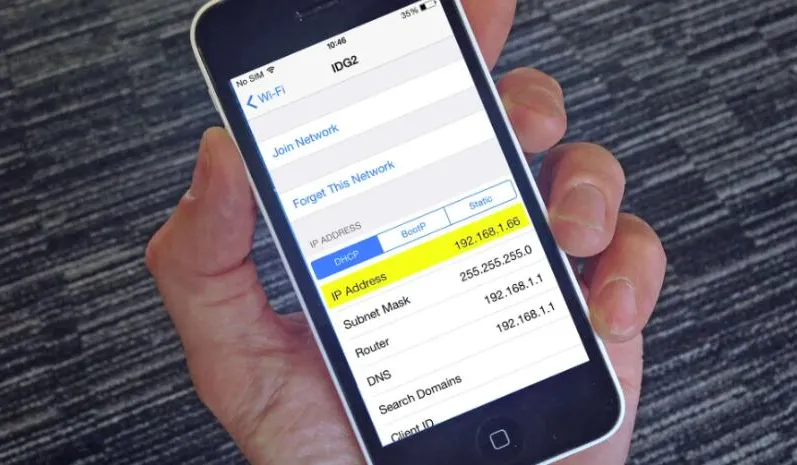
Method 5: Find Your IP on iPhone
- Settings → Wi-Fi
- Tap the information button (i) next to the connected network
- Your IP address is shown within the connection details
Method 6: Find the Router IP (Gateway)
The router itself has an IP address called the Gateway — the default gateway for your network. To find it:
- Windows: In the ipconfig output look for "Default Gateway"
- Android/iPhone: In Wi-Fi connection details look for "Gateway" or "Router"
- General method: It's typically 192.168.1.1 or 192.168.0.1 — entering it in a browser opens the router's admin panel
Why Knowing Your IP Address Matters
Knowing your IP address is practically useful in many situations: diagnosing network problems, remotely accessing home devices like cameras and printers, confirming that a VPN is working correctly (by verifying the visible IP has changed), and configuring online gaming settings.
FAQs
CONTACT US
Download the app


CONTACT US


Payment Methods










Shipping with

©2026 MobiTech Integrated Solutions. . All Rights Reserved
©2026 MobiTech Integrated Solutions. . All Rights Reserved