
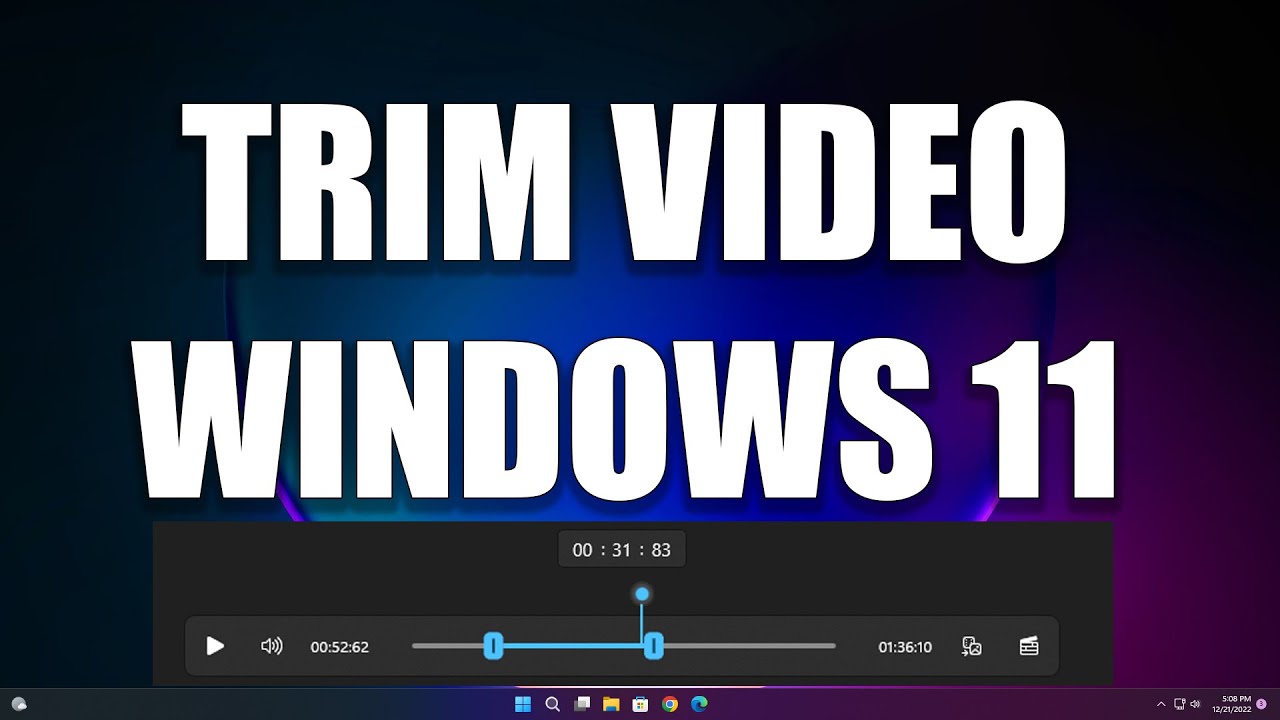
Trim a video in Windows 10 and 11 without software — Microsoft Clipchamp 2026
How to Trim a Video on Windows 10 and Windows 11 Without Extra Software 2026
Windows 10 and Windows 11 include built-in tools to trim video clips without downloading additional software. The primary tool is Microsoft Clipchamp, which comes pre-installed on Windows 11 and is available for free from the Microsoft Store for Windows 10 users.
Method 1: Trim Video Using Microsoft Clipchamp
Open Microsoft Clipchamp → import your video by dragging it in or using the import button → drag the video clip to the timeline at the bottom. Click the Video trim icon from the top toolbar, or press Ctrl + E. Set the start point and end point of the section you want to keep. Preview the trimmed section to verify accuracy. Click Save as copy at the top → choose a save location → click Save. The trimmed video will be saved separately without modifying the original file.
Method 2: Trim Video Using the Photos App (Windows 10)
Open the video in the Photos app → click Edit & Create at the top → select Trim. Drag the side handles to set the start and end points of the section to keep → click Save a copy to save the trimmed video.
Online Alternative (No Software)
Use free online tools like online-video-cutter.com or kapwing.com — upload your video, set the trim points, click cut, and download the result directly without registering.
FAQs
CONTACT US
©2026 MobiTech Integrated Solutions. . All Rights Reserved