
How to Transfer Contacts from Android to iPhone (2026)
How to Transfer Contacts from Android to iPhone
Switching from Android to iPhone is an exciting move, but the thought of losing years' worth of contacts can make the whole process feel stressful. The good news is you don't have to lose a single number. There are several reliable methods to move all your contacts safely, whether your iPhone is brand new or already set up.
Method One: Move to iOS App (Free and Official)
This is Apple's official transfer solution and the smoothest option if your iPhone is new or you're willing to reset it.
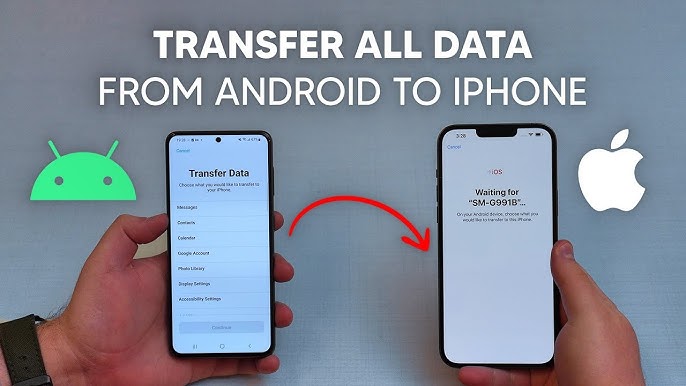
Start the iPhone setup process and follow the steps until you reach the "Apps & Data" screen, then tap "Move Data from Android." A code will appear on your iPhone screen. On your Android, download Move to iOS from the Google Play Store, open it, enter the code, and select Contacts from the list of data you want to move. The app handles the rest over a private Wi-Fi connection. The process typically takes between 10 and 20 minutes depending on how much data you have.
One thing to keep in mind: Move to iOS only works during the initial iPhone setup. If you've already completed setup, you'll need to use one of the other methods below.
Method Two: Google Account Sync (No Reset Required)
This is the smartest option if your contacts are already saved to your Google account, and it doesn't require resetting your iPhone at all.
On your Android, go to Settings, then Google, and make sure Contacts syncing is turned on. Then on your iPhone, go to Settings, tap Mail, then Accounts, then Add Account, and choose Google. Sign in with the same Google account and enable Contacts. Within minutes, all your numbers will appear automatically in the iPhone's Contacts app.
The biggest advantage here is ongoing sync — any contact you add or edit on either device will update on the other automatically.
Method Three: VCF File Export (Manual Transfer)
If you prefer not to use cloud accounts, exporting a vCard file is a clean and straightforward alternative.
Open the Contacts app on your Android, go to Settings or tap the three dots, and choose Export. Your phone will create a .vcf file containing all your contacts. Email the file to yourself, then open that email on your iPhone and download the file. Your iPhone will prompt you to add all contacts — tap confirm and you're done.
Method Four: SIM Card Transfer
If your contacts are saved directly to your SIM card rather than to the device or Google, you can simply move the SIM from your Android to your iPhone. Once inserted, go to Settings on your iPhone, tap Contacts, and select Import SIM Contacts. Keep in mind that most modern Android phones save contacts to the device or cloud by default, so this method may not cover all your numbers.
Tips Before You Start
Always back up your contacts on Android before doing anything else. Make sure both devices are connected to a stable Wi-Fi network. After the transfer is complete, open the Contacts app on your iPhone and double-check that everything came through correctly, and look out for any duplicate entries that might need to be cleaned up.
FAQs
CONTACT US
©2026 MobiTech Integrated Solutions. . All Rights Reserved