
Why Is There a White Circle on iPhone Screen in 2026?
Why Is There a White Circle on iPhone Screen in 2026?
That small floating circle sitting on your iPhone screen — the one that moves when you drag it, responds when you tap it, and won't go away no matter how many times you swipe at it — confuses more iPhone users than almost any other iOS feature. The white circle on iPhone is one of those things that either appeared without any explanation or was turned on by someone else and never properly explained. Whether it's been there since you bought the phone or just appeared out of nowhere, understanding exactly what it is, why it's there, and what you can do with it (or how to remove it) is what this guide covers in full detail.
What Exactly Is the White Circle on an iPhone Screen?
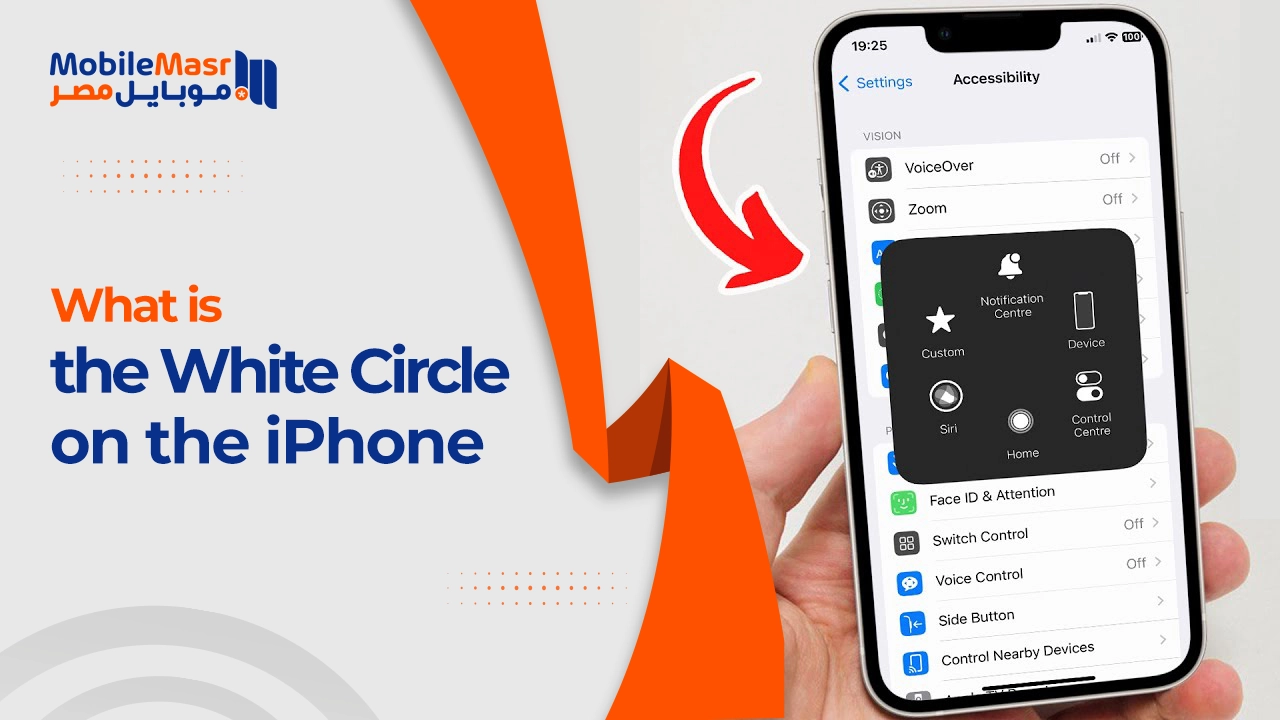
The white circle on iPhone is a small, semi-transparent circular button that floats on top of all other content on the display. It doesn't belong to any specific app — it lives at the system level, always visible regardless of what you're doing, whether you're on the home screen, inside an app, watching a video, or navigating through settings. It can be dragged to any position on the screen and stays wherever you place it, usually anchoring near one of the screen edges when released.
This button is interactive. Tapping it opens a menu with system-level controls. Depending on how it's been configured, a single tap, double tap, or long press can trigger a variety of actions — from taking a screenshot to accessing the notification center to simulating a physical Home button press. The visual appearance is deliberately subtle: a soft white circle with a slightly lighter inner icon, designed to be visible without being obtrusive.
Is the White Circle on iPhone a Built-in Feature or a Bug?
The white circle on iPhone is definitively a built-in feature — a genuine part of iOS called AssistiveTouch. It is not a virus, a glitch, a third-party overlay in most cases, or a sign that anything is wrong with the phone. Apple engineered it as part of iOS's accessibility framework, making it one of the most thoughtfully designed features for users who need alternative ways to interact with their phone.
That said, it can appear due to bugs, third-party apps, or accidental activation through settings shortcuts — and in those specific scenarios, the circle may behave unexpectedly or be difficult to remove. The distinction between "AssistiveTouch doing its job" and "something else causing a circle-like overlay" is important and affects how you address it. The iPhone accessibility button that most people encounter is AssistiveTouch, but other situations can mimic its appearance, which is why the causes section of this guide matters for accurate troubleshooting.
How Does Apple Describe This Feature Officially?
Apple officially describes AssistiveTouch in its accessibility documentation as a feature that "helps you use iPhone if you have difficulty touching the screen or if you require an adaptive accessory." The feature is grouped under the Accessibility section of iOS settings alongside other tools designed to make the iPhone usable for the widest possible range of people. Apple's support pages explain that AssistiveTouch creates a virtual button overlay that can replicate hardware buttons, provide system shortcuts, and accommodate users with motor impairments who may struggle with multi-finger gestures or pressing physical buttons.
Apple positions AssistiveTouch as a core iOS accessibility tool rather than a workaround or third-party addon, meaning it receives continuous development and refinement with every iOS update. The company has invested significantly in making the iPhone accessibility button both functional and customizable, reflecting a broader commitment to inclusive design that treats accessibility not as an afterthought but as a fundamental design principle.
When Did Apple First Introduce This Feature?
Apple first introduced AssistiveTouch with iOS 5 in 2011, making it one of the longest-standing features in the iOS accessibility suite. At its introduction, it was primarily designed as a solution for users whose physical Home button was worn, broken, or difficult to press — providing a software alternative that didn't require physical button interaction. The feature was also designed from the beginning with users with limited mobility in mind, offering a way to perform actions that would otherwise require firm button presses, multi-finger gestures, or shake interactions.
Over the fourteen-plus years since its introduction, AssistiveTouch has evolved substantially. Early versions offered a basic menu of fixed options. Current iOS versions allow deep customization of the menu items, assignable actions to different gesture types, opacity adjustment, and integration with the broader accessibility ecosystem. The white circle on iPhone has been through many design iterations since 2011, each making it more capable and less intrusive when not needed.
What Does the White Circle Actually Look Like on the iPhone Screen?
The white circle on iPhone has a distinctive appearance that, once you know what it is, becomes immediately recognizable. It presents as a rounded circular button approximately 60x60 pixels in its default configuration, rendered with a white or very light gray outer ring and a slightly different inner circle or icon. The overall visual is intentionally understated — Apple designed it to be noticeable enough to find and tap easily, but subdued enough not to dominate the visual experience of whatever app is behind it.
The opacity of the button varies: by default, it fades to a more transparent state when not recently touched, making it less distracting during content consumption. When the finger approaches or touches the screen near it, or when it's been recently interacted with, it becomes more opaque. This behavior keeps the floating home button iPhone users see from feeling like a permanent obstruction while ensuring it's accessible when needed.
Can the White Circle Appear in Different Sizes?
Yes — the size of the white circle on iPhone is adjustable within iOS accessibility settings. The default size is set at 100% of Apple's baseline dimensions, but it can be scaled to be smaller (which makes it less visible but also harder to tap accurately) or larger (which makes it easier to interact with for users with motor impairment or vision challenges). The size range is meaningful: at its largest, the button is substantially bigger than its default state, making it very easy to tap. At its smallest, it becomes more of a subtle indicator that can be present without drawing much visual attention.
The size adjustment is particularly valuable for users who adopt the white circle as an accessibility tool — someone with limited fine motor control benefits from a larger target, while a power user who wants the iPhone screen control button available but not distracting might prefer a smaller size with lower opacity. This configurability is a deliberate design choice by Apple to make the feature adaptable to different use cases and user needs.
Can the White Circle Be Transparent or Semi-Transparent?
Absolutely — the opacity of the white circle on iPhone is one of its most useful adjustable properties. iOS allows the idle opacity of AssistiveTouch to be set on a scale, meaning the button can be rendered anywhere from nearly fully visible to nearly invisible when not being actively used. At lower opacity settings, the iPhone screen assistive feature becomes barely a ghost on the screen — visible if you look for it, but essentially non-distracting during normal content viewing.
The opacity adjustment applies specifically to the idle state. When you tap or interact with the button, or when it's been used recently, it snaps to its full opacity temporarily before fading back down to its configured level. This behavior ensures the button is always findable and tappable even when configured to be nearly invisible at rest. Many users who rely on AssistiveTouch daily set it to 40-60% idle opacity, making it present but unobtrusive — a balance that makes the iPhone accessibility button genuinely livable as a permanent on-screen element rather than a visual annoyance.
What Are All the Possible Causes of the White Circle on iPhone?
While AssistiveTouch is the most common explanation for the white circle on iPhone, it's not the only one. Understanding all the possible causes matters because each cause requires a different fix, and diagnosing the wrong cause leads to troubleshooting steps that won't work. Several distinct scenarios can produce circle-like overlays or the specific AssistiveTouch button on the iPhone screen, and each has its own characteristic behavior.
Is AssistiveTouch the Most Common Reason for the White Circle?
AssistiveTouch accounts for the overwhelming majority of cases where users notice the white circle on their iPhone screen. When AssistiveTouch is enabled, it places the floating button on the screen immediately and keeps it there persistently — this is exactly what most users describe when they ask about the white circle. It's interactive (tapping opens the AssistiveTouch menu), moveable (dragging repositions it), and fully under iOS control.
The reason so many users are surprised by it is that AssistiveTouch can be activated through multiple pathways, not all of them obvious. The feature could have been enabled during iPhone setup if accessibility options were explored, triggered through the Accessibility Shortcut (triple-clicking the Side button or Home button), turned on by someone else using the phone, or enabled by the user themselves months ago and forgotten. The enable AssistiveTouch option is buried in accessibility settings, which means many users who turn it on once don't remember doing so.
What Is AssistiveTouch and Why Does It Show a White Circle?
AssistiveTouch is an iOS accessibility system feature that creates a floating virtual button — the iPhone accessibility button — that overlays all app content and system interfaces. It serves as a customizable shortcut hub that can replicate physical button functions (Home button, side button, volume buttons), perform complex gestures, take screenshots, and provide quick access to system settings. The floating button iPhone users see is always visible above other content because it operates at the system UI layer, not within any individual app.
The reason it appears as a white circle specifically is a deliberate visual design choice. Apple made the button circular, soft, and semi-transparent to make it recognizable as a system element (not confused with app content), visually neutral (not clashing with any color scheme), and easily distinguishable from regular app buttons through its floating behavior and rounded shape. The iPhone accessibility shortcut that AssistiveTouch represents needed a visual form that communicated "this is always accessible and interactive," and the floating circle achieves that effectively.
How Does AssistiveTouch Get Turned On Accidentally?
The most common accidental activation path is through the Accessibility Shortcut, which on iPhones with Face ID is triggered by triple-clicking the Side button, and on iPhones with a Home button is triggered by triple-clicking the Home button. If a user has set AssistiveTouch as one of the shortcuts assigned to this gesture (either intentionally or without realizing what they were selecting during setup), pressing the Side or Home button three times quickly will toggle AssistiveTouch on and off. This can happen in pockets, bags, or during fast navigation through the phone.
Another path is through a Guided Access session ending and restoring settings that had AssistiveTouch enabled, or through a screen repair where a technician enabled AssistiveTouch as a workaround to test touchscreen functionality and didn't disable it before returning the device. Some accessibility apps and screen recorders also request AssistiveTouch-adjacent permissions that can affect its state. If the floating button iPhone users discover appeared suddenly, one of these accidental activation mechanisms is almost always the explanation.
Can a Software Glitch or iOS Bug Cause a White Circle to Appear?
Yes — while less common than AssistiveTouch activation, iOS software bugs have been responsible for white circle-like visual artifacts appearing on iPhone screens across several iOS versions. These bug-caused circles are distinct from AssistiveTouch because they typically aren't interactive in the same way, may not be moveable, and often appear after updating to a new iOS version rather than following any settings change.
Which iOS Versions Have Had White Circle Bugs?
Several iOS versions have been associated with user reports of unexpected circular visual artifacts. iOS 14 had documented instances of ghosting artifacts in certain conditions. iOS 15 introduced some accessibility-adjacent display behaviors that confused users into thinking new circles had appeared when they were actually display rendering artifacts from certain app interactions. iOS 16 had specific reports of circular highlights appearing in corner regions under certain display calibration conditions.
These bugs are typically minor visual glitches that affect a subset of devices, often specific hardware-software combinations rather than universal failures. They're worth distinguishing from the AssistiveTouch button because the troubleshooting approach differs significantly — a software bug may require an iOS update to fix rather than an accessibility settings change. Monitoring Apple's release notes and support communities when a new circle appearance follows an iOS update is the quickest way to determine if you're experiencing a known bug.
Does Updating iOS Fix the White Circle Bug?
For circles caused by iOS software bugs specifically, yes — Apple typically addresses known visual bugs in subsequent iOS point releases. If the white circle on your iPhone appeared immediately after a major iOS update and doesn't respond to accessibility settings changes (meaning AssistiveTouch is confirmed off in settings but the circle is still visible), waiting for the next iOS update or downgrading to a previous version through iTunes may resolve it.
The practical recommendation when a circle appears post-update: first confirm AssistiveTouch status in settings. If AssistiveTouch is confirmed off and the circle persists, check Apple's support communities for reports of the same issue from other users running the same iOS version. If it's a documented bug, an update will come. If it's isolated to your device, a deeper software reset or contact with Apple Support may be needed. Keeping iOS updated is generally the right approach for both bug fixes and overall iPhone accessibility settings optimization.
Can Third-Party Apps Cause a White Circle on the iPhone Screen?
Third-party apps can display overlay elements that appear as circles on the iPhone screen — these are not the same as AssistiveTouch but can closely resemble it in appearance. Apps that have received Screen Recording, Accessibility, or certain overlay display permissions can draw UI elements that persist on screen above other content. Screen mirroring apps, gaming enhancement tools, parental control software, remote desktop apps, and certain productivity tools are known to use this capability.
Which Types of Apps Are Most Likely to Show a White Circle Overlay?
The apps most commonly associated with overlay circles beyond AssistiveTouch fall into a few categories. Parental control applications sometimes display a small monitoring indicator that appears as a floating circle. Screen recording and streaming apps used for gaming content creation may show a recording indicator or touchscreen visualizer. Remote access and device management applications used in enterprise or educational settings sometimes display status indicators. Accessibility enhancement apps that add their own virtual button overlays on top of iOS's native AssistiveTouch can create a second circle-like element.
Floating browser apps, screen magnification tools, and certain custom keyboard or typing assistance apps that request accessibility permissions can also display persistent UI elements that manifest as white or light-colored circular overlays on the screen. The iPhone screen control button concept extends beyond Apple's own implementations in these cases, with third-party developers creating their own equivalent features for specific purposes.
How Can You Tell If an App Is Causing the White Circle?
The most reliable diagnostic test is to observe whether the circle disappears when a specific app is force-quit. Open the App Switcher (swipe up and hold on Face ID phones, double-press Home on older phones), force-quit the suspected app, and watch whether the circle vanishes. If it does, that app was responsible. If the circle persists through force-quitting every app and survives a full restart, the cause is system-level — either AssistiveTouch in settings or a deeper software issue.
You can also review which apps have accessibility permissions: Settings > Privacy & Security > Accessibility shows which apps have requested and been granted accessibility access. Any unfamiliar app with this permission, particularly ones you don't recognize or don't actively use, is worth investigating. Similarly, Screen Time logs can show recently installed or heavily used apps that might correlate with when the white circle first appeared. The iPhone accessibility settings area is where most legitimate app-caused overlays will have left a permission trail.
Is Screen Burn-in or Display Damage Responsible for the White Circle?
Screen burn-in is a distinct phenomenon from the interactive AssistiveTouch button, but it can create a persistent circular visual artifact on the screen — particularly on OLED displays used in iPhone models from the iPhone X onward. Burn-in occurs when a static image is displayed for an extended period at high brightness, causing differential aging of the OLED pixels that permanently alters the color response of the affected area, leaving a faint "ghost" of the original image.
What Is Screen Burn-in and How Does It Create a White Circle?
If the AssistiveTouch button — or any other circular icon — has been displayed in the same screen position at high brightness for many cumulative hours, the OLED pixels beneath it can develop differential aging that makes the circular shape faintly visible even when the screen is displaying other content. This ghost image is screen burn-in, and unlike a software issue, it's a permanent physical change to the display hardware.
The distinguishing characteristic of burn-in versus the interactive AssistiveTouch button is behavior: a burn-in artifact doesn't move when touched, doesn't respond to taps, doesn't open any menu, and is visible even when looking at a solid-color screen test (a uniformly colored background will show the burn-in outline clearly). If the white circle on your iPhone appears to be in the same position permanently and doesn't interact, display damage rather than software is the likely explanation.
Is Screen Burn-in Covered Under iPhone Warranty?
Apple's standard one-year warranty covers manufacturing defects but has specific language around display aging and burn-in. Apple's official position acknowledges that "with normal usage, OLED displays may exhibit some changes in color or hue over time," and the company distinguishes between defective burn-in (a manufacturing or early-failure issue) and expected aging from extended high-brightness use of static content.
In practice, whether a specific burn-in claim is covered depends on the circumstances and the judgment of the Apple technician examining the device. Early-onset severe burn-in on a new phone is more likely to be treated as a defect and covered. Burn-in on a 3-year-old phone used extensively with static content at maximum brightness is less likely to be covered under warranty terms. AppleCare+ provides broader service coverage and is more likely to address burn-in as a service incident. If burn-in is causing the visible white circle on your iPhone, bringing the device to an Apple Store or Apple Authorized Service Provider is the appropriate course of action to evaluate coverage options.
Can Accessibility Settings Other Than AssistiveTouch Cause a White Circle?
Several other iPhone accessibility settings can produce visual overlays or pointer indicators that might be described as circle-like, though they behave differently from the AssistiveTouch button. Understanding these alternatives prevents misdiagnosis and ensures you're looking in the right settings area when the standard AssistiveTouch fix doesn't resolve your issue.
Does the iPhone Zoom Feature Create a White Circle?
The iOS Zoom feature is an accessibility magnification tool that enlarges content for users with low vision, but it also includes a "Zoom Controller" — a small floating button that allows users to adjust the zoom level and pan the view without using multi-finger gestures. This zoom controller can appear as a small circular or rounded element on the screen that may be confused with the AssistiveTouch button by users unfamiliar with both features.
The Zoom Controller is located in Settings > Accessibility > Zoom. Enabling Zoom activates the magnification function; the controller button is a separate toggle within those settings. If you're seeing a floating circle that affects your view by zooming content when you interact with it, Zoom rather than AssistiveTouch is the active feature. The fix is the same in concept — toggle it off in the relevant accessibility settings section — but you need to be looking at the right setting to find the right toggle. iPhone accessibility settings contain multiple features that can each independently contribute to overlay elements.
What Is Pointer Control and Does It Add a White Circle?
Pointer Control is an iOS accessibility feature designed for users who connect pointer devices — trackpads, mice, or eye-tracking hardware — to their iPhone via Bluetooth or the accessibility settings framework. When a pointer device is connected and Pointer Control is configured, iOS displays a cursor or pointer indicator on screen that follows the connected device's input.
The appearance of this pointer can vary depending on settings — it can be configured as various shapes, sizes, and colors, including circular forms. If an iPhone is paired with a Bluetooth device that's being interpreted as a pointer input (including some game controllers or Bluetooth accessories that send pointing data), the Pointer Control indicator could produce a circular element on screen. Checking Settings > Accessibility > Pointer Control for any active pointer device configuration, and reviewing connected Bluetooth devices, will reveal if this is the source of an unexpected circle. The iPhone touch controls ecosystem is broader than most users realize, extending to external device interactions.
How Do You Turn Off the White Circle on an iPhone?
Removing the white circle from your iPhone screen is straightforward once you've confirmed which feature is causing it. For the vast majority of users where AssistiveTouch is the cause, the fix takes under thirty seconds. For less common causes — third-party apps, software bugs, or display damage — the approach differs but each has a clear resolution path.
How Do You Disable AssistiveTouch to Remove the White Circle?
Disabling AssistiveTouch is the primary fix for the standard white circle on iPhone, and it requires navigating to the correct location in iOS settings and toggling the feature off. Once disabled, the floating button disappears immediately from the screen — there's no delay or restart required. The process is the same across all current iPhone models running modern iOS versions.
Where Exactly Is the AssistiveTouch Toggle in iOS Settings?
To disable AssistiveTouch and remove the white circle on iPhone: open Settings, tap Accessibility, then tap Touch, and at the top of the Touch settings section you'll find AssistiveTouch with its toggle. Tapping the toggle to the off position (gray) immediately removes the floating button from the screen. The path is: Settings → Accessibility → Touch → AssistiveTouch → toggle off.
If you want to confirm this is the correct setting and explore what it does before disabling it, the same AssistiveTouch settings page shows all the customization options — top-level menu actions, single/double/long press assignments, and the opacity slider. This is also where you'd return if you ever wanted to re-enable the feature. The iPhone accessibility settings menu is organized logically by functional category, with Touch grouping all touch-related accessibility features together.
Can You Use Siri to Turn Off AssistiveTouch and the White Circle?
Yes — Siri can toggle AssistiveTouch on or off through a voice command, making it particularly useful if the touchscreen is malfunctioning or if you want a hands-free way to manage the feature. The command is simply: "Hey Siri, turn off AssistiveTouch" or "Hey Siri, disable AssistiveTouch." Siri will confirm the action and immediately toggle the feature off, removing the white circle from the iPhone screen without requiring any navigation through settings.
This Siri integration is part of Apple's broader approach to making iPhone accessibility settings controllable through multiple modalities — the same feature that helps someone with limited mobility can itself be disabled by someone who no longer needs it, using a different interaction method (voice) rather than requiring precise screen tapping. If AssistiveTouch is enabled and you can't easily navigate to settings due to a screen issue, Siri offers a clean alternative path to disable AssistiveTouch iPhone and clear the circle.
How Do You Force-Quit Apps to Stop the White Circle from Appearing?
If a third-party app is causing the overlay circle rather than AssistiveTouch, force-quitting that app removes the circle immediately. To access the App Switcher on Face ID iPhones, swipe up from the bottom of the screen and pause briefly — all recent apps appear as cards. Find the app you suspect and swipe it upward off the screen to force-quit it. On iPhones with a Home button, double-press the Home button to access the App Switcher and use the same upward swipe to close individual apps.
After force-quitting the suspected app, the circle should disappear if that app was the source. If you're not sure which app is responsible, force-quitting all open apps and observing whether the circle disappears gives you the answer. If it persists after all apps are closed, the cause is system-level (AssistiveTouch, iOS bug, or display damage) rather than an individual app. This diagnostic step is a valuable part of smartphone battery troubleshooting — in this case applied to visual overlay troubleshooting.
Does Restarting the iPhone Remove the White Circle?
Restarting the iPhone can temporarily clear white circles caused by software glitches, stuck processes, or misbehaving apps — but it won't permanently remove the AssistiveTouch button because AssistiveTouch settings persist through restarts. If you restart the phone and the circle comes back immediately, AssistiveTouch is enabled in settings and simply resumes after the restart. The fix in that case is to disable it in Settings → Accessibility → Touch → AssistiveTouch before restarting.
Where a restart genuinely helps: if a third-party app created an overlay and that app's process is stuck after being force-quit, a full restart clears all processes and ensures the overlay can't persist through a stuck background service. Restarts also clear any temporary memory states that might be contributing to a software-generated visual artifact. For the white circle specifically caused by the iPhone floating home button feature, though, the settings toggle is always the definitive fix.
Does a Hard Reset Fix a Persistent White Circle on iPhone?
A hard reset (force restart) — performed by pressing Volume Up then Volume Down then holding the Side button until the Apple logo appears on iPhone 8 and later — is a more aggressive form of restart that clears all volatile system states without erasing data. It's appropriate when the phone is unresponsive or when a standard restart hasn't resolved a persistent visual glitch.
For the standard AssistiveTouch white circle on iPhone, a hard reset doesn't provide any advantage over a standard restart because AssistiveTouch settings are stored in persistent storage (not volatile memory), meaning the button will return after any restart until the setting is changed. Where a hard reset is more useful is for circles caused by deeply stuck processes or display rendering issues that survive standard restarts — the hard reset's more complete state clearing has a better chance of resolving these persistent cases.
How Do You Identify and Uninstall the App Causing the White Circle?
Identifying a specific app as the source of a circle overlay requires some detective work, particularly if multiple apps have accessibility permissions. The first step is reviewing the battery usage statistics in Settings → Battery → Battery Usage, filtering for the last 24 hours, and looking for any app with unusually high battery consumption during periods when the circle was present — active overlay processes tend to consume battery.
Should You Check Screen Time or Accessibility Permissions to Find the Culprit App?
Screen Time provides a usage log that can reveal recently installed apps, recently used apps, and apps with high activity — any of which might correlate with when the circle appeared. Settings → Screen Time → App Usage shows a breakdown by time period. If the circle appeared on a specific date, checking which apps were installed or heavily used on that date narrows the candidate list significantly.
For accessibility permissions specifically, Settings → Privacy & Security → Accessibility shows every app that has been granted accessibility access. This permission is required for apps that want to interact with the screen, control other apps, or display overlay elements. Any unfamiliar app in this list — particularly one you don't recognize or don't actively use — is a strong candidate for investigation. Revoking the accessibility permission for a suspicious app (toggle it off in this menu) and observing whether the circle disappears confirms the connection. The iPhone accessibility button system was designed for genuine accessibility use, but apps can request this permission for various purposes.
Does Deleting and Reinstalling an App Fix the White Circle Issue?
If a specific app has been identified as the overlay source and its behavior is caused by a software bug in that app version, deleting and reinstalling may install the current version which might have the bug fixed. However, if the app uses an overlay as an intentional feature rather than a bug, reinstalling won't change its behavior — it will simply recreate the same overlay again after installation.
The appropriate approach depends on why the app is showing the circle: bug in the app (reinstall may help after an update), intentional feature (review the app's settings for an option to disable the overlay), or the app shouldn't have accessibility permissions at all (revoke the permission and consider uninstalling). For apps that use overlays as intentional features but where you don't want the overlay, look for toggle options within the app's own settings before resorting to deletion.
How Do You Fix a White Circle Caused by a Software Bug in iOS?
Software bug-caused circles that don't correspond to any settings change and persist through app management require different approaches. The least disruptive fix to try first is updating iOS — Apple addresses visual bugs in point releases, and installing the latest available iOS version often resolves rendering artifacts.
Does Resetting All Settings Remove the White Circle?
Resetting All Settings (Settings → General → Transfer or Reset iPhone → Reset → Reset All Settings) returns all iPhone settings to factory defaults without erasing content. This means contacts, photos, apps, and files remain intact, but all customizations — Wi-Fi passwords, wallpapers, notification settings, accessibility configurations — revert to defaults. Critically for the white circle issue, it also resets all accessibility settings including AssistiveTouch to their defaults (disabled), which removes the circle if AssistiveTouch was the cause.
This approach is particularly useful when you're not sure which setting is responsible — it clears the slate entirely. The downside is the inconvenience of re-entering Wi-Fi passwords and reconfiguring personal settings preferences. For a persistent white circle that hasn't responded to targeted settings changes, Reset All Settings is a thorough and effective intervention that stops short of erasing the device's content.
Does Restoring iPhone via iTunes or Finder Fix the White Circle?
A full iPhone restore via iTunes (Windows) or Finder (Mac) — a complete erase and reinstall of iOS — is the most comprehensive software reset available and will fix any software-caused white circle, including deeply embedded bugs, corrupted accessibility states, and any app-level overlay issue. This process erases all content and settings, reinstalling the iOS from scratch.
This is the nuclear option and should be reserved for cases where all other approaches have failed. Before restoring, ensure you have a recent iCloud or computer backup. After restore, you can choose to restore from backup (which might restore the problematic settings if they were backed up) or set up as new (which guarantees a clean state but requires reinstalling apps and reconfiguring preferences manually). Restoring via Finder is particularly recommended when a specific iOS version bug is suspected, as it ensures a clean installation of the current iOS rather than an upgrade path that might carry forward corrupted system states.
How Do You Customize the White Circle (AssistiveTouch) on iPhone?
The white circle on iPhone, when understood as AssistiveTouch, is far more powerful than most users realize. Apple has built extensive customization options into the feature, turning what appears to be a simple floating button into a genuinely programmable shortcut hub. For users who want to keep AssistiveTouch active as a tool rather than remove it, understanding the customization options transforms it from a nuisance into a feature.
Can You Change the Position of the White Circle on the iPhone Screen?
The position of the white circle is fully user-controlled through simple dragging. Touch the button and hold briefly, then drag it anywhere on the screen. When released, it will snap to the nearest edge of the screen (the behavior that keeps it from floating in the middle of content you're trying to interact with). The snap-to-edge behavior makes the floating home button iPhone users rely on feel anchored rather than loose — it's always at the edge, where it's accessible without covering central content.
Position memory is persistent — wherever you leave the button when you lock the screen or exit an app is where it will be when you return. Many users develop a preference for a specific corner or edge based on which hand they hold the phone with and their thumb's natural reach. Left-hand phone users often prefer the right edge; right-hand users often prefer the left. The bottom-right position is popular because it's near the natural thumb resting position for one-handed use.
Does the White Circle Snap to the Edges of the Screen?
The snap-to-edge behavior is not just cosmetic — it's a deliberate usability design. By constraining the iPhone screen button to edges and corners, Apple ensures it never fully blocks content in the center of the display, where most meaningful interaction happens. The button docks itself to the nearest edge when released and adjusts its docking point if you drag it along an edge, allowing fine-tuning of position without the button being able to obstruct central screen real estate.
On iPhone models with home indicators (the swipe bar at the bottom of Face ID phones), the button respects the safe zones and won't dock in ways that conflict with core navigation gestures. On iPhone 16 models with the Dynamic Island, the button positions itself to avoid overlapping with the Dynamic Island area, maintaining visual clarity. The iPhone screen control button's positioning intelligence is part of what makes it a genuinely well-designed system feature.
Can You Hide the White Circle When Not in Use?
The white circle can be made nearly invisible through the opacity setting without fully disabling it. Settings → Accessibility → Touch → AssistiveTouch → Idle Opacity allows you to set how transparent the button becomes when not recently interacted with. At the minimum opacity setting, the button is barely visible — a ghost of a circle that most people looking at the screen wouldn't notice unless they knew to look for it.
At low opacity settings, a simple tap anywhere near where the button is docked makes it reappear at full opacity for interaction. This is the preferred configuration for users who need AssistiveTouch available for specific situations (hardware button failure, accessibility needs) but don't want the floating home button iPhone appearance to distract from the visual experience during normal use. The iPhone accessibility button's opacity system effectively allows it to be "stealth-active" — ready when needed, invisible when not.
Can You Change What the White Circle Does When You Tap or Swipe It?
The white circle's interactions are fully customizable through AssistiveTouch settings. Three distinct touch types can each be assigned different actions: single tap (the default opens the AssistiveTouch menu), double tap, and long press. Additionally, the menu itself (accessed by single-tapping the default configuration) can be fully customized with different actions replacing or supplementing the default options. This makes the iPhone control menu that opens from the white circle a genuinely personal tool.
What Actions Can Be Assigned to the White Circle Single Tap?
By default, a single tap on the white circle opens the AssistiveTouch menu — a circular arrangement of action tiles covering the most commonly used shortcuts. In Settings → Accessibility → Touch → AssistiveTouch → Single-Tap, this can be reassigned to any of a wide range of direct actions, bypassing the menu entirely and going straight to a specific function.
Available single-tap actions include: Home (simulates a Home button press, particularly valuable on phones with broken Home buttons), Notification Center, Control Center, App Switcher, Siri, Screenshot, Screen Lock, Rotate Screen, Shake, Pinch, Spotlight, Accessibility Menu, Volume Up, Volume Down, Mute, and many others. Assigning a frequently used action to single tap makes the iPhone floating home button iPhone users see into a genuine one-tap shortcut for any system-level action they use most. For users whose physical Home button is broken, assigning "Home" to single tap effectively creates a full software Home button replacement.
What Actions Can Be Assigned to the White Circle Double Tap or Long Press?
Double tap and long press on the AssistiveTouch button can be assigned from the same comprehensive action list as single tap, allowing three completely independent functions from the same button. A common power user configuration assigns Home to single tap (for quick navigation), Screenshot to double tap (for quick screen capture), and Siri to long press (for voice control without reaching for the Side button). This effectively turns the white circle on iPhone into a multi-function hardware button replacement with three distinct actions accessible through different gesture intensities.
The assistive touch menu itself can also be customized: Settings → Accessibility → Touch → AssistiveTouch → Customize Top Level Menu allows you to add, remove, or rearrange the tiles that appear when the menu is opened. The default tiles cover the most common use cases, but power users can add specialized actions or reduce the menu to only the specific shortcuts they actually use, making the menu faster to navigate. The iPhone navigation button the floating circle provides through these customizations becomes a genuinely personal productivity tool.
Can You Make the White Circle Bigger or Smaller on iPhone?
Size adjustment is available alongside opacity and position customization in AssistiveTouch settings. The size is controlled by a slider in Settings → Accessibility → AssistiveTouch that adjusts the button from its minimum to maximum dimensions. Real-time preview is shown as you drag the slider, so you can see exactly how large or small the button will be before committing to the setting.
What Is the Maximum and Minimum Size for the White Circle?
Apple doesn't publish exact pixel dimensions for the size range, but in practice the variation is meaningful. At minimum size, the iPhone accessibility button is small enough to be easily overlooked — approximately the size of a standard app icon's inner content area. At maximum size, it's substantially larger than its default — big enough that someone with limited fine motor control or vision impairment can comfortably tap it without precision. The maximum size makes the iPhone screen control button a large, easy target that doesn't require careful aim.
For most users, the default size represents a reasonable balance between visibility and screen real estate consumption. Users who rely on AssistiveTouch as a primary accessibility tool tend to prefer larger sizes combined with lower opacity (big and easy to hit when you need it, not visually dominant when you don't). Power users who use it for convenience shortcuts often prefer smaller sizes since they can aim precisely. The assistive touch function adapts to the user's physical and perceptual needs through this combination of size and opacity controls.
Why Does the White Circle Keep Coming Back on iPhone?
One of the most frustrating experiences for users trying to remove the white circle on iPhone is disabling it in settings only to have it reappear — sometimes seconds later, sometimes the next day. This "keeps coming back" behavior has specific technical explanations, and understanding them leads to the permanent fix rather than the temporary one.
Why Does AssistiveTouch Turn Itself Back On After Being Disabled?
AssistiveTouch doesn't turn itself back on without a trigger — when it reappears after being disabled, there's always a specific mechanism responsible, even if the user didn't consciously activate it. The most common culprit is the Accessibility Shortcut. This iOS feature, which enables quick toggling of accessibility features through a specific button sequence, can re-enable AssistiveTouch whenever the assigned button combination is pressed. If the user frequently presses the Side or Home button rapidly or in three-tap sequences, AssistiveTouch gets re-enabled without any intention.
What Is the Accessibility Shortcut and How Does It Re-Enable the White Circle?
The Accessibility Shortcut is configured in Settings → Accessibility → Accessibility Shortcut (at the bottom of the Accessibility main page). This setting determines which accessibility features are toggled by triple-clicking the Side button (or Home button on older models). If AssistiveTouch is listed as one of the assigned shortcuts, triple-pressing the side button at any time will enable it — and on iPhones in pockets, bags, or being used quickly, accidental triple-presses are common.
The shortcut was designed to make essential accessibility features quickly accessible for users who need them — if someone has difficulty using the keyboard or touchscreen, being able to quickly enable AssistiveTouch through a button press rather than navigating menus is genuinely useful. But for users who don't need this quick-access feature and simply want AssistiveTouch permanently off, having it in the shortcut list creates a recurring frustration. The iPhone accessibility shortcut is powerful but easy to trigger unintentionally.
How Do You Remove AssistiveTouch from the Accessibility Shortcut?
Removing AssistiveTouch from the Accessibility Shortcut list is the permanent fix for the "keeps coming back" problem: Settings → Accessibility → Accessibility Shortcut → deselect AssistiveTouch from the list. Once deselected, triple-clicking the Side or Home button will no longer toggle AssistiveTouch, meaning it can only be enabled or disabled through the Settings menu. This makes accidental reactivation impossible from button presses, which is the definitive solution for users who want the white circle gone permanently.
After making this change, any remaining shortcuts in the Accessibility Shortcut list will still function (if other features are assigned). If AssistiveTouch was the only assigned shortcut and you remove it, the triple-click gesture will have no effect, which is also fine for most users. The iPhone accessibility settings structure makes this a straightforward change with an immediate and permanent effect on the white circle's behavior.
Can a Damaged Touchscreen Cause the White Circle to Reappear?
A malfunctioning touchscreen can cause ghost touches — phantom input events the phone registers as real touches without the user physically touching the screen. If these ghost touches happen to occur in the button pattern associated with the Accessibility Shortcut (three taps in rapid succession near the side of the device), they can trigger AssistiveTouch re-enabling repeatedly and automatically. This creates the experience of the white circle "coming back by itself" — technically it's being triggered by phantom input, not by a software malfunction.
What Is Ghost Touch and How Is It Related to the White Circle?
Ghost touch is the term for phantom touch input that the phone's touchscreen incorrectly registers without any physical contact. It can be caused by display damage, water ingress under the screen, a third-party screen replacement using lower-quality digitizer components, or in some cases by extreme temperature changes affecting the touch layer. Ghost touches appear as taps, swipes, or multi-finger gestures happening at locations the user isn't touching.
The relationship to the white circle is specific: if ghost touches consistently simulate a triple-press sequence (which is all it takes to trigger the Accessibility Shortcut), the phone will repeatedly re-enable AssistiveTouch automatically. Users experiencing this pattern — where the white circle keeps appearing spontaneously without any button presses they're aware of — may have a ghost touch problem at the hardware level rather than a settings issue. Observing whether taps appear to register in apps you're not interacting with (content scrolling on its own, apps opening unexpectedly) alongside the white circle reappearance confirms ghost touch as the cause.
Does Apple Replace iPhones with Ghost Touch Issues?
Apple has replaced or repaired iPhones with documented ghost touch issues, particularly when the problem affected models that had documented manufacturing-related touch sensitivity issues. The iPhone 6 Plus, certain iPhone X units, and several other models had Apple service programs associated with touch-related display issues.
For current ghost touch problems, visiting an Apple Store or Apple Authorized Service Provider is the appropriate step. The technician will test the touchscreen, review whether the issue falls under any existing service program, and advise on repair or replacement options. If the ghost touch is a result of third-party screen replacement using non-genuine components, Apple's warranty coverage may not apply — but repair options through the service provider remain available. The iPhone accessibility button reappearing due to ghost touch is a hardware problem with hardware solutions.
Is the White Circle on iPhone Harmful or a Security Risk?
Users who unexpectedly discover the white circle on their iPhone screen often worry about whether it represents a security breach, a performance problem, or a sign that something has gone wrong with the device. These concerns are reasonable and worth addressing directly with factual information about how AssistiveTouch and overlay features actually interact with the phone's resources and security model.
Does the White Circle on iPhone Drain the Battery Faster?
The white circle — when it's AssistiveTouch — has a measurably small but genuine battery impact. AssistiveTouch operates as a persistent system overlay process, which means it's constantly running as part of the iOS interface layer. However, being a system process rather than a third-party background service, it's tightly optimized and doesn't cause significant battery drain.
How Much Battery Does AssistiveTouch Use?
AssistiveTouch doesn't appear as a distinct battery consumer in iOS's battery usage statistics because it's integrated into the system UI process rather than running as a separate app. Independent testing and Apple's own documentation suggest its battery impact is minimal — consistent with other always-visible system UI elements like the status bar or home indicator. The additional power cost of running AssistiveTouch continuously is small relative to the major battery consumers on any iPhone (display brightness, cellular radio, GPS, active apps).
Users concerned about battery optimization who have AssistiveTouch enabled purely as an overlooked leftover rather than an actively used feature may gain a marginal battery benefit from disabling it, but it won't dramatically transform battery life. If battery drain is the primary concern, the more impactful interventions (display brightness, background app activity, location services) have far greater effect than toggling AssistiveTouch on or off.
Should You Turn Off the White Circle to Save Battery Life?
If you actively use the white circle as a tool and find value in AssistiveTouch's functionality, the battery cost is negligible enough that it shouldn't factor into your decision. If the white circle on iPhone is simply present because it was accidentally enabled and you don't use it, disabling it is sensible — not primarily for battery reasons, but because unused features cluttering the interface are worth cleaning up. The disable AssistiveTouch iPhone action makes sense for users who don't intend to use the feature, and the marginal battery benefit is a small bonus rather than the primary motivation.
Can the White Circle on iPhone Be a Sign of Spyware or Malware?
This is a legitimate concern and worth addressing with clarity: native AssistiveTouch is not spyware and cannot be used to spy on you. However, malicious apps that display overlays — which might visually resemble the AssistiveTouch circle — can be used for malicious purposes including credential theft (through overlay attacks that capture input intended for other apps) and unauthorized monitoring.
What Are the Signs That a White Circle Is Caused by a Malicious App?
The key indicators that a circle overlay has malicious origins rather than being native AssistiveTouch: the circle appeared after installing a specific app from outside the App Store (sideloaded apps on jailbroken devices carry higher malware risk), the circle behaves differently from AssistiveTouch (doesn't open the standard AssistiveTouch menu, doesn't appear in Settings with a corresponding toggle), the phone shows other unexplained behaviors alongside the circle (excessive battery drain, data usage spikes, unfamiliar apps in Settings), or the circle appeared on a previously jailbroken device.
On non-jailbroken iPhones running standard iOS, genuine malware presenting as an overlay circle is extremely rare due to iOS's sandboxing architecture. The App Store review process and iOS security model make it very difficult for genuinely malicious overlay software to be distributed to non-jailbroken devices. The iPhone accessibility button through standard channels has multiple verification layers.
How Do You Scan an iPhone for Malware That Could Cause Overlay Circles?
On a non-jailbroken iPhone, the most effective "malware scan" is reviewing installed apps against expected apps — anything you don't recognize or don't remember installing should be investigated. Settings → Screen Time → App Usage shows all apps with any recorded usage. Settings → Privacy & Security → Accessibility shows apps with accessibility permissions. Any anomalous app with accessibility permission that you don't recognize should be deleted immediately.
For jailbroken devices, dedicated security scanning tools exist that can identify known malicious packages. For non-jailbroken devices in enterprise or educational management programs, the MDM (Mobile Device Management) profile installed might be causing authorized overlay monitoring — in this case, the overlay is legitimate but instituted by the organization, not the user. Reviewing installed configuration profiles in Settings → General → VPN & Device Management reveals any active management profiles. The iPhone accessibility settings framework, while powerful, has transparent administration that makes unauthorized access visible to the user.
How Is the White Circle on iPhone Different Across Models and iOS Versions?
The white circle on iPhone has been present across every iPhone model since AssistiveTouch was introduced, but its visual presentation, behavior, and capabilities have evolved meaningfully across hardware generations and iOS versions. Understanding these differences helps set appropriate expectations for what the feature looks like and does on your specific device.
Does the White Circle Look or Behave Differently on iPhone 16 vs Older Models?
The core visual design of the AssistiveTouch button has been refined over time. On iPhone 16 models, the circle has a clean, modern appearance consistent with iOS 18's overall design language. On older models running older iOS versions, the button had a slightly different visual treatment — more pronounced border effects, different icon styles within the button — that reflected the design aesthetics of those iOS versions.
Is AssistiveTouch Different on iPhones with Face ID vs Touch ID?
The functional difference is subtle but real: on iPhones with a physical Home button (Touch ID models), the physical Home button serves as the primary navigation gesture, and AssistiveTouch's "Home" action closely mirrors what the physical button does. On Face ID iPhones without a physical Home button, the same AssistiveTouch "Home" action simulates the software Home gesture, returning to the home screen as expected.
The Accessibility Shortcut activation also differs: on Touch ID phones, triple-clicking the Home button activates the shortcut; on Face ID phones, it's the Side button. This changes where accidental activations happen — Side button triple-clicks are more common than Home button triple-clicks for many users, which is why Face ID iPhone users tend to experience more accidental AssistiveTouch activations through the Accessibility Shortcut. The virtual home button iPhone function that AssistiveTouch provides is therefore more commonly needed and used on Face ID devices where the hardware equivalent doesn't exist.
Does the Dynamic Island on iPhone 16 Affect the White Circle's Position?
The Dynamic Island — Apple's interactive pill-shaped cutout at the top of iPhone 14 Pro, iPhone 15, and iPhone 16 series screens — affects where the white circle on iPhone can comfortably dock without visual conflict. iOS is aware of the Dynamic Island's presence and ensures that AssistiveTouch doesn't position itself in a way that visually overlaps with it. When dragged near the Dynamic Island area, the button repositions to avoid overlap.
In practice, this means that users of iPhone 16 models have a slightly reduced top-edge real estate for AssistiveTouch positioning compared to models with a traditional notch or full-screen design. The button can still be positioned at the top edge of the screen, but it docks slightly lower to avoid the Dynamic Island zone. Most users don't notice this distinction, but it's worth knowing if you prefer a specific top-edge docking position and find the button isn't going quite as high as you'd expect.
Has the White Circle Changed in iOS 18 Compared to Earlier iOS Versions?
iOS 18, released in 2024, brought significant visual and functional updates to AssistiveTouch as part of Apple's broader accessibility improvements in that version. The visual appearance was refined to match iOS 18's updated design language. More significantly, the customization options were expanded and the integration with other iOS 18 features deepened.
What New AssistiveTouch Features Came with iOS 17 and iOS 18?
iOS 17 introduced Eye Tracking support — which integrates with AssistiveTouch to allow the iPhone accessibility button to be activated by eye gaze rather than physical touch, using the iPhone's front camera. This was a significant accessibility expansion that made the white circle's functionality available to users with conditions preventing any physical touch interaction. The eye gaze dwell time for activation was configurable, allowing the feature to work comfortably for users with varying levels of eye control.
iOS 18 expanded the iPhone control menu accessible through AssistiveTouch to include integration with Apple Intelligence features where available, added more granular customization of gesture assignments, and improved the visual design of the menu itself to align with iOS 18's refreshed design language. The assistive touch menu in iOS 18 feels more polished and includes more actions in the base configuration than earlier versions. iOS 18 also improved how AssistiveTouch interacts with Stage Manager and other window management features introduced in recent iOS versions.
Did Any iOS Update in 2024 or 2025 Fix White Circle Bugs?
Apple's iOS release history for 2024 and early 2025 included several point releases that specifically addressed accessibility-related bugs, including some that had caused AssistiveTouch to behave unexpectedly — remaining visible when disabled, failing to respond to taps in certain orientations, or losing position memory after screen rotation. iOS 17.4, iOS 17.6, and iOS 18.1 all contained accessibility fixes that resolved white circle-related bugs reported by users following earlier updates.
Keeping iOS current is the most effective way to benefit from these fixes without needing to take specific action. Users experiencing white circle anomalies — the button not behaving as configured, persisting after being disabled, appearing in unexpected sizes — should first check whether an iOS update is available, as Apple's release notes typically document accessibility-related fixes explicitly.
Who Should Use the White Circle Feature on iPhone and Why?
Despite the confusion and frustration it causes when discovered accidentally, the white circle on iPhone is a genuinely valuable feature for specific user groups. Understanding who benefits from it most directly — and how — provides context for why Apple keeps developing it and why, once understood, some users actively choose to keep it enabled.
Is the White Circle on iPhone Designed for People with Disabilities?
AssistiveTouch is primarily an accessibility feature designed to make iPhone use possible for people with conditions affecting their physical interaction with the device. The iPhone accessibility button was conceived for users who cannot perform multi-finger gestures, cannot press physical buttons with sufficient force, or need alternative methods to navigate the phone. It's part of Apple's commitment to accessibility as a design principle rather than an afterthought.
How Does AssistiveTouch Help People with Limited Mobility?
For users with conditions like Parkinson's disease, essential tremor, limited hand strength, limited range of motion, or single-hand use due to limb difference, AssistiveTouch provides crucial alternatives to gestures and button presses that would otherwise be impossible or painful. The ability to perform a shake gesture through a menu tap (rather than physically shaking the phone) is significant for users with tremor. The ability to perform a two-finger pinch through the AssistiveTouch menu removes a dexterity requirement. The virtual Home button eliminates the need to press a physical button that might be difficult for arthritic hands.
The iPhone accessibility settings ecosystem of which AssistiveTouch is a part represents Apple's genuine engineering investment in making the iPhone usable across a broader range of human physical conditions. The white circle on iPhone, in this context, is not a nuisance at all — it's a critical interface element that makes the device genuinely functional for a user population that would otherwise find it difficult or impossible to use independently. The assistive touch function's design reflects deep consultation with disability advocacy organizations and direct user feedback from people with relevant conditions.
Can Children or Elderly Users Benefit from the White Circle Feature?
Children and elderly users represent two additional populations who can genuinely benefit from AssistiveTouch. For children learning to use an iPhone, the AssistiveTouch menu provides a simplified navigation interface — instead of learning complex gestures, a child can tap the floating button to access Home, volume controls, and other basic functions through a clear visual menu. The iPhone screen button feature is particularly useful for children who haven't yet developed the fine motor control for reliable swipe gestures.
For elderly users, the benefits mirror those for users with limited mobility: larger tap targets, simpler navigation paths, and the ability to access functions without precise multi-finger gestures. The adjustable size and opacity of the virtual home button iPhone provides means it can be configured to be large and visible for elderly users who find small interface elements difficult to see or target. Apple's accessibility tools iPhone lineup, including AssistiveTouch, reflects the reality that accessibility design benefits a wide range of users beyond those with formally classified disabilities.
Can the White Circle Be Used as a Shortcut Tool for Power Users?
Power users have discovered that AssistiveTouch, properly configured, provides a genuinely useful shortcut hub that bypasses several navigation steps for frequently performed actions. Rather than being a feature to disable, a well-configured white circle on iPhone can accelerate workflows and make common actions faster to perform.
What Are the Most Useful Custom Actions to Assign to the White Circle?
For productivity-focused power users, high-value single-tap assignments include Notification Center access (eliminating the downward swipe that can be awkward in landscape mode), Control Center (one tap instead of an upward swipe from a specific edge), or Screenshot (useful for users who frequently capture their screen for work documentation). The iPhone control menu in the top level can be customized to show only the most-used shortcuts, removing the less relevant defaults and creating a clean, fast-access panel.
A popular configuration among iOS power users: single tap → Home (most common navigation action), double tap → Screenshot (frequently needed), long press → Siri. This three-action configuration turns the floating button into a multi-function hardware button with more capabilities than any physical button on the device. Users who use their iPhone for content creation, remote work, or frequent system navigation find this configuration meaningfully speeds up their daily phone interaction. The iPhone navigation button that AssistiveTouch becomes through this customization is more capable than the floating white circle its visual appearance suggests.
Is There a Way to Use the White Circle for Gaming on iPhone?
For mobile gaming, AssistiveTouch offers specific utilities that improve the gaming experience on iPhone. The ability to assign the screenshot function to a quick gesture makes capturing in-game moments easier. In games that don't support external controllers, the AssistiveTouch menu can provide quick access to volume controls, screen rotation lock, and other system functions without leaving the game. Some gaming configurations use AssistiveTouch's gesture playback feature to record and replay complex multi-tap sequences — useful for games with repetitive tap patterns.
The assistive touch function for gaming is also relevant from a competitive standpoint: features like device shake simulation (for games that use shake gestures) through the menu can be executed more consistently through a tap than through physical device shaking, which can vary in intensity. For iPhone gaming enthusiasts, AssistiveTouch is a niche but genuine performance tool when properly configured for specific game needs.
How Do You Explain the White Circle on iPhone to Someone Else?
A common social scenario: someone notices the white circle on a friend's, family member's, or colleague's iPhone and wants to either explain it or help resolve it. Knowing how to quickly diagnose and explain the situation — and how to help if the person wants it removed — is practically useful.
How Do You Tell If Someone Accidentally Turned On the White Circle?
The clearest signs that the white circle on iPhone appeared accidentally rather than intentionally: the person doesn't know what it is when you ask about it, they haven't changed any settings recently (or they may have recently explored settings without fully understanding what each option does), or the phone was recently repaired and returned with the feature active. First-time iPhone users setting up a device who clicked through the accessibility options during setup without reading descriptions may have enabled AssistiveTouch without realizing it.
A quick check: ask them to tap the white circle and observe what opens. If it opens the standard AssistiveTouch menu with Home, Volume Up, Volume Down, and other system shortcuts, it's native AssistiveTouch and the fix is simple. If something else happens — an unfamiliar menu opens, nothing happens, or an app appears to be triggered — the cause might be a third-party overlay rather than the native iPhone accessibility button.
Can the White Circle Be Turned On During a Pocket Dial or Bag Press?
Pocket activation is a legitimate pathway for AssistiveTouch to be enabled through the Accessibility Shortcut. If the phone is in a pocket without a lock, or if the screen activates in a bag (from pressure on the power button), the phone may register three rapid touch events on the side button or receive three rapid touches on the screen that trigger Accessibility Shortcut activation. This pocket-dial-style mechanism is more likely on iPhone models where the Side button is the Accessibility Shortcut trigger.
The best prevention for pocket activation of the white circle is ensuring the phone's Auto-Lock is set to a short interval (reducing the window when the screen is active in a pocket) and removing AssistiveTouch from the Accessibility Shortcut list as described earlier. A phone with AssistiveTouch removed from the Accessibility Shortcut cannot have it re-enabled through any button press combination — only through the Settings menu, which requires intentional navigation.
What Should You Tell Apple Support if the White Circle Won't Go Away?
If the white circle persists despite correctly disabling AssistiveTouch in settings, and you've confirmed no other accessibility feature or app is responsible, contacting Apple Support is the appropriate next step. When reaching out, being specific and organized about the issue accelerates the diagnostic process.
What Information Does Apple Support Need to Diagnose the White Circle Issue?
Apple Support will want to know: the exact iPhone model and iOS version; whether the circle appeared suddenly or has always been present; what troubleshooting steps have already been taken (specifically, whether AssistiveTouch is confirmed off in settings, whether a restart and hard reset have been tried, whether Reset All Settings has been performed); whether the circle responds to touch; whether it appears in all apps or specific apps; and whether it appeared following any specific event (iOS update, app installation, physical damage, repair).
Photos or screen recordings of the circle's appearance and behavior are highly useful — Apple Support representatives can see exactly what you're experiencing rather than relying on verbal descriptions. iOS's built-in screen recording (accessible through Control Center) creates a video that captures the circle's appearance and behavior in real time. Including this with your support request significantly accelerates diagnosis of unusual white circle on iPhone cases.
Does Apple Store Fix White Circle Issues for Free?
For white circle issues caused by software (AssistiveTouch settings, iOS bugs, app overlays), Apple Store support is typically free — these are software configuration issues, not hardware repairs, and Apple's in-store support covers software troubleshooting without charge. An Apple Genius Bar appointment where a technician reviews the settings and resolves a software-caused white circle won't result in a service charge.
For white circle issues caused by hardware (screen burn-in, ghost touch from damaged display), repair costs depend on warranty status, AppleCare+ coverage, and the specific diagnosis. An iPhone within its standard one-year warranty where the burn-in is determined to be a defect may be repaired or replaced without charge. An iPhone with accidental damage or out-of-warranty hardware issues will incur repair fees. Apple Store staff can advise on the most appropriate resolution path based on the specific diagnosis. iPhone accessibility settings problems — the most common white circle cause — are always handled as software support.
What Are the Best Tips to Prevent the White Circle from Appearing on iPhone in 2026?
Prevention is more satisfying than repeated troubleshooting, and the white circle on iPhone is one of those issues where a few specific steps make unintended future appearances essentially impossible.
How Do You Stop the White Circle from Being Activated by Accident in 2026?
The primary prevention measure is removing AssistiveTouch from the Accessibility Shortcut list — eliminating the button-press pathway that causes accidental activation. Without the Accessibility Shortcut, the only way to enable AssistiveTouch is through Settings navigation, which requires intentional multi-step interaction rather than accidental button presses. This single configuration change prevents the most common source of recurring white circle reappearance.
Should You Lock Accessibility Settings to Prevent the White Circle?
iOS doesn't natively allow "locking" individual accessibility settings, but Screen Time's Content & Privacy Restrictions can be used to prevent changes to accessibility settings by requiring a Screen Time passcode to modify them. This approach is most relevant in shared device scenarios (family phones, educational devices, devices used by people with cognitive impairments who might accidentally navigate to settings) where preventing unintended accessibility setting changes is important.
For personal devices used only by the owner, removing AssistiveTouch from the Accessibility Shortcut is sufficient — there's no need for restriction-level controls on a device you manage yourself. The iPhone accessibility settings architecture assumes adult users managing their own configuration, and the Accessibility Shortcut removal addresses the accidental activation problem completely for typical use cases.
Can Using a Case or Screen Protector Prevent Accidental White Circle Activation?
A phone case with raised edges can reduce the likelihood of accidental Side button presses by creating physical buffer space around the button, making it less likely that pocket or bag pressure activates it. However, this is a partial prevention at best — a determined (if unintentional) pocket press can still register through a case. The definitive prevention is the settings change (removing from Accessibility Shortcut), with the case providing an additional layer of physical protection against button presses more broadly.
Screen protectors don't meaningfully affect Accessibility Shortcut activation since that's triggered by side buttons, not screen touches. However, a screen protector that slightly raises the screen surface can affect the sensitivity of touch registration, potentially reducing the likelihood of pocket touches registering as multi-tap sequences. Again, the software configuration fix is more reliable and complete than any hardware protection measure.
Are There Alternative Accessibility Tools That Don't Show a White Circle?
For users who found AssistiveTouch useful but find the floating button visually distracting, iOS offers several alternative accessibility tools that provide similar utility without placing a persistent visual element on the screen. Understanding these alternatives helps users find the right tool for their specific needs. iPhone accessibility tools iPhone's ecosystem includes multiple approaches to the same problems.
Is Voice Control a Better Option Than the White Circle for Hands-Free Use?
Voice Control — accessible in Settings → Accessibility → Voice Control — allows complete hands-free iPhone operation through spoken commands. Users can say "Go home," "Open Control Center," "Take screenshot," "Tap [element name]," and a comprehensive range of navigation and interaction commands. This provides everything the white circle on iPhone offers through AssistiveTouch, but without any persistent visual element on the screen.
Voice Control is superior to AssistiveTouch for users in hands-free scenarios (driving, cooking, accessibility users with limited hand mobility) because it doesn't require any physical screen interaction at all. The iPhone accessibility button that AssistiveTouch represents is replaced entirely by voice, making the interaction more natural for many users. The trade-off is that Voice Control requires microphone access and a relatively quiet environment for reliable command recognition — it's less practical in noisy public environments. Accessibility tools iPhone provides cover multiple modalities specifically because no single tool works optimally in all conditions.
What Is Back Tap and How Does It Compare to the White Circle Feature?
Back Tap is an iOS accessibility feature that uses the iPhone's accelerometer to detect taps on the back of the phone — two taps or three taps — and assigns actions to each. It's found in Settings → Accessibility → Touch → Back Tap. The feature provides two programmable shortcuts (double back tap and triple back tap) that can be assigned from the same action list available to AssistiveTouch gestures.
The key advantage of Back Tap over the white circle on iPhone for users who just want shortcut access: it's completely invisible. There's no floating button, no visual element on the screen — just a physical gesture on the phone's back that triggers a configured action. For users who want the functionality of AssistiveTouch shortcuts (screenshot, Home, Siri, etc.) without the persistent visual button, Back Tap is an elegant solution that achieves equivalent utility with zero visual impact. The disable AssistiveTouch iPhone action combined with enabling Back Tap is a popular configuration among users who want functionality without the floating circle. The iPhone screen assistive feature ecosystem is rich enough to accommodate many different approaches to the same accessibility goals.
If you're thinking about upgrading your iPhone, exploring a certified pre-owned model, or want to see the latest iPhones available in Egypt — including models where all the features discussed in this guide are running at their best — visit mobilemasr.com, Egypt's most trusted platform for new and used smartphones. Whether you're interested in the latest iPhone 16 series or looking for a certified used iPhone that fits your budget, Mobile Masr offers genuine products, verified condition ratings, and knowledgeable support to help you find the right phone. Browse the full iPhone catalog at mobilemasr.com and connect with the customer service team to find your perfect match today.
FAQs
CONTACT US
©2026 MobiTech Integrated Solutions. . All Rights Reserved