
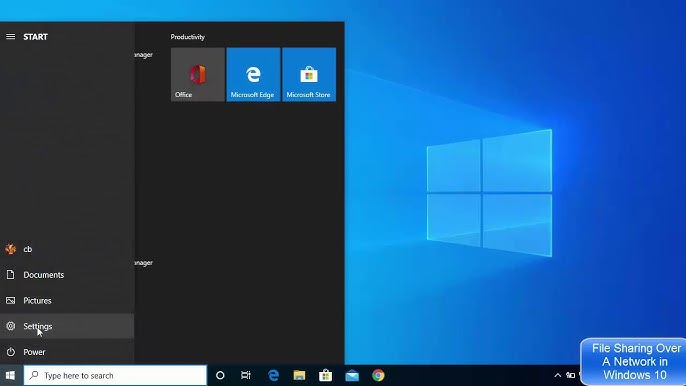
Sharing files on a local network in Windows 10 — without software (2026)
Sharing files between computers on a local network in Windows 10 is one of the most useful features for homes and offices with multiple devices. Windows 10 provides multiple built-in ways to do this without any extra software.
Step 1: Enable Network Discovery and File Sharing
Right-click the network icon in the taskbar → Open Network & Internet Settings → Network and Sharing Center → Change advanced sharing settings. Enable Turn on network discovery and Turn on file and printer sharing. Under All Networks, optionally disable Password protected sharing for easier access. Click Save changes.
Method 1: Share a Folder via File Explorer
Right-click the folder you want to share → Properties → Sharing tab → click Share. Add Everyone (or specific users) and set permissions to Read or Read/Write, then click Share and Done. From another PC, open File Explorer → click Network in the left panel → find the host PC and access its shared folders.
Method 2: Access via IP Address Directly
On the host PC, open Command Prompt and type ipconfig to find the IPv4 address. On the other PC, press Windows + R, type \192.168.x.x (the host IP), and press OK to access shared folders instantly.
Method 3: Nearby Sharing (Windows 10 v1803+)
Go to Settings → System → Shared Experiences → enable Nearby sharing → set to Everyone nearby. Repeat on the other device. To share a file, right-click it → Share → select the target device from the list.
FAQs
CONTACT US
©2026 MobiTech Integrated Solutions. . All Rights Reserved