
Router Settings Page Not Opening — All Causes and Fixes Explained
Router Settings Page Not Opening
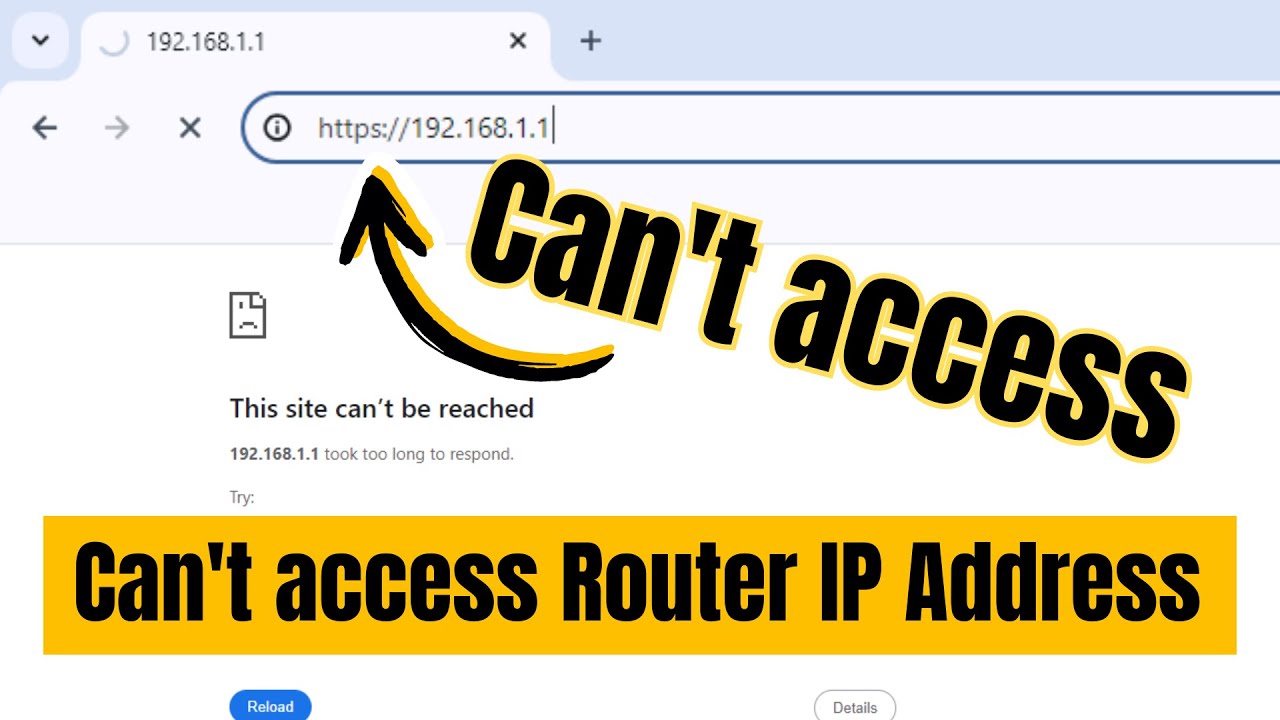
Trying to access your router's settings page and hitting a dead end? This problem isn't tied to any specific manufacturer — users of Huawei, ZTE, and TP-Link routers all encounter it. The router settings page is important because it gives you full control over your internet connection, lets you change your Wi-Fi password, see connected devices, control internet speeds, and much more.
In this guide, we'll walk through every possible cause of this problem and how to fix each one step by step — for all router types and all Egyptian ISPs including WE, Vodafone, Etisalat, and Orange.

How to Open the Router Settings Page Correctly
Start by navigating to https://192.168.1.1 in your browser. In most cases, you'll see a warning message that says "Your connection is not private." The fix here is to simply bypass this message by clicking the Advanced button at the bottom, then clicking Proceed to 192.168.1.1.
This will take you to the login page where you enter your username and password.
Causes and Fixes for the Router Page Not Opening
Fix 1: Set Your IP Address to Automatic
One common reason for the "This site can't be reached" error is that your device is using a manually configured IP address instead of the automatic default setting, which may have been changed earlier to resolve a different internet issue.
On Windows 7 and 8:
Right-click the internet icon near the clock, then click Open Network and Sharing Center, and then click Wireless Network Connection.
In the window that opens, click Properties at the bottom, then double-click Internet Protocol Version 4 in the new window. Select Obtain an IP address automatically and also select Obtain DNS server address automatically, then click OK and OK again to save the settings.
On Windows 10 and 11:
Right-click the Wi-Fi icon near the clock and click Open Network & Internet settings. In the settings page, click Network and Sharing Center, then click on your Wi-Fi network name next to the word "Connections." Then follow the same steps above to switch to automatic IP.
Fix 2: Confirm the Correct Router IP Address
Another reason the router settings page may not open is entering the wrong IP address. While 192.168.1.1 is the standard for most routers, it's worth verifying that this is actually your router's IP before assuming it's correct.
How to find your router's correct IP:
Open the Windows Command Prompt as Administrator. Press the Windows key + R together to open the Run dialog, type CMD, and press OK. Alternatively, search for CMD, right-click it, and choose Run as administrator. On Windows 10, you can press Windows key + X and select Command Prompt Admin.
Once the Command Prompt is open, type ipconfig and press Enter. Your router's IP address will appear next to Default Gateway. This is the IP address you should enter into your browser to access the settings page.
Fix 3: Use an Older or Different Browser
This fix works for the majority of users and has been verified personally. The solution is to use an older browser to access the router settings page, because some routers are no longer fully supported by modern browsers. If you're on a computer, try an older version of Chromium. If you're on a phone or tablet, try a different browser instead of Google Chrome — such as Brave or UC Browser.
Fix 4: Temporarily Disable Your Antivirus Software
Antivirus software is another common cause of the router settings page not opening. Some security programs have a built-in firewall that blocks access to the router's settings page, especially if you access it frequently — interpreting repeated visits as a potential intrusion attempt and blocking the page accordingly. Temporarily disable your antivirus software to access the router settings page, then re-enable it once you're done.
Fix 5: Factory Reset the Router
If none of the above solutions have worked, the remaining option is to factory reset the router using the small reset button on the device. This restores all router settings to their factory defaults and resolves most general connectivity issues — but only use this as a last resort when all other options have failed.
Hold the reset button for 30 seconds until the router resets to factory defaults. After the reset, you'll be able to access the settings page without any issues and reconfigure the router from scratch.
⚠️ Warning: A factory reset erases all custom settings including your Wi-Fi name, password, and any other configurations. You'll need to set everything up again from the beginning.
Bonus Issue: Wrong Username or Password at Login
If the page loads correctly but clicking Log in doesn't work, the cause is an incorrect username or password. By default, both the username and password are admin, but some routers use different credentials. To find the correct password, look at the back of your router — it's printed next to the word "Password." Make sure to enter it exactly as written, paying close attention to uppercase and lowercase letters.
💡 Note: Everything in this guide applies to all router models and all home internet providers — whether it's a WE, Vodafone, Etisalat, or Orange router.
Final Thoughts
The router settings page not opening is a frustrating problem but almost always has a straightforward fix. Start with the easiest checks — make sure the IP address is correct and your connection is set to automatic — and you'll likely resolve it within the first two steps. If not, try switching browsers or disabling your antivirus temporarily. And if all else fails, a factory reset will get you back in, though you'll need to reconfigure your router settings from scratch afterward.
FAQs
CONTACT US
©2026 MobiTech Integrated Solutions. . All Rights Reserved