
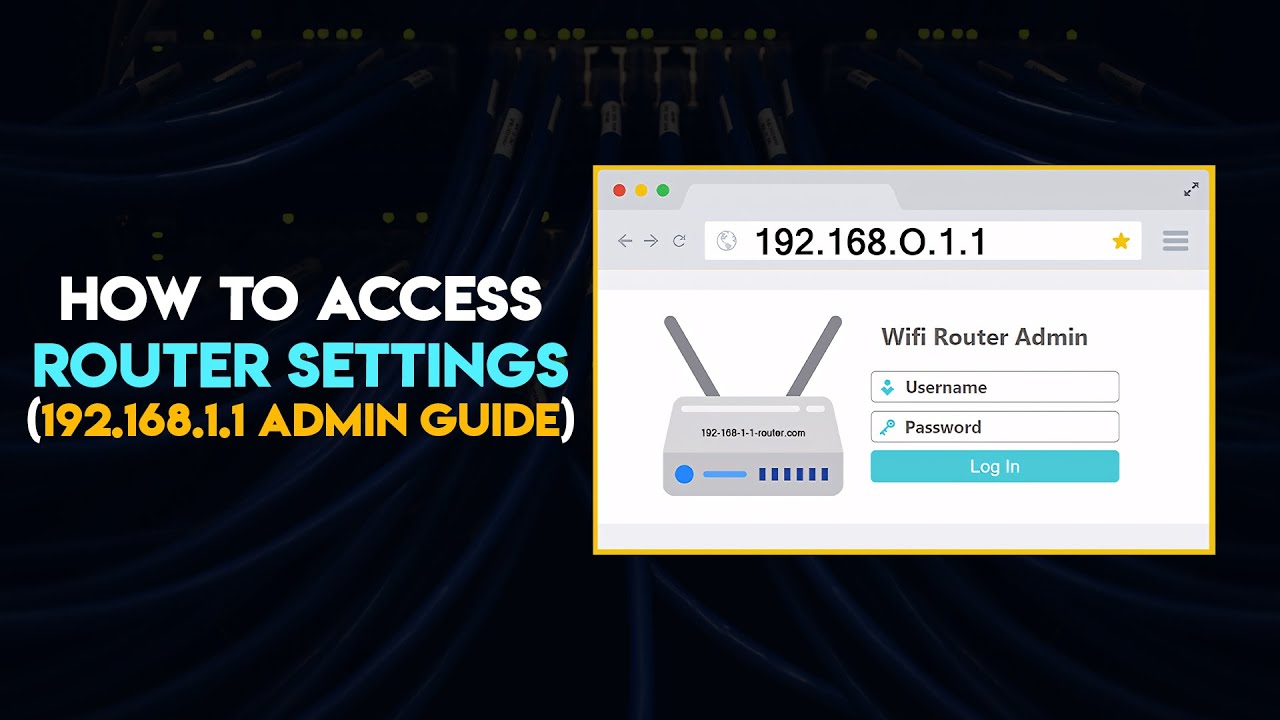
192.168.1.1 Router Settings Page & Password Change — Complete Guide
192.168.1.1 — Router Settings Page & Password Change: Full Guide
The 192.168.1.1 page gives you full control over your router regardless of its type — whether it's Huawei or any other brand — and whether you're using it with a home internet service in Egypt, Saudi Arabia, the UAE, Kuwait, Qatar, Oman, or any other Arab country, since the vast majority of routers operate on the IP address 192.168.1.1.
This guide covers everything: what the router settings page is, how to access it, how to change the Wi-Fi password for all common router types, and how to fix every login issue you might encounter.

What Is the 192.168.1.1 Router Settings Page?
It is a page provided by your internet service provider that gives you access to your home router's full configuration. You must open the 192.168.1.1 page from your own router, not from any other subscriber's device. Through this page, you can control your internet connection and configure your router settings however you prefer — including changing the Wi-Fi and router passwords, creating a new Wi-Fi network, changing the network name, hiding the network, setting speed limits, and more.
You can open the router settings page from any browser on any computer, laptop, or mobile phone — as long as you're connected to the same router's network. The page is supported by all router models, old and new, and is made available by home internet providers in Egypt such as WE and Vodafone, in Saudi Arabia such as STC, and across Kuwait, the UAE, and all other countries.
What Can You Do from the 192.168.1.1 Page?
Through the router settings page you can monitor all connected devices in detail, see who is accessing your network, view their addresses, and identify the type of each connected device. The page also lets you hide your Wi-Fi network entirely so it doesn't appear in anyone's device search results — keeping you protected from unauthorized access attempts.
You can also disconnect internet access from specific devices with a single click, and control the total network speed for both downloads and uploads. Changing your Wi-Fi network name is another option — strongly recommended if you suspect someone is trying to access your network without permission — along with changing the Wi-Fi password at the same time.
Step One: The 192.168.1.1 Login Link
First, make sure your device is connected to the router whose settings you want to access — whether you're using a computer or a mobile phone. Then type 192.168.1.1 into your browser's address bar and press Enter on a computer or tap it on mobile.
Sometimes the login page doesn't open and a Google search results page appears instead. In that case, click this link directly rather than typing the IP into the address bar: https://192.168.1.1
After clicking the IP address, a browser message may appear reading "Your connection is not private." To get past it, click the Advanced button at the bottom, then click Proceed to 192.168.1.1 — this will take you directly to the router login page.
Step Two: Username and Password
In the Username field, type admin. In the Password field, enter the router password printed on the back of the device next to the word "Password." If no password is printed on the back — common with older router models — type admin in the Password field as well. Then click the Log in button, making sure to use lowercase letters throughout.
Step Three: Changing the Wi-Fi Password from 192.168.1.1
1. WE Huawei Routers — HG630, HG633, and DG8045
These three models share almost the same settings interface, so the steps for changing the password are identical: click Home Network in the top menu of the router page, then click WLAN Settings in the left-side menu, then click WLAN Encryption on the right. In the WPA pre-shared key field, type your new Wi-Fi password — choosing something difficult to guess — and finally click Save to store the new password.
2. ZTE Router — ZXHN H168N
Click the Local Network tab in the top horizontal menu, then click WLAN in the left-side menu, then click WLAN SSID Configuration on the right. In the WPA Passphrase field, type your desired new password, then click Apply to save it.
3. ZTE Router — ZXHN H108N
Click Network in the left-side menu, then click WLAN, then click Security in the submenu below it. On the right side of the page, find the WPA Passphrase field and enter your new Wi-Fi password. Click the Submit button at the bottom to save the new password.
Step Four: Fixing 192.168.1.1 Login Problems
Sometimes after clicking the router's IP address, error messages appear such as "This site can't provide a secure connection" or "This site can't be reached" — both of which prevent you from opening the router page.
Fix 1: Verify the Correct Router IP
First, confirm you're using the correct IP address for your router, as some models use a different IP than 192.168.1.1. To find the right one, press the Windows key + R at the same time to open the Run dialog, type CMD, and press Enter to open the Command Prompt. Type ipconfig and press Enter, then look for the Default Gateway line — the IP listed there is your router's actual address.
Fix 2: Switch to an Older Browser
If the error persists even after entering the correct IP, the most likely cause is that your router is an older model no longer supported by modern browsers. Try accessing the settings page through an older browser — Chromium portable is recommended for computers. For mobile, try the Brave browser or UC Browser — both have proven effective for opening router pages on older devices.
Final Thoughts
The 192.168.1.1 page is the central hub for managing every aspect of your home network — from password changes and network hiding, to monitoring connected devices and cutting internet access for specific users. Accessing it takes just a few minutes, and if any error gets in the way, the proven fixes are all covered step by step in this guide. Whether you're in Egypt, Saudi Arabia, or anywhere else in the Arab world, the process is the same and the result is complete control over your network.
FAQs
CONTACT US
©2026 MobiTech Integrated Solutions. . All Rights Reserved