
192.168.1.1 Router Login & Password Change — Complete Admin Guide
192.168.1.1 — Router Login and Password Change: Complete Step-by-Step Guide
Through the router settings page, you gain full control over your internet connection and can manage the Wi-Fi networks broadcast from your home router. You'll also be able to see every connected device, its IP address, and its MAC address, hide your Wi-Fi network entirely, change both the Wi-Fi and router password, control internet speed for connected devices, and enhance network security by filtering connections so only specific devices can access your Wi-Fi.
In this guide, we'll walk through how to access 192.168.1.1, find your login credentials, change your Wi-Fi and router password for all common WE router models, and fix the most common issues that prevent the page from opening.

Step One: How to Open the 192.168.1.1 Admin Login Page
To open the router settings page, simply type the router's IP address into your browser's address bar and press Enter on a computer, or tap it on a mobile device. A common issue is that typing the IP into the search bar opens Google results instead of the router page — the fix is to navigate directly by clicking or typing: https://192.168.1.1
After navigating to the router login page, you may see a warning that says "Your connection is not private." The fix is to bypass this message by clicking the Advanced button at the bottom, then clicking Proceed to 192.168.1.1.
Step Two: Finding Your Username and Password
To find the login credentials for the 192.168.1.1 page, look at the back of your router. You'll find the username — which is always admin — and the password printed next to the word Password. On some older router models, no password is printed on the back, in which case the password is also admin by default.
Enter both values in the Username and Password fields on the login page, then click Log in — making sure to type "admin" entirely in lowercase.
Step Three: Changing the Wi-Fi Password from 192.168.1.1
1. WE Huawei Routers — HG630, HG633, and DG8045
These models all share essentially the same settings interface, so the steps for changing the password are identical: click the Home Network tab at the top, then click WLAN Settings on the left, then click WLAN Encryption on the left. Click on WPA pre-shared key, type the new Wi-Fi password you want, and finally click Save to apply the change.
2. ZTE Router — ZXHN H108N
After opening the router settings page, click Network from the left-side menu, then click WLAN and under it click Security. In the WPA Passphrase field, type your new Wi-Fi password, then click the Submit button at the bottom to save it.
3. ZTE Router — ZXHN H168N
After opening the router settings page, click Local Network from the top menu, then click WLAN on the left, then click WLAN SSID Configuration. In the WPA Passphrase field, type the password you want, then click Apply to save the new password.
Step Four: Changing the Router Admin Password
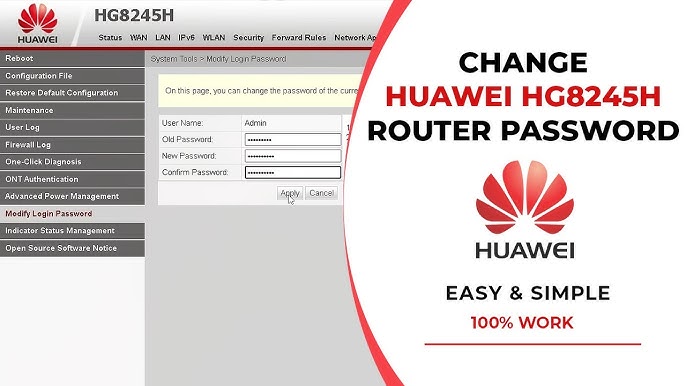
If you want to change the router's own admin password — meaning the password used to log in to the settings page itself — for HG630, HG633, and DG8045 models: after logging in, click Maintain in the top menu on the right, then click Account Management on the left, then click Edit. In the first field, enter your current router password as printed on the back of the device. In the next field, enter the new password, repeat it in the final field to confirm, then click Save.
Step Five: Fixing the 192.168.1.1 Page Not Opening
If you're seeing "This site can't be reached" or "This site can't provide a secure connection," try these fixes in order:
Fix 1: Confirm the Correct Router IP
The error may appear because your router uses a different IP address than the standard 192.168.1.1. To find the correct one, press the Windows key + R to open the Run dialog, type CMD, and press Enter. In the Command Prompt, type ipconfig and press Enter — your router's IP will appear next to Default Gateway. Enter that IP into your browser and press Enter.
Fix 2: Adjust Internet Options on Windows
Search for Internet Options in the Windows search bar and open it. In the window that appears, click the Content tab, then click Clear SSL state. Next, click the Advanced tab, scroll down to enable the required options, then click Apply and OK. Try accessing the router page again after this.
Fix 3: Use an Older or Different Browser
If the problem persists, use an older browser version. On mobile, try the device's default internet browser instead of Chrome, or use UC Browser or Brave — the page should open without issues. On a computer, try Internet Explorer or an older version of Chromium.
Final Thoughts
The 192.168.1.1 page is your gateway to full control over your home network — from changing passwords and hiding the Wi-Fi network, to monitoring connected devices and adjusting speeds. Knowing how to access it correctly and handle any issues that prevent it from opening is a must-have skill for any home internet user. Follow the steps in this guide and you'll reach the settings page quickly with minimal effort.
FAQs
CONTACT US
©2026 MobiTech Integrated Solutions. . All Rights Reserved