
Restore Windows 10 to Factory Settings — Complete Reset Guide
Restore Windows 10 to Factory Settings
Windows 10 is one of the best operating systems Microsoft has ever produced — offering great flexibility, wide options, and many free built-in tools. Among those tools is one that restores Windows 10 to its default settings, essentially performing a Windows 10 Reset as if you had freshly installed Windows 10 on your device. In general, restoring the system's default settings helps resolve many stubborn problems, returning the system to its original clean state.
When Do You Need a Windows 10 Factory Reset?
A Windows 10 factory reset is the ideal solution when: the device is extremely slow and no optimization method has worked; recurring system issues like taskbar freezes, Start menu problems, or network errors persist despite all fixes; you want to sell or give the device to someone else and wipe all your data; or the device has been deeply infected by a virus that security software couldn't remove.
Steps to Restore Windows 10 Default Settings
Step 1: Open Recovery Settings
Open the Settings app from the Start menu or by pressing Windows + I on the keyboard. In the Settings window, navigate to Update & security, then click Recovery from the left sidebar, and press the Get started button under Reset this PC.
Step 2: Choose the Reset Type
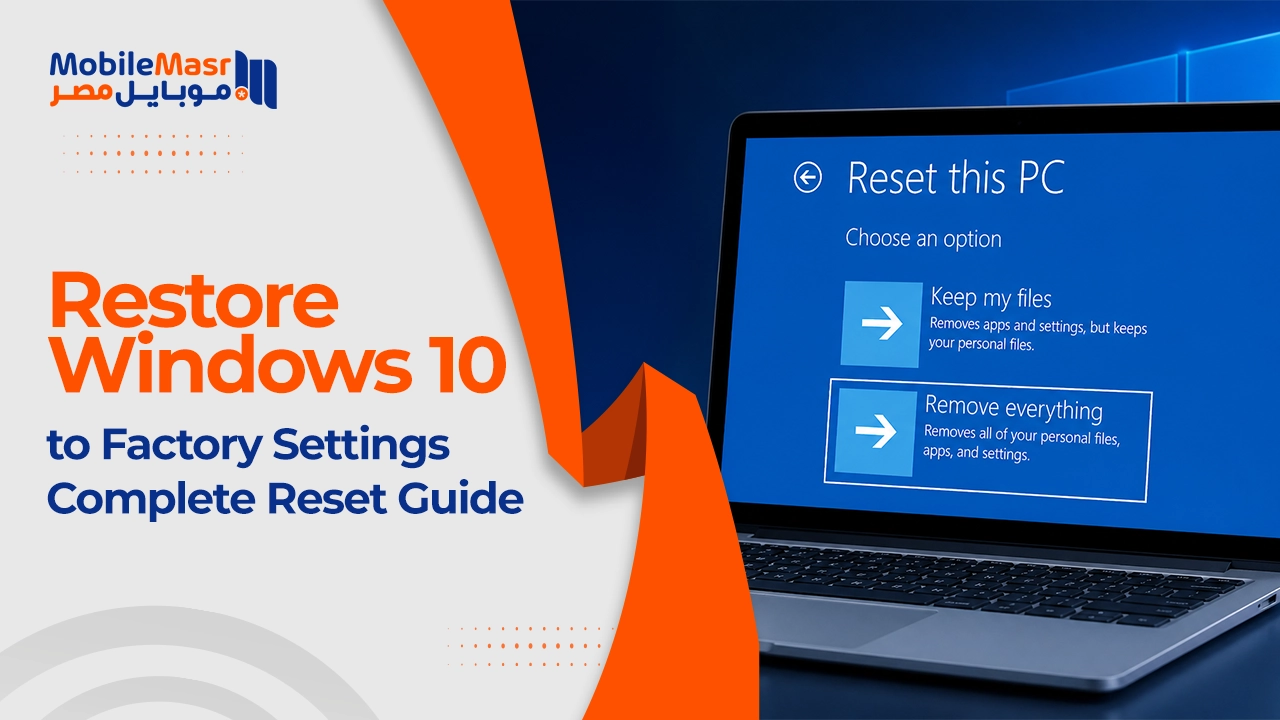
A blue window will open containing only two options: Keep my files and Remove everything.
Keep my files vs Remove everything — What's the Difference?
Option 1: Keep my files
The Keep my files option restores Windows 10 default settings while keeping personal files and photos, but deletes all installed applications and programs.
This option is ideal for anyone who wants to fix system problems without losing personal files stored on the Desktop and in Documents, Pictures, and Downloads folders.
Option 2: Remove everything
The Remove everything option will delete everything — all stored data.
This is the right choice when selling or giving the device to someone else, or when wanting a completely fresh start.
What Happens After Clicking Reset?
After clicking Next, a Ready to reset this PC screen appears listing all the steps that will take place during the reset. If you chose Keep my files, the process will delete all programs and applications, restore Windows settings to defaults, and reinstall Windows without deleting personal files. When you're ready to begin, press the Reset button.
Important Tips Before Resetting
Make sure the laptop is charged or plugged in before starting — a power cut mid-process can corrupt the system. Back up important files to a USB drive or external disk even if choosing Keep my files, as a precaution. Write down passwords and license keys for important software before starting since you'll need to reinstall everything. Make sure you have an internet connection ready afterward to re-download programs and Windows updates.
How Long Does the Reset Take?
The process typically takes between 20 minutes and a full hour depending on device speed and the chosen option. Remove everything takes longer than Keep my files since it securely wipes all data. The device will restart several times automatically during this period — this is completely normal.
Final Thoughts
A Windows 10 factory reset is the most comprehensive solution for persistent system problems — and it's far easier than reinstalling Windows manually from a USB drive. Choose Keep my files if you want to preserve your data, and Remove everything for a full clean wipe.
FAQs
CONTACT US
©2026 MobiTech Integrated Solutions. . All Rights Reserved