
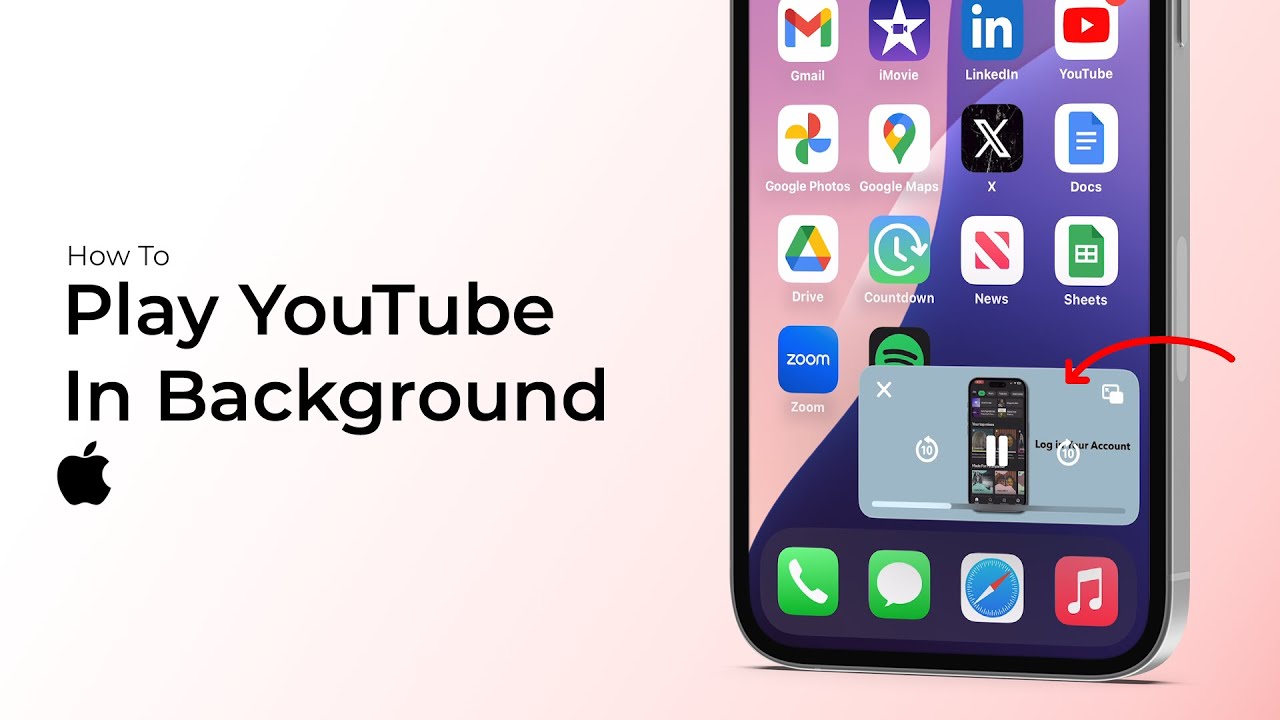
Play YouTube in Background on iPhone 2026 — Two Free Methods: Via Safari Without Apps and a Dedicated App With Full Control
Why Does YouTube Stop Sound When the Screen Locks?
YouTube's free official app stops sound immediately when you close the screen or switch to another app — this isn't a bug but a deliberate business decision by Google to push users toward the paid YouTube Premium subscription. Subscribers get background play, video downloads, and ad removal.
But there are two completely free methods that provide the same feature without any subscription.
Method 1 — Via Safari Without Any Apps
This method exploits the "Request Desktop Website" feature in Safari to trick YouTube into thinking you're browsing from a computer — which automatically allows background audio playback.
Step 1 — Search for the Video in Safari
Open the Safari app on your device (not the YouTube app). In the address/search bar type the name of the video, song, or music you want to listen to, or navigate directly to youtube.com. Find the desired video and tap it to start playing.
Step 2 — Enable Desktop Mode
Notice in Safari's address bar you'll find an "AA" icon or small icon on the left side of the search bar. Tap it to open page settings. From the menu tap "Request Desktop Website."
Step 3 — Wait for Page Reload
The page will reload automatically with a different interface resembling YouTube on a computer. The video will restart — search for it again and start playing.
Step 4 — Exit Safari While Sound Continues
Press the home button or swipe up to exit Safari — but don't close the tab. The sound will continue playing in the background normally. You can now browse any other app while the sound plays.
Controlling Sound From Lock Screen
Swipe down from the top of the screen (or up from the bottom depending on your device model) to open Control Center. You'll find the audio player showing that YouTube is playing via Safari. You can pause, resume, and adjust volume directly from here.
Why Does This Method Work?
When Desktop Website is requested, YouTube thinks the user is browsing from a computer browser — and on computers browsers are allowed to play audio in the background normally. iOS applies the same behavior allowing sound to continue when exiting Safari.
Method 2 — The "Background" Dedicated App
If you want a more professional experience with full control and the ability to skip between songs and listen to playlists, the "Background" app from the App Store is the solution. It allows listening to YouTube content while using other apps or even when the screen is locked, with full control from the iPhone's Control Center.
Its features: pause, resume, skip forward, skip back, and seek through the timeline — all from the lock screen or Control Center. Works in the background without needing to stay in the app.
Comparing the Two Methods
The Safari method is the simplest and fastest with no installation needed — perfect for occasional use. The dedicated "Background" app provides a more stable experience with broader control — ideal for those who listen to YouTube daily.
FAQs
CONTACT US
©2026 MobiTech Integrated Solutions. . All Rights Reserved