
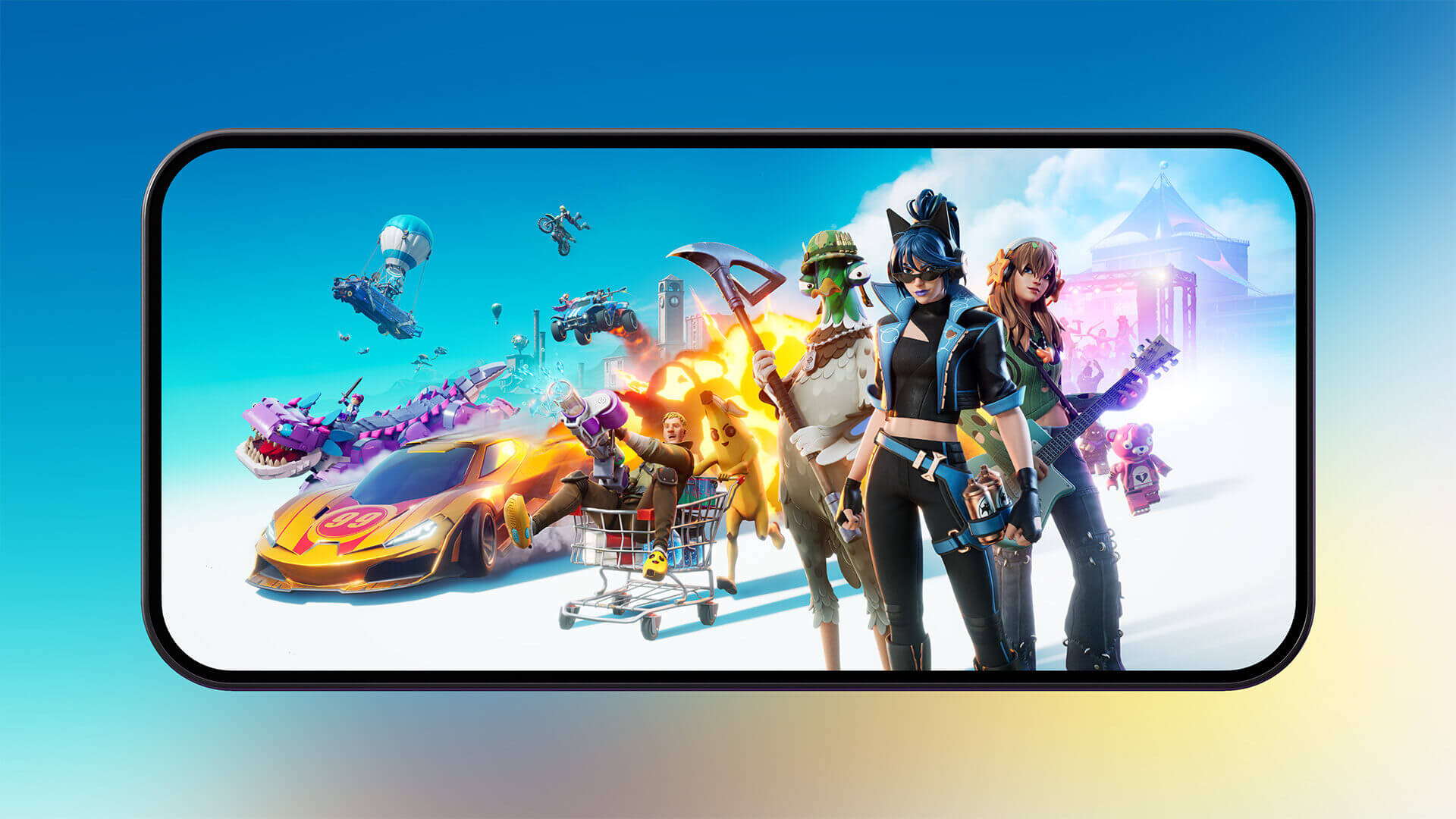
Play Fortnite on iPhone 2026 via GeForce NOW — Complete Step-by-Step Guide Without App Store, Officially and Free
Why Isn't Fortnite Available on the App Store?
Fortnite is one of the most popular Battle Royale games in the world, but it has been absent from the App Store since 2020. The reason is a well-known dispute between Epic Games (Fortnite's developer) and Apple over the 30% commission Apple takes from in-app purchases. Epic refused to comply unilaterally and Apple removed the game from its store, with the legal battle between them dragging on for years.
The good news is that Nvidia has delivered the perfect solution — GeForce NOW lets you play Fortnite on iPhone officially, fully, and for free through cloud streaming, without any direct download.
What Is GeForce NOW and How Does It Work?
GeForce NOW is a cloud game streaming service from Nvidia — the world's most renowned graphics card manufacturer. The concept is simple: the game runs on Nvidia's powerful servers and you control it via your internet connection from your phone. Your phone doesn't need to be powerful since the actual processing happens on the server.
This means you can play Fortnite at high quality even on relatively older iPhones, as long as you have a good internet connection.
What You Need Before Starting
Before going through the steps, make sure you have the following: an internet connection of at least 15 Mbps for a smooth experience (25 Mbps or more is ideal), an updated Safari browser on your device, an account on one of the supported login platforms such as Google, Apple, Twitch, or a direct Nvidia account, and if you live outside Saudi Arabia or the UAE, a VPN app to change your geographic region.
Regarding iOS version — this method works on any version from iOS 11 up to the latest current version iOS 26, making it compatible with virtually any iPhone.
Why Do You Need a VPN If You're Not in Saudi Arabia or UAE?
GeForce NOW's free gaming service is available in limited countries in the Middle East, primarily Saudi Arabia and the UAE. If you're in Egypt, Kuwait, Jordan, or any other Arab country, you'll need to run a VPN pointed to one of those two countries to access the service. Choose a trusted VPN app and activate it before opening Safari.
Steps to Play Fortnite on iPhone via GeForce NOW
Step 1 — Enable VPN If Needed
Open your VPN app and choose a connection to Saudi Arabia or the UAE. Confirm the connection is successful and that your internet is working normally before proceeding. This step is only necessary for those outside those two countries.
Step 2 — Open the GeForce NOW Website in Safari
Open Safari and navigate to play.geforcenow.com. You'll see the site with instructions for adding it to your home screen. It's important to use Safari specifically and not any other browser since adding the site to the home screen works through the PWA feature in Safari only.
Step 3 — Add GeForce NOW to Your Home Screen
In Safari, tap the Share icon (the small square with an upward arrow) in the toolbar at the bottom of the screen. A menu of options will appear — tap "Add to Home Screen." On the next screen you'll see the app name and icon, tap "Add" in the upper right corner. You'll now find the GeForce NOW icon on your home screen just like any regular app.
Step 4 — Open the Emulator and Accept Terms
Tap the GeForce NOW icon from your home screen. The privacy and usage terms screen will appear — read them if you wish then tap "Accept and Continue" to enter the main service interface.
Step 5 — Sign In or Create an Account
Tap "Sign In" in the upper left of the screen. Several platforms will appear: direct Nvidia account, Google, Apple, Twitch, or Facebook. Choose the platform that suits you and enter your email and password. After successful login tap "Done" to return to the emulator interface.
Step 6 — Find Fortnite
After signing in you'll find yourself facing a large game library. Search for "Fortnite" in the search bar or browse the "Free to Play" section. Tap the game to open its detail page.
Step 7 — Start Playing
Tap the "Play" button. The emulator will begin preparing your session — this process typically takes 30 seconds to two minutes depending on server load. You'll go through three stages: finding an available server, preparing the gaming device, then launching the game itself.
Step 8 — Sign In With Your Epic Games Account
When the game opens it will ask you to sign in with an Epic Games account (different from your Nvidia account). If you have a previous Fortnite account from Android or PC, enter its credentials to recover your progress and purchases. If you're new, create a free new account.
Tips to Improve Your Gaming Experience
For best performance, make sure you're connected to Wi-Fi rather than mobile data. Close all other background apps. Set the display quality to "Auto" in GeForce NOW settings to automatically match your internet speed. Use earphones for a better audio experience and to distinguish sound directions.
Difference Between Free and Paid Accounts
The free account gives you gaming sessions with a maximum of one hour continuously, and you may wait in a queue for an available server especially during peak hours. A paid subscription (Priority or Ultimate) gives you longer sessions, priority server access, and higher graphics quality up to 4K. For most players the free account is more than sufficient.
FAQs
CONTACT US
©2026 MobiTech Integrated Solutions. . All Rights Reserved