
How to Update iOS on iPhone — A Comprehensive Guide 2026
How to Update iOS on iPhone — Complete 2026 Guide
Keeping an iPhone up to date ensures the latest features, security patches, and performance improvements from Apple. Updating iPhone is one of the easiest ways to keep it secure and running smoothly.
Latest available version: The latest version of iOS and iPadOS is 26.3.1.
Why Update iOS?
iOS updates regularly patch security vulnerabilities that could be exploited by cybercriminals. These patches close doorways that bad actors might use to access personal information. Skipping updates may leave the device vulnerable to bugs or security risks.
Apple issues a big update to iOS once a year bringing new features and interface tweaks to many iPhones. Following the major release, subsequent updates come with bug fixes, security upgrades, and additional new features, arriving every six to eight weeks on average.
Pre-Update Preparation
Before updating: back up the device using iCloud or a computer, plug the device into power, and connect to the internet with Wi-Fi.
Method 1: Wireless Update Directly on the Device (Easiest)
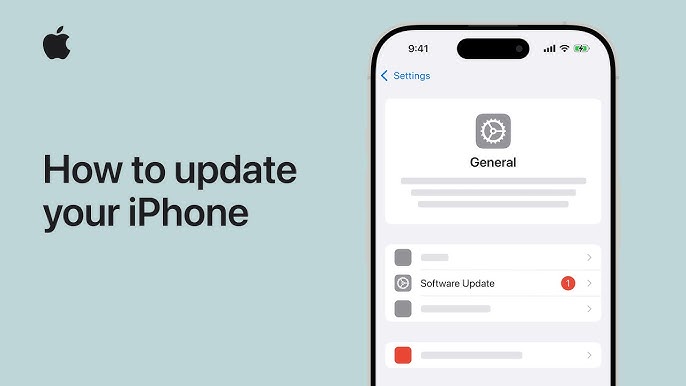
Open Settings → tap General → tap Software Update → the currently installed iOS version is shown, and whether an update is available → if an update is available, tap Download and Install → follow the onscreen instructions.
The device can still be used during the download, and it will notify when the update is ready to install.
After download completes: enter the passcode if prompted → iPhone will restart automatically to complete installation.
Method 2: Update via Finder on Mac (macOS Catalina and Later)
Confirm the computer is running macOS Catalina or later → open a Finder window → connect the device to the computer → select the device in the left sidebar of the Finder window → click General → click Check for Update → click Download and Update → follow onscreen instructions → enter passcode if asked.
Method 3: Update via iTunes on Windows or Older Mac
On a Mac (macOS 10.14 or earlier) or a Windows device: open the iTunes app → click the button resembling an iPhone near the top left of the iTunes window → click Summary → click Check for Update → to install an available update, click Update.
Make sure the latest version of iTunes is installed on the computer. Connect iPhone with a cable → keep it connected until the update completes.
Method 4: Automatic Updates (Recommended)
iPhone can automatically download and install system updates. Open Settings → tap General → tap Software Update → tap Automatic Updates.
Settings → General → Software Update → Automatic Updates → enable Download iOS Updates and Install iOS Updates. The phone will download and install updates overnight while charging and connected to Wi-Fi.
2026 note: After installing iOS 26.2, Apple may automatically enable automatic updates for users who tap "Continue" without reading. Pay attention to notifications that appear immediately after completing an update.
Solving Common Update Problems
Problem: Not enough storage space Enough storage space is needed on the device to download an update. The device can remove app data that can be downloaded again without affecting personal data. Settings → General → iPhone Storage → tap Enable next to Offload Unused Apps.
Problem: Download failure If there's still trouble installing the latest iOS: Settings → General → iPhone Storage → find the update in the apps list → tap it → tap Delete Update → then Settings → General → Software Update to download the latest update again.
Problem: Update not appearing Check Settings → General → VPN & Device Management — if a beta profile or management profile is installed, it might block updates.
FAQs
CONTACT US
©2026 MobiTech Integrated Solutions. . All Rights Reserved