
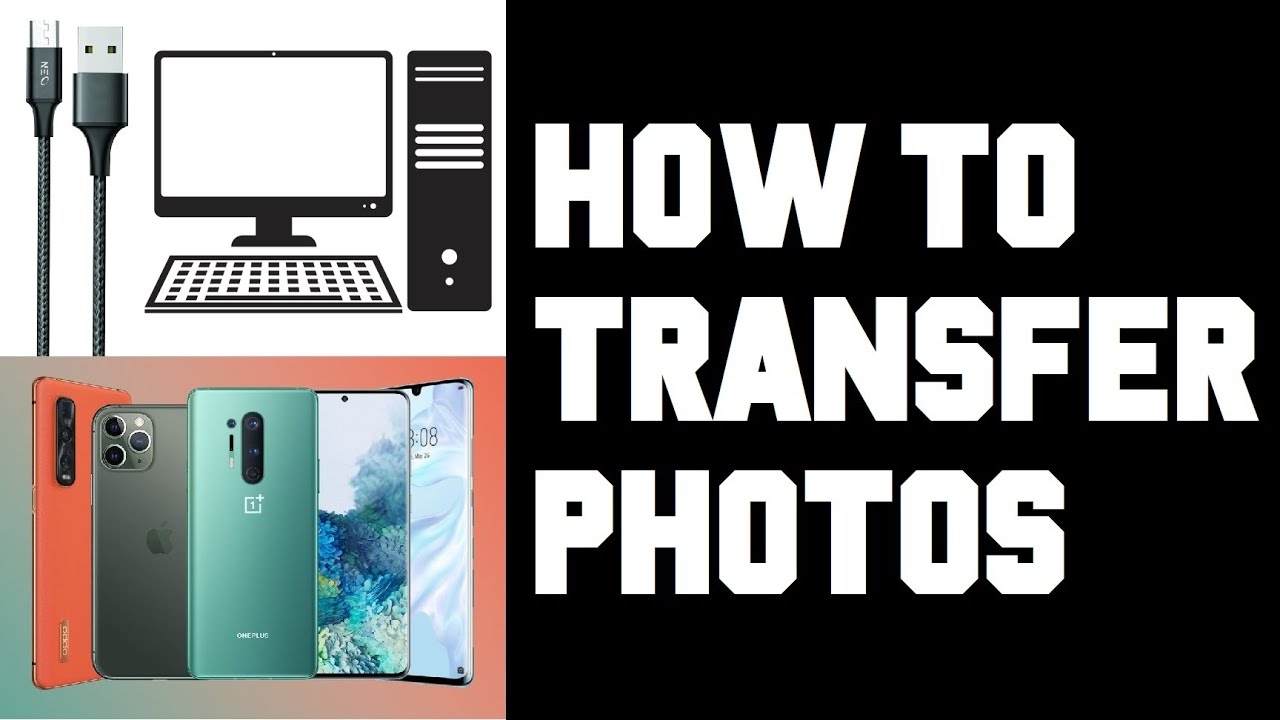
How to Transfer Photos from Phone to Computer — Android and iPhone Guide 2026
How to Transfer Photos from Phone to Computer — Android & iPhone Complete Guide 2026
Part One: Transfer Photos from Android to Computer
Method 1: USB Cable — Fastest and Most Reliable
Connect the Android phone to the computer via USB cable → tap Allow when the "Allow access to device data" message appears → pull down the notification shade and tap the USB notification → select File Transfer (MTP).
On Windows: open File Explorer → find the phone under "This PC" → navigate to DCIM → Camera → select the desired photos → copy and paste them into a folder on the computer.
On Mac: Install Android File Transfer from android.com/filetransfer → connect the phone → open the app → navigate to DCIM → Camera → drag photos to a folder on Mac.
Method 2: Windows Photos App (Guided Import)
Connect the phone to the computer via USB cable and unlock it → press the Start button and open the Photos app → click Import → select the connected device → follow the instructions to choose which photos to import and where to save them.
Method 3: Google Photos — Wireless and Automatic
Google Photos is a specialized service for moving photos between devices. Connect the phone and computer to the same Google Photos account and let it sync automatically. After that, all photos will be accessible from both devices. On the computer, open photos.google.com → find all photos → select the desired ones → tap the download icon to save them to the computer.
Part Two: Transfer Photos from iPhone to Computer
Method 1: USB Cable via File Explorer (Windows)
Connect iPhone to the computer via USB cable → unlock the phone and tap Trust when the "Trust This Computer" message appears → open File Explorer (Windows + E) → find iPhone under "This PC" → open Internal Storage → navigate to the DCIM folder → photos are here divided into folders (100APPLE, 101APPLE...) → copy desired photos and paste them into a folder on the computer.
Important note: If photos are stored in iCloud and not on the device, download them first by going to Settings → [Your Name] → iCloud → Photos → enable "Download and Keep Originals."
Method 2: Windows Photos App (Organized Import)
Launch the Photos app on Windows → connect iPhone with USB cable → click Import → select Apple Phone → choose the photos to import → click Import. Use "Select New" to import only new photos not previously transferred.
Method 3: iCloud — Wireless Without Cable (Windows)
On iPhone: Settings → [Your Name] → iCloud → Photos → enable iCloud Photos. On the computer: download and install iCloud for Windows from the Microsoft Store → sign in with the same Apple ID → enable Photos → select "Download new photos and videos to my PC" → photos will appear in the iCloud Photos folder inside File Explorer.
Free limit: 5GB only — more photos require an iCloud+ plan.
Method 4: Mac Photos App
If iCloud Photos is used, photos sync automatically with Mac. If not using iCloud or storage is full: connect iPhone to Mac via USB cable → open the Photos app on Mac → an Import screen will appear with all photos and videos → click the device name in the sidebar if it doesn't appear automatically → choose where to save → select photos and click Import Selected or Import All New Photos.
Method 5: AirDrop (iPhone to Mac Only)
Enable Wi-Fi and Bluetooth on both iPhone and Mac → open the Photos app on iPhone → select the photos to transfer → tap the Share icon → select AirDrop → choose Mac from the list of available devices. Photos arrive instantly in the Mac Downloads folder. Ideal for a small number of photos.
Method 6: iCloud.com (Direct Download from Browser)
Open iCloud.com in any browser on the computer and sign in with Apple ID → open Photos → select the photos to download → click the download icon. No software installation needed. Works on Windows, Mac, and Linux.
FAQs
CONTACT US
©2026 MobiTech Integrated Solutions. . All Rights Reserved