
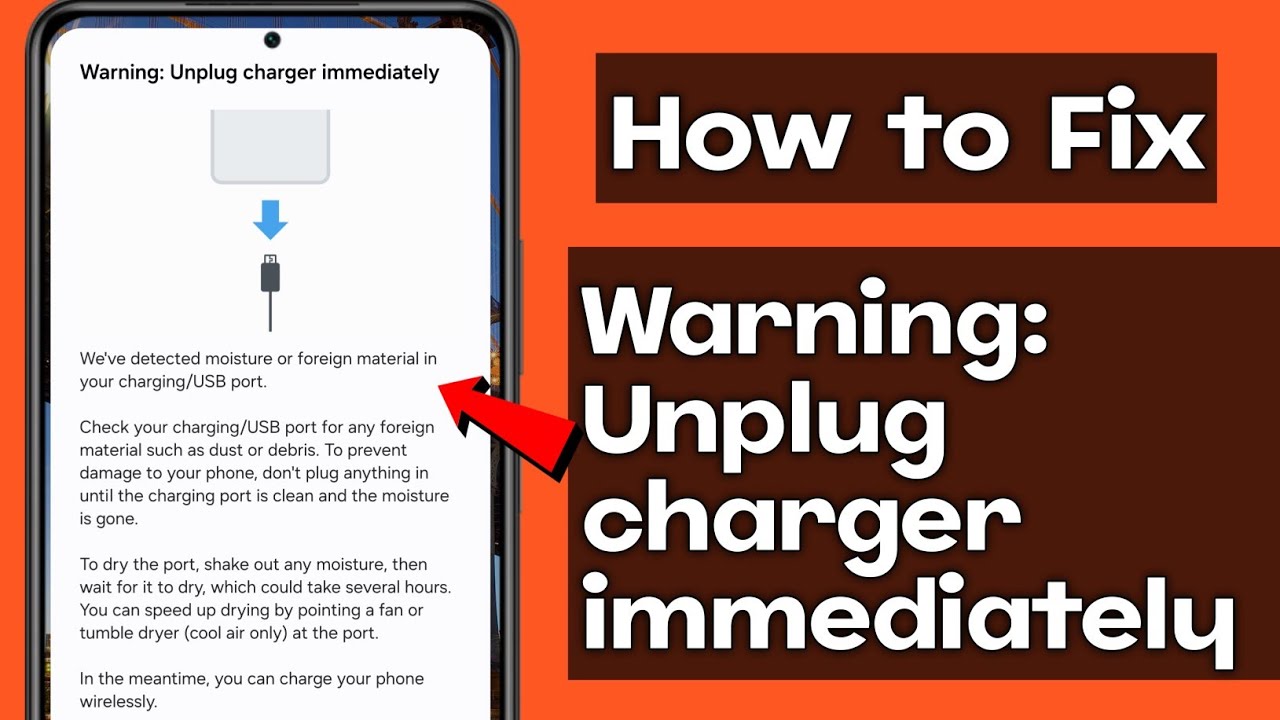
How to Stop the "Unplug Charger" Message on Android — Samsung, Xiaomi, Pixel, and iPhone Without Rooting
How to Disable the "Unplug Charger" or "Battery Fully Charged" Notification on Android — Complete 2026 Guide
Annoyed by the "Unplug Charger" notification going off repeatedly at night? Here's every available method to silence or disable it across different Android devices.
Why Does This Notification Appear?
The notification exists to encourage electricity conservation — the phone and charger continue drawing power from the outlet even after the battery is fully charged.
In some cases, when the device heats up during charging, the system's overheating protection algorithm activates, stops charging, and triggers the "Unplug charger" popup to prevent damage.
Method 1: Disable from the Notification Itself (No Root Required)
The easiest method requires no root access: long-press the notification → tap the app settings icon → uncheck "Show notifications" for that app.
Detailed steps: Pull down the notification shade → long-press the charger notification → tap the Settings icon that appears → disable notifications for this app.
Method 2: By Device Brand
Samsung: Settings → Notifications → search for "battery" or "charger" → find the responsible notification category → disable it. Some One UI versions include a dedicated toggle under Settings → Battery → Charging.
Xiaomi/Redmi/POCO: Settings → Battery & Performance → look for "Remind to remove charger" or similar toggle. Alternatively: Settings → Apps → find the battery management app → Notifications → disable.
Google Pixel: If the "Unplug charger" message appears more than once, it may indicate a real issue with the port or cable that warrants contacting support. For the standard notification: Settings → Apps → See all apps → search for Battery Settings → Notifications → disable.
Method 3: Silence the Sound While Keeping the Visual Notification
If you want to keep the notification visible but stop the audible alert at night: Settings → Notifications → Battery/Charging notifications → change from "Sound + notification" to "Silent."
Method 4: Use Do Not Disturb Mode
The quickest temporary fix: enable Do Not Disturb mode during sleeping hours to block all sounds including the charger notification. Settings → Sound → Do Not Disturb → schedule it to activate automatically during your sleep hours.
FAQs
CONTACT US
©2026 MobiTech Integrated Solutions. . All Rights Reserved