
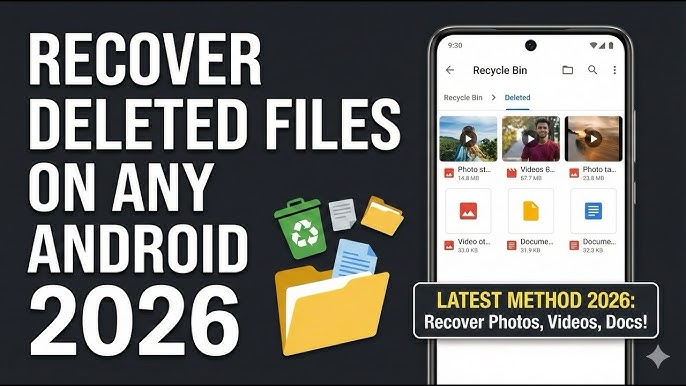
How to Recover Deleted Photos from Android — Google Photos, Samsung, and Specialized Software (2026)
How to Recover Deleted Photos from an Android Phone — Complete 2026 Guide
Deleting a photo on an Android phone doesn't usually mean it instantly disappears forever. When a file is deleted, the phone doesn't physically erase the data — it simply marks the space that photo occupied as "available" for new information. As long as that space hasn't been overwritten by something else, the original photo is still there, waiting to be found.
The key is to act fast and stop using the phone for anything that might write new data — especially taking more photos or downloading files.
Method 1: Trash in Google Photos (60-Day Window)
When photos are deleted from Google Photos, they aren't removed from the device immediately — they move to the Trash. Navigate to the Library tab and tap Trash in the top right. All image files deleted within the last 60 days will be here. Tap and hold the first photo to start a selection, then tap the rest to add them to the selection.
From the bottom of the screen, tap Library → Trash → touch and hold the photos to restore → tap Restore at the bottom. When restoration is complete, the retrieved photos will return to the Samsung Gallery app, Google Photos library, or the albums they were originally stored in.
Important note: Google Photos keeps deleted photos in Trash for 60 days only. Photos cannot be restored if they were never backed up before deletion, if more than 60 days have passed, or if the Trash has been manually emptied.
Method 2: Samsung Gallery Recycle Bin (30-Day Window)
When photos are deleted from Samsung Gallery, they don't get permanently deleted — they move to the Trash or Recently Deleted folder. Steps: open the Gallery app → tap the three-dot menu → select Trash → all photos deleted within the last 30 days will appear → tap the photos to restore → tap Recover.
If the Recycle Bin is not visible in Gallery: open Gallery → three-dot menu → Settings → find and enable Recycle Bin or Trash.
Method 3: Restore from Google Drive
If Google Drive is used for backups, files can be retrieved from it — though the window is shorter, only 30 days, half that of Google Photos. Run the Google Drive app → slide from the left to open the menu → choose Trash → all files deleted within the last 30 days will appear → tap and hold the first file to begin selection.
Method 4: Restore from Samsung Cloud
Samsung Cloud provides 15GB of free storage. With Gallery backup enabled, photos are automatically transferred to Samsung's servers and can be restored even if the phone is severely damaged. To restore: Settings → Cloud and Accounts → Samsung Cloud → Restore → scroll down and select Photos only → tap Restore.
Samsung Cloud also has its own recycle bin that keeps deleted photos for 15 days. Open Gallery → three dots → Settings → Cloud Recycle Bin → select the photos to restore → tap Restore.
Method 5: Restore from OneDrive
If Microsoft OneDrive is used for regular photo backups: open OneDrive on Android → tap Photos in the bottom control panel → select the photos to recover → tap the three-dot menu → tap Save to recover them to the device gallery.
Method 6: Recover from SD Card
If the phone has an SD card and photos were stored on it: remove the SD card and connect it to a computer. Then use specialized data recovery software such as EaseUS Data Recovery Wizard to scan the card and recover deleted photos.
Method 7: Specialized Recovery Software (After Grace Period Ends)
One highly recommended tool is DiskDigger. Download it for PC and install the companion app from Google Play. Enable Developer Options (Settings → About Phone → tap Build Number seven times → System → Developer Options → enable USB Debugging). Connect the phone to the computer, run DiskDigger, choose Basic Scan, select the phone's internal storage, and let the scan run (10–30 minutes). Preview recoverable photos and select the ones to save to a safe location on the PC.
Top specialized tools in 2026: Tenorshare UltData for Android, EaseUS MobiSaver, DiskDigger, Dr.Fone, and iMobie DroidKit.
FAQs
CONTACT US
©2026 MobiTech Integrated Solutions. . All Rights Reserved