
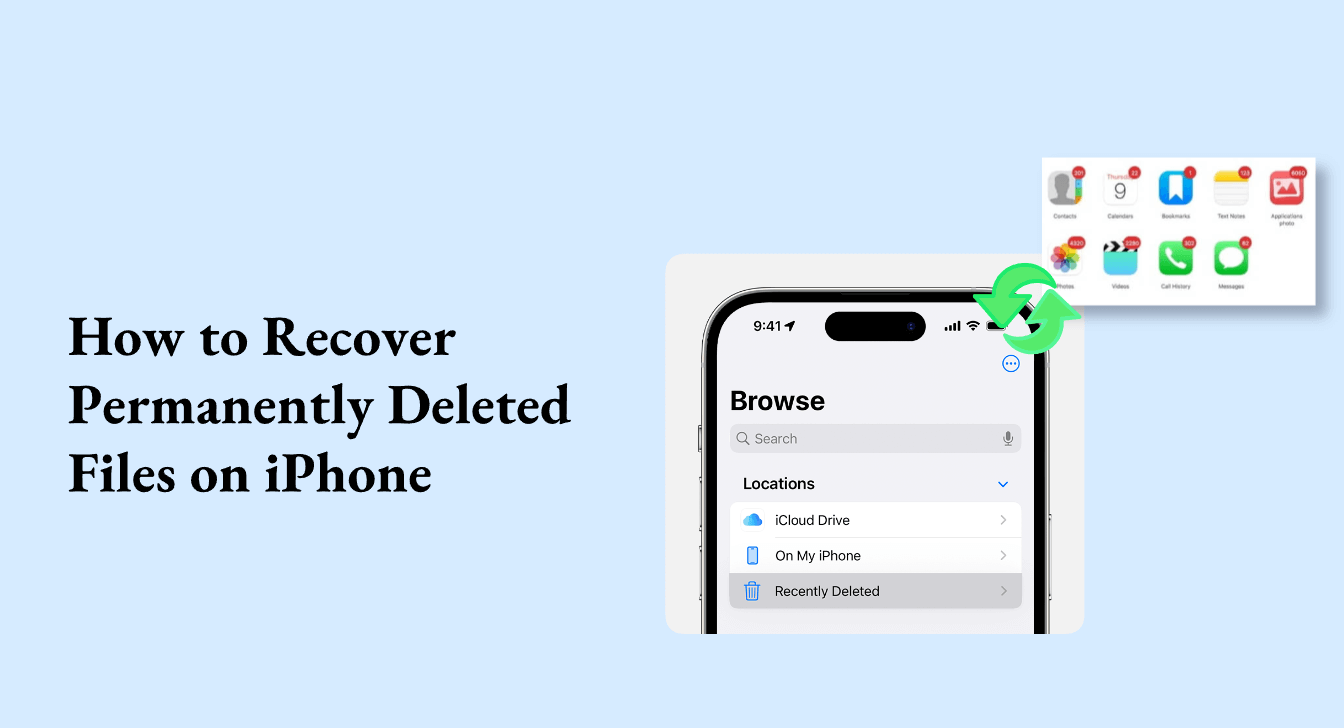
How to Recover Deleted Files from iPhone — 7 Free and Paid Methods (2026)
How to Recover Deleted Files from iPhone — Complete 2026 Guide
On an iPhone, "permanently deleted" doesn't always mean the file is gone for good — at least not immediately. When a photo or video is deleted, it moves to the "Recently Deleted" folder in the Photos app, where it's held for 30 days. This built-in buffer allows users to restore accidentally deleted files without much hassle. After 30 days, the file is automatically removed and considered permanently deleted. At that point, recovery becomes more challenging, often requiring backups or specialized tools.
Act Fast — The Most Important Rule
Time is critical — the sooner recovery is attempted, the better the chances. Every photo taken, app downloaded, or message sent could potentially overwrite deleted files. Larger files like videos are more vulnerable to being overwritten because they need more storage space, while smaller files like documents have a better chance of staying intact.
Method 1: Recently Deleted Folder — Fastest and Easiest
This method is perfect for recent accidental deletions and requires no tools or backups. Open the Photos app → tap Albums → scroll down and open Recently Deleted → tap Select at the top-right corner → choose the photos to restore → tap Recover to move them back to the main photo library.
Note: Since iOS 16, accessing the Recently Deleted and Hidden albums requires Face ID or Touch ID. This can be disabled in Settings → Apps → Photos by toggling off the Use Face ID option.
Method 2: Check the Hidden Album
Before attempting more complex recovery methods, it's worth checking whether photos are hidden rather than deleted by going to the Hidden album in the Utilities section.
Photos → Albums → Utilities → Hidden
Method 3: Restore from iCloud
From the Recently Deleted folder on iCloud.com:
Go to icloud.com → log in with Apple ID username and password → select Photos → click the Recently Deleted album → select the photo to restore and click Recover. It will be restored to the photo albums and synced back to the iPhone once it connects to iCloud again.
Important note: iCloud syncs with the device. Deleting something on iPhone also removes it from the iCloud library. As a result, iCloud requires a saved backup containing the deleted files.
Method 4: Restore from a Full iCloud Backup
To recover permanently deleted files from an iCloud backup: Settings → [your name] → iCloud → iCloud Backup — confirm backup is enabled. Then Settings → General → Transfer or Reset iPhone → Erase All Content and Settings. After the device has been erased and restarted, follow onscreen setup until the "Apps & Data" screen, then tap "Restore from iCloud Backup." Enter Apple ID and password to sign in.
Warning: This method replaces all current data with the backup content — choose a backup from a date before the deletion occurred.
Method 5: Restore via iTunes or Finder (Computer)
To restore deleted files from an iTunes backup (Windows or macOS Mojave and earlier): connect iPhone to the computer to launch iTunes → click the Device icon in the top-left corner → choose Summary from the Settings menu → click Restore Backup → follow onscreen instructions.
On Mac with macOS Catalina or later: open Finder → connect iPhone → select the device from the sidebar → click "Restore Backup."
Method 6: Search iMessage Threads and Shared Albums
Even if a photo was deleted from iPhone, a copy may still exist in iMessage threads, shared albums, or other apps where the image was sent or saved. Open the Messages app → go to the relevant conversation → tap the contact's name → Photos → See All → scroll through shared media attachments.
Method 7: Specialized Recovery Software (After 30 Days)
Unlike methods with strict time limits or requiring iPhone erasure, specialized software takes a fundamentally different approach: no backup is required. It scans the device's internal storage directly to find traces of deleted files — even months after deletion — as long as storage space hasn't been overwritten. These tools can recover 35+ data types: photos, videos, messages, contacts, documents, notes, call history, WhatsApp data, and more.
Leading tools in 2026: Tenorshare UltData, Dr.Fone, PhoneRescue for iOS, and iMobie.
Emergency Tip When Deletion Is Discovered
Every photo taken, app downloaded, or message sent could potentially overwrite deleted files. Stop using the phone as much as possible the moment deletion is discovered. Consider enabling Airplane Mode temporarily to prevent automatic iCloud sync until the appropriate recovery method is chosen.
FAQs
CONTACT US
©2026 MobiTech Integrated Solutions. . All Rights Reserved