
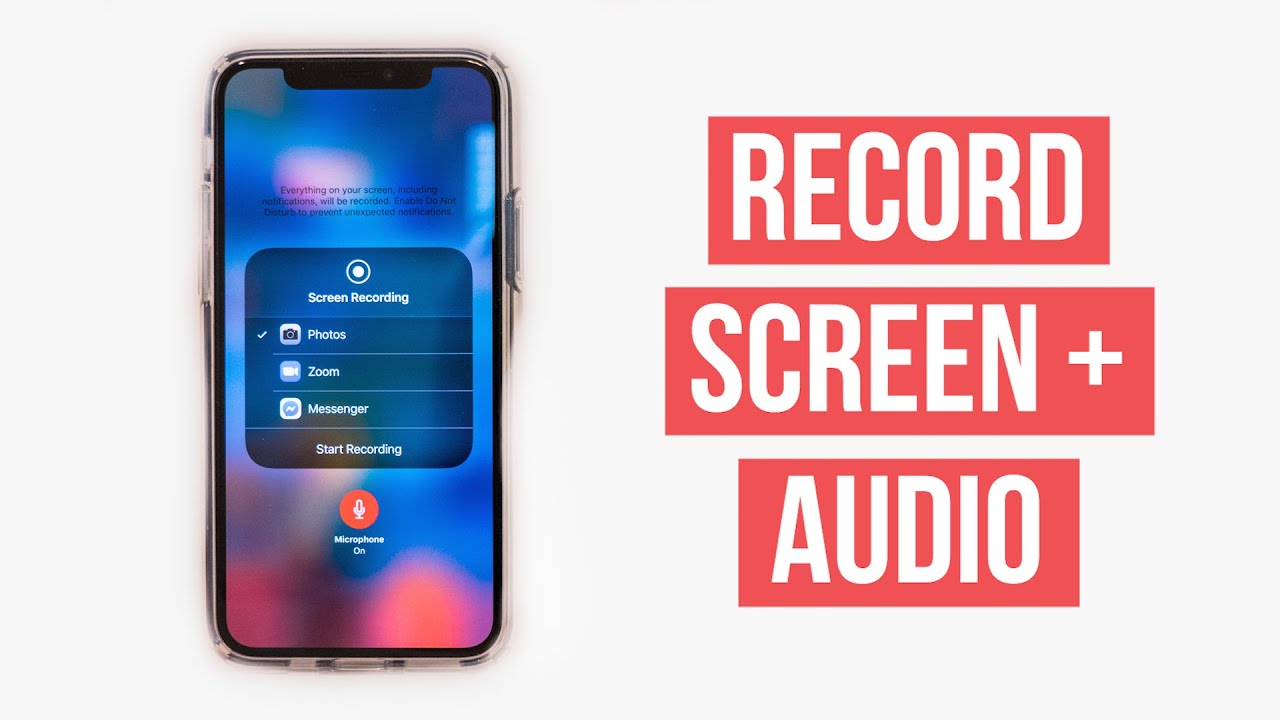
How to Record iPhone Screen with Audio — Built-in Method & Best Apps
How to Record Your iPhone Screen with Audio
Screen recording on iPhone is an important feature for anyone who wants to capture what's happening on their phone's screen with both audio and video — whether for creating tutorials, sending a walkthrough to a friend, or countless other purposes. There are two ways to do it: the first method requires no apps and uses Apple's official Screen Recording tool available on iOS 11 and later, and the second method uses dedicated third-party apps developed specifically for this purpose.
Method One: Record iPhone Screen Without Any Apps
iOS includes a built-in Screen Recording tool that lets you record your iPhone screen without installing any additional apps, and it also supports high-quality audio recording. After recording, the video is saved to the Photos app where you can edit it as needed.
How to add Screen Recording to Control Center:
The Screen Recording shortcut doesn't appear in Control Center by default — you need to add it manually. Open Settings, then go to Control Center. Scroll down to find Screen Recording and tap the + button next to it to add it as a shortcut to Control Center.
How to start recording:
Swipe up to open Control Center and you'll see the Screen Recording icon has been added. Tap it and a three-second countdown will begin, after which iPhone screen recording starts automatically.
How to record your own voice during recording:
To record your personal voice commentary during the recording, press and hold the Screen Recording icon instead of tapping it, then tap the Microphone icon to enable it, and tap Start Recording.
How to stop recording:
A red status bar at the top of your screen shows that recording is in progress. To stop, tap that red bar and then tap Stop in the message that appears. Alternatively, swipe up to open Control Center again and tap the Screen Recording icon, then tap Stop Recording.
After stopping, a notification will appear at the top of your screen confirming where the video was saved. Tap it to open and view the recording. The video is saved in Photos, where you can trim and edit it directly.
Method Two: Best iPhone Screen Recording Apps
1. Screen Recorder for iPhone
This is a powerful app dedicated to iPhone screen recording, capturing everything that happens on your screen at high quality with clear internal audio. It includes a built-in video editor so you can edit your recordings without needing other apps, and you can add your own voice commentary directly to the recorded video.
The app also lets you convert short video clips into GIF animations for sharing online, supports live streaming to Facebook and YouTube, and gives you full control over video quality including Bit Rate and frame rate settings.
2. TechSmith Capture
Developed by the well-known TechSmith company and available for free to iPhone and iPad users. It lets you record your screen with high-quality audio and is ideal for creating step-by-step tutorials that show what's happening inside apps.
A key feature is the ability to wirelessly share recorded videos to your Mac for editing in TechSmith Camtasia, or to a Windows computer for editing in Snagit — both professional-grade tools from the same company.
3. Record it
This app has a large number of downloads and a high rating on the App Store. Just press the record button and it immediately starts recording the full iPhone screen with internal audio, with optional microphone recording for voice commentary.
A standout feature is the ability to activate the front camera during recording — creating a picture-in-picture effect that overlays your face on the screen recording. This is especially useful for game commentary and tutorial creators. The built-in video editor supports trimming, rotation, speed control, and filters.
4. Go Record
One of the best apps for recording iPhone screen with internal device audio, with a high App Store rating. It captures everything on screen — navigation, games, video playback — with audio and video simultaneously.
Like Record it, Go Record lets you film yourself while recording the screen, creating a combined view. It also includes a video editor for post-recording adjustments and lets you share content directly to YouTube without leaving the app.
5. DU Recorder
A powerful and professional screen recording app with a large user base across iPhone and iPad. It excels at game recording, supports voice commentary during recording, and enables live streaming simultaneously to multiple platforms including YouTube and Facebook.
DU Recorder includes a built-in video editor supporting trimming, cutting, speed control, text overlay, and background audio insertion. It also converts short clips into GIF format and gives you full control over video recording quality including frame rate settings.
Final Thoughts
Recording your iPhone screen has never been easier — whether you use the iOS built-in Screen Recording tool for quick and simple captures, or one of the dedicated apps for a more feature-rich experience with a built-in editor, front camera overlay, live streaming, and advanced quality controls. Choose the method that fits your needs and level of content creation.
FAQs
CONTACT US
©2026 MobiTech Integrated Solutions. . All Rights Reserved