
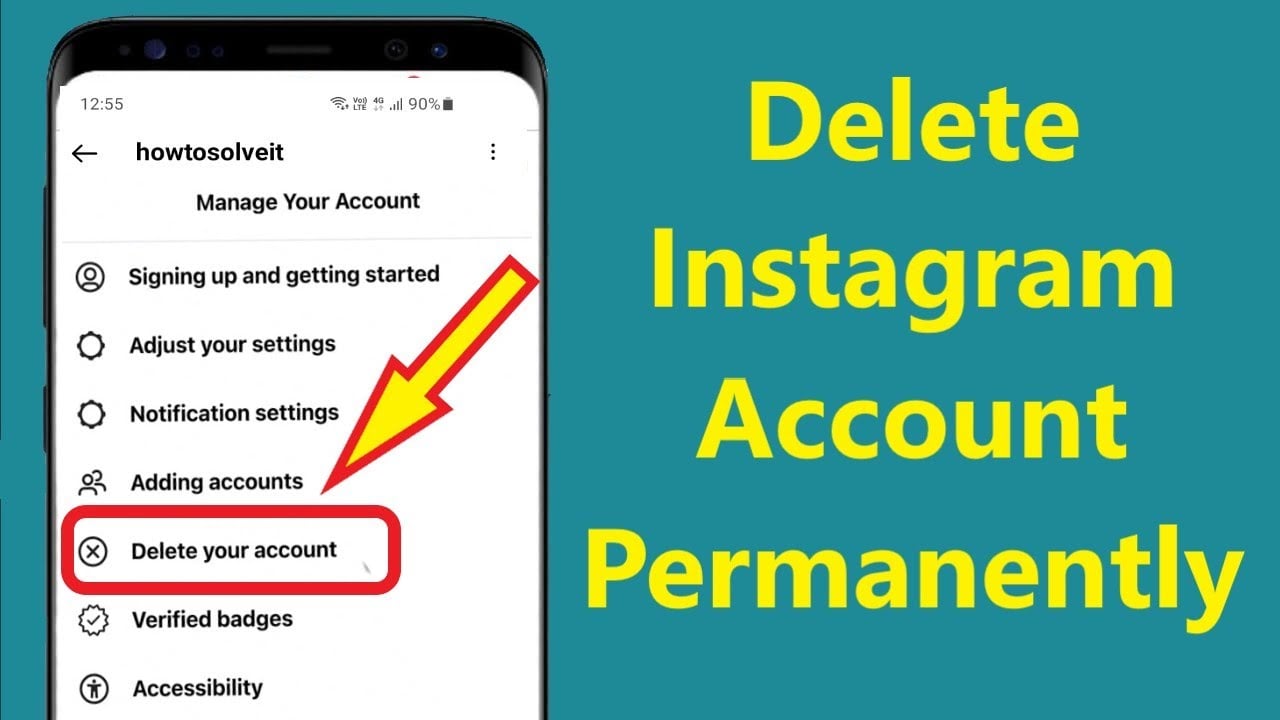
How to Permanently Delete or Temporarily Deactivate Your Instagram Account — 2026 Guide
How to Delete Your Instagram Account Permanently or Deactivate It — 2026
Meta intentionally makes the process difficult to discourage people from leaving the platform. But you have the right to manage your online presence. Use this guide to take complete control of your Instagram account.
Deletion vs. Deactivation — Know Your Options
There is a fundamental difference between the two options despite their apparent similarity. Deactivation is temporary — the profile becomes invisible but data is kept. The account can be reactivated simply by logging back in. Deletion is a permanent decision — once the grace period ends, the account cannot be recovered.
If you simply need a break for however long, deactivation is a better choice. Deletion is appropriate when leaving the platform permanently.
Before Deleting: Save Your Data First
Before closing the profile, it is strongly recommended to request a data download: Accounts Center → Your information and permissions → Download your information.
Download a copy of all data (photos, videos, messages, and profile info) through Instagram's "Download Your Information" tool. Instagram itself will suggest this when the penultimate deletion step is reached.
Method 1: Delete the Account (App or Browser — 2026 Updated Steps)
Steps: open the Instagram app → tap the profile icon at bottom right → tap the three lines (≡) at top right → "Settings and Privacy" → "Accounts Center" → scroll down and select "Personal Details" → tap "Account Ownership and Control" → select "Deactivation or Deletion" → if multiple accounts are linked, choose the Instagram account to manage → select "Delete Account" → tap "Continue" → select a reason → re-enter password → tap "Delete Account" for final confirmation.
From a computer: Go to instagram.com and log in → from the left sidebar tap "More" → "Settings" → navigate to "Accounts Center" → "Personal Details" → "Account Ownership and Control" → "Deactivation or Deletion" → follow the same steps.
What Happens After Requesting Deletion?
When deletion is requested, Instagram provides a 30-day grace period during which the account is effectively deactivated — nobody can see the profile or content, including the account owner. However, the account can still be accessed with login credentials. If the decision is reversed during that window, logging back in will stop the deletion process and fully restore the account. If no login occurs within 30 days, Instagram will permanently erase the account and all associated data.
Instagram says it takes 90 days for all data to be completely deleted from its servers. If the content matters, download it before deleting.
Method 2: Temporarily Deactivate the Account (Without Deleting)
Deactivation makes the profile invisible while keeping data intact — return is possible at any time by logging back in. Instagram allows account deactivation once per week at most, with a maximum deactivation period of 30 days.
The steps are identical to deletion, but at the final step choose "Deactivate Account" instead of "Delete Account."
Impact on Facebook Account
Deleting Instagram may affect Facebook logins if the account is linked through Meta's Accounts Center. The Facebook account itself is not deleted, but separate login may be needed, along with re-verifying email or phone number, or adjusting security settings if the linked setup was being relied upon.
FAQs
CONTACT US
©2026 MobiTech Integrated Solutions. . All Rights Reserved