
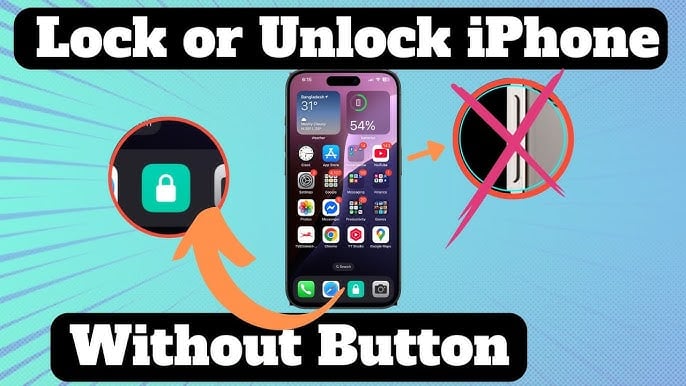
How to lock your phone screen without the power button — Android and iPhone guide 2026
How to Lock Phone Screen Without the Power Button — Android & iPhone Guide 2026
Whether the power button is broken or you simply want to avoid using it repeatedly, there are multiple effective methods to lock the screen without it.
Part One: Lock Android Screen Without Power Button
Method 1: Double Tap to Lock
Many modern Android devices have a secret double-tap to unlock and lock feature. On a Samsung phone, go to Advanced Features → Motions and Gestures → enable Double tap to turn on screen and Double tap to turn off screen. This feature can be used to both lock and unlock the phone.
Method 2: Screen Off and Lock App
Screen Off and Lock is a free app available on Google Play. It adds a handy shortcut on the phone's home screen. Tapping it locks the phone immediately without needing any physical button. After installing it, drag its shortcut to the home screen and tap it whenever the phone needs locking instantly.
Method 3: Automatic Lock with Motion Detection (Gravity Screen)
Gravity Screen is a smart app that can detect the phone's motion. Based on sensor data, it can unlock the phone as soon as it's picked up or taken out of a pocket, and automatically turn the screen off when it's placed on a table or put in a pocket.
Method 4: Accessibility Menu
Go to Settings → Accessibility → enable the Accessibility Menu. A small icon will appear on the edge of the screen allowing access to the power menu and locking the phone without the power button.
Method 5: Quick Ball on Xiaomi and Redmi
Quick Ball is a useful feature found on Xiaomi and Redmi phones. It contains shortcuts including Home, Recents, Back, Screenshot, and Lock. Settings → Additional settings → Quick Ball → enable the toggle. The phone can now be locked by tapping the Lock shortcut in Quick Ball.
Method 6: Remap Another Button (Button Mapper)
Button Mapper is a free app that doesn't require Root access. It allows remapping phone buttons — such as the volume up or down button — to act as a substitute for the power button to turn the screen on and off.
Part Two: Lock iPhone Screen Without Power Button (AssistiveTouch)
Enable AssistiveTouch
Go to Settings → Accessibility → Touch → AssistiveTouch → toggle the switch on. A floating virtual button will appear on the screen.
Or simply: tell Siri: "Turn on AssistiveTouch" and it will be enabled instantly.
Lock Screen via AssistiveTouch
Volume control, muting the device, taking screenshots, or locking the screen can all be done through AssistiveTouch without pressing any physical button.
Tap the floating button → select Device → tap Lock Screen → the screen locks immediately.
Customize AssistiveTouch for One-Tap Lock
To customize the menu: Settings → Accessibility → Touch → AssistiveTouch → Customize Top Level Menu → tap any icon to change its function → select Lock Screen to place it at the first level of the menu.
Double-tap or long-press on the floating button can also be set to lock the screen directly.
Auto-Lock via Face ID and Touch ID
Enable Face ID or Touch ID from: Settings → Face ID & Passcode or Touch ID & Passcode → set up fingerprint or face recognition. Afterward, iPhone will lock automatically according to the Auto-Lock settings.
FAQs
CONTACT US
©2026 MobiTech Integrated Solutions. . All Rights Reserved