
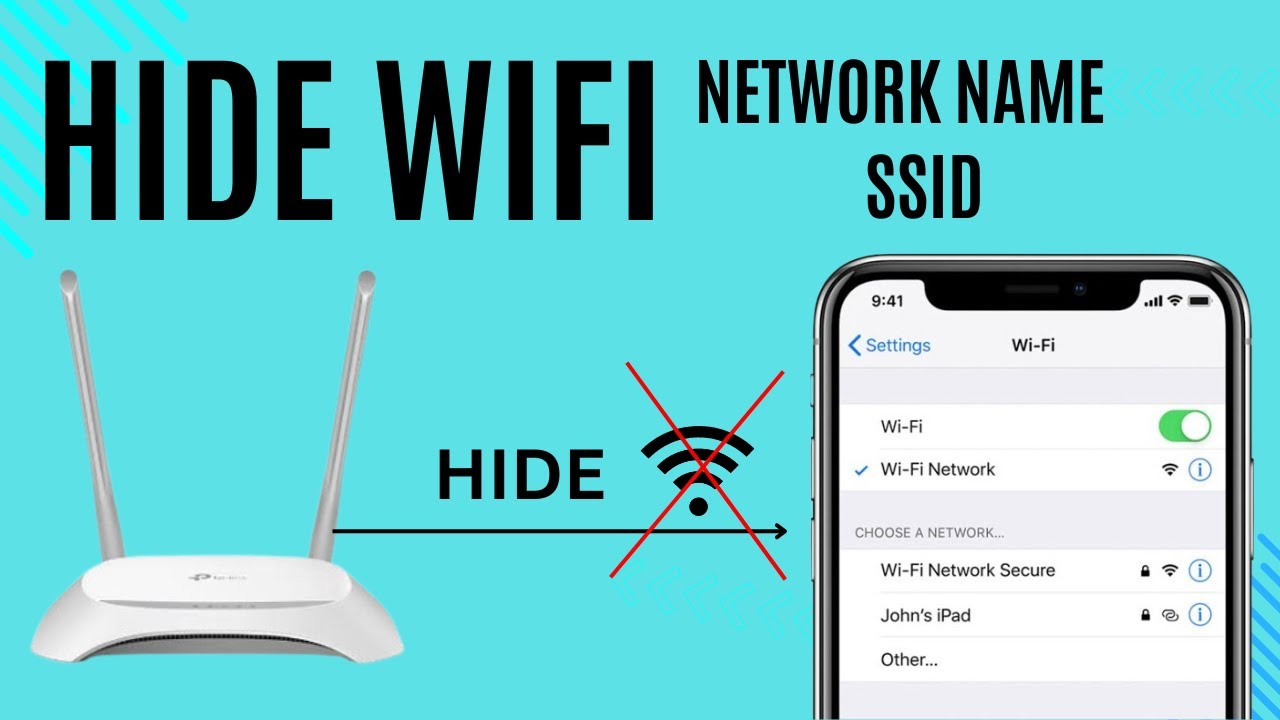
How to Hide Your WE Wi-Fi Network — All Router Models Guide
How to Hide Your WE Wi-Fi Network
Hiding your Wi-Fi network is an important security step given the existence of numerous applications that scan for networks and attempt to access them. Once your network is hidden, you'll be protected from anyone discovering it — when someone searches for nearby Wi-Fi networks, your network simply won't appear at all. As a general best practice, when you subscribe to a home internet service and receive a new router, the first thing you should do is hide the Wi-Fi network and set a strong password of your choice.
This guide covers how to hide the Wi-Fi network for every WE router model — both new and old — with specific instructions for each device.

Step One: Accessing the Router Settings Page
Before anything else, you need to log in to your router's control panel:
Type 192.168.1.1 into your browser's address bar and press Enter. A warning message saying "Your connection is not private" may appear — don't worry about it. Simply click the Advanced button at the bottom, then click Proceed to 192.168.1.1 to reach the router login page.
In the Username field, type admin. In the Password field, enter the password printed on the back of your router next to the word "Password." Then click Log in to access the router settings page.
Step Two: Hiding the Wi-Fi Network for Each Router Model
1. WE Huawei Routers — HG630, HG633, and DG8045
These devices are provided by WE to subscribers and the process for hiding the Wi-Fi network is very simple — the steps are identical for all three models as they share the same settings interface.
Steps:
After logging in to the router settings page, click Home Network in the top horizontal menu. Then click WLAN Settings from the left-side menu and scroll down to click WLAN Encryption. Scroll further down and check the box next to Hide broadcast, then click the Save button at the bottom. Your WE Wi-Fi network is now completely hidden and will not appear when anyone searches for nearby networks.
2. Old ZTE Router — ZXHN H108N
This is the older ZTE router associated with Te Data before it was rebranded as WE. It has a different method for hiding the network due to its different settings interface.
Steps:
After entering the router settings page, click Network from the left-side menu. Then click WLAN, then click SSID Settings. Check the box next to Hide SSID, then click the Submit button at the bottom to save the settings.
3. ZTE Router — ZXHN H168N
This is one of the best routers available from WE, delivering ultra-fast internet speeds of up to 100 Mbps via VDSL2 technology, with a stable and consistent connection.
Steps:
Click the Local Network tab in the top horizontal menu. Then click WLAN in the left-side vertical menu and scroll down to click WLAN SSID Configuration. In the SSID Hide field, select On. From the same section you can also change the Wi-Fi password in the WPA Passphrase field and change the network name under SSID Name. Finally, click Apply to save all changes.
4. New ZTE Router — ZXHN H188A
The ZXHN H188A is one of WE's latest available routers, accessible to both new and existing subscribers. It supports ultra-fast speeds up to 200 Mbps, making it ideal for high-speed internet packages.
Steps:
Log in to the router settings, then click Local Network from the top horizontal menu. Click WLAN from the left-side menu, scroll down, and click WLAN SSID Configuration. Check the On option next to SSID Hide, then click Apply at the bottom to activate the hiding. If your router is broadcasting more than one Wi-Fi network, repeat this step for each one individually.
5. New Huawei Router — DN8245V-56
This is one of WE's newest adopted routers and supports ultra-fast internet up to 200 Mbps, but it has a different settings interface from all previous router models.
Steps:
Click Advanced from the left-side menu, then click WLAN — the Wi-Fi networks being broadcast by the router will appear beneath it. Click 2.4G Basic Network, then in the SSID Configuration Details section, uncheck the box next to Broadcast SSID. Scroll down and click Apply to hide the Wi-Fi network.
6. Old WE Router — HG531 V1
This router operates on the WE network and previously belonged to Te Data before the rebranding. After logging in to the router settings page, click Basic from the left-side menu, then click WLAN. Check the box next to Hide broadcast to enable it, then click Submit at the bottom to save the new settings.
What Happens After Hiding?
Once you hide the Wi-Fi network, it will no longer appear in the available networks list on any device. To connect a new device, you'll need to add the network manually by entering the exact network name (SSID), password, and security type. Devices that were already connected before hiding will remain connected automatically without any disruption.
Final Thoughts
Hiding your Wi-Fi network is a simple step that adds a meaningful layer of security to your home internet by preventing anyone from discovering it — even without knowing the password. Whether you're using a new or old Huawei WE router or any of the ZTE models, every device has straightforward steps covered in this guide. After hiding the network, keep the network name somewhere safe since you'll need it when connecting any new device manually in the future.
FAQs
CONTACT US
©2026 MobiTech Integrated Solutions. . All Rights Reserved