
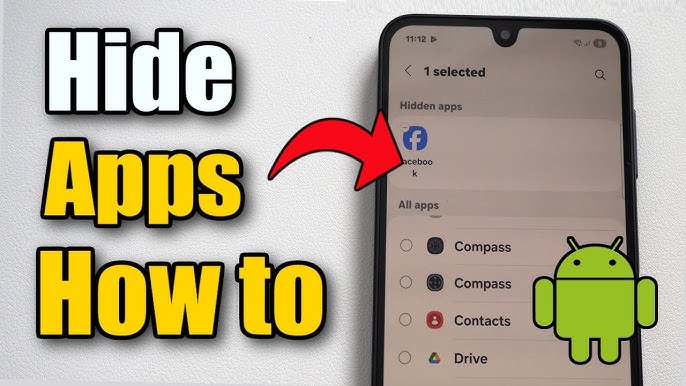
How to Hide Apps on an Android Phone — A Comprehensive Guide 2026
How to Hide Apps on Android Phone — Complete 2026 Guide
Hiding apps on an Android phone means concealing or making apps invisible from the home screen or app drawer, while still keeping them installed and functional in the background. When an app is hidden, it is not deleted or uninstalled from the device — it is only removed from the main view, making it less accessible to prying eyes.
Method 1: Hide Apps on Samsung
One of the easiest methods on Samsung is using the built-in "Hide apps" feature. Go to Settings → tap Home screen → select Hide apps on Home and Apps screen → choose which apps to hide.
For stronger security — Secure Folder: Settings → Security and privacy → More security settings → Secure Folder → sign in or create a folder with a Samsung account → open Secure Folder from the home screen → tap + → select the apps to move into it. All hidden apps will now show only inside the locked Secure Folder.
Method 2: Hide Apps on Xiaomi, Redmi, and POCO
Open the Security app → tap the Edit icon inside the "Common features" section → tap the Hide apps feature to move it to the top → tap the checkmark icon at the top right → turn on the toggles for all apps to hide. To access all hidden apps: spread two fingers apart on the home screen to open the hidden area.
Method 3: Hide Apps on OnePlus — Hidden Space
Swipe the home screen right to access Hidden Space → tap + to add apps to hide. Alternatively, on some models, pinch outward on the screen to open Hidden Space.
Method 4: Private Space on Google Pixel and Android 15
Private Space in Android 15 doesn't just create a section to hide apps — it creates what is essentially a new app ecosystem inside the phone. The space is almost like having another user account on the device. Apps installed inside it save data to a file path within it, isolated from the main app drawer.
Go to Settings → Security & Privacy → Private Space → enter PIN → tap Set up and follow the instructions. To add new apps: open Private Space and select Install or open the separate Play Store to download apps.
Private Space requirements: a device running Android 15 and at least 6GB of RAM. Available on Google Pixel phones and select OnePlus, Honor, and Xiaomi models.
Method 5: General Android Settings (Most Devices)
On most Android phones: long-press the home screen → Settings → Hide Apps → select the desired apps. For Realme and Oppo: Settings → Security & Privacy → Hide Apps (with the option to add a dial-pad access code).
Method 6: Third-Party Launchers (Nova Launcher)
Download Nova Launcher and Nova Launcher Prime from Google Play → open the app and set it as the default launcher → go to the app drawer → select Hide apps → choose the apps to hide. This requires the paid Nova Launcher Prime version. Ideal for devices that don't support built-in hiding.
Method 7: Specialized Hiding Apps
Some hiding apps work on a disguise principle — they appear as a normal calculator app. Hidden apps only appear when the correct secret code is entered in the calculator as a password. Search Google Play for "App Hider" or "Calculator+" to find these apps.
FAQs
CONTACT US
©2026 MobiTech Integrated Solutions. . All Rights Reserved