
How to Fix Mobile Data Issues — 10 Guaranteed Solutions for Android and iPhone (2026)
How to Fix Mobile Data Not Working — Complete 2026 Guide for Android and iPhone
Remember the last time your messages didn't send, photos didn't load, and the 4G, 5G, or LTE icon was missing from your phone? Losing internet access makes your phone feel useless. Fortunately, the solution is simple in most cases. Most issues fall into one of four categories: signal problems, incorrect settings, SIM issues, or account and software errors.
Common Causes of Mobile Data Failure
Your carrier may have slowed or cut off your connection after reaching your monthly data limit, you may not be in a coverage area, mobile data may be disabled in settings without you noticing, or the phone may be in airplane mode or Wi-Fi-only mode.
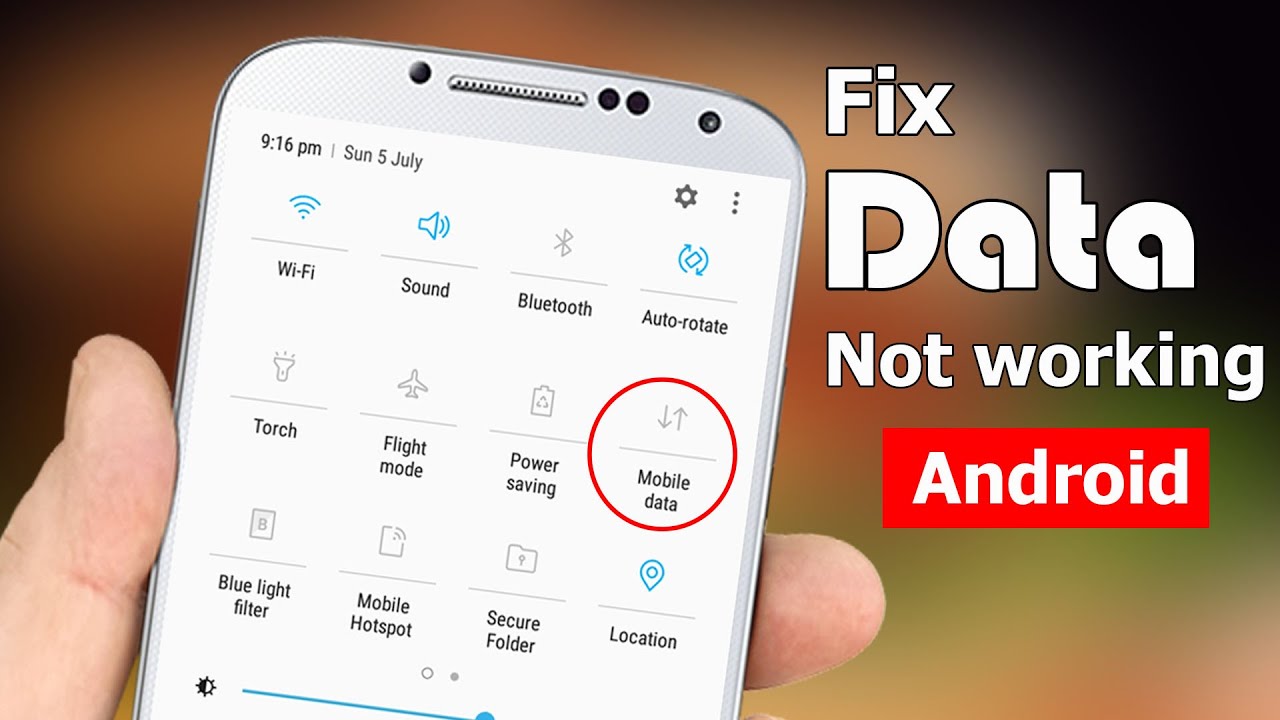
Fix 1: Verify Mobile Data Is Enabled
On Android: Settings → Network & Internet → Mobile Network → confirm the mobile data toggle is ON. Also confirm you're not in Wi-Fi-only mode or airplane mode accidentally. This simple check resolves "mobile data not connecting" in seconds.
Fix 2: Restart the Phone
If mobile data is enabled but not working, a software glitch may be the cause — restarting the device resolves these issues. Press and hold the power button and volume down button simultaneously → select "Restart" → wait for the device to fully boot before re-enabling mobile data.
Fix 3: Toggle Airplane Mode On and Off
On Android: pull down Quick Settings and tap the Airplane icon. On iPhone: swipe from the top-right corner and tap the same icon. Wait 10–15 seconds then turn Airplane Mode off — signal bars should return and mobile data should resume working.
Fix 4: Remove and Reinsert the SIM Card
Sometimes the issue is with the SIM card rather than the phone. Removing and reinserting the SIM resets the phone's connection to the carrier.
The phone must detect the SIM card when it's removed and reinserted, which can revive mobile data. If this doesn't activate cellular internet, professional assistance to replace it with a new SIM card is advisable.
Fix 5: Change the Preferred Network Type
During a system update or due to default phone settings, the network mode may have been set to one that doesn't offer optimal coverage in your area. Check this via: Settings → Network & Internet → Mobile Network → Preferred Network Type → switch to the best option for your phone.
Some locations have weak 4G or 5G signals — switching the network mode to 3G or 4G/LTE Auto may restore basic internet access.
Fix 6: Check APN Settings
APN (Access Point Name) settings contain the information your phone needs to connect to your carrier's network. Incorrect or incomplete APN settings will prevent data from working.
On Android: Settings → Connections → Mobile Networks → Access Point Names (APN) → verify settings with your carrier. To reset to defaults: tap the three-dot menu → Reset to Default.
Fix 7: Check for Carrier Network Outage
Sometimes the problem isn't your phone — it's the network provider. Search your carrier's name with "outage" on Google. Use Downdetector.com to check if others are experiencing the same issue. Check the carrier's official Twitter account or app for updates. If there's a local outage, there's nothing to fix on your end — simply wait for service to be restored.
Fix 8: Reset Network Settings
On Android: Settings → System → Reset → Reset Network Settings. On iPhone: Settings → General → Transfer or Reset iPhone → Reset → Reset Network Settings. After the reset you'll need to reconnect to Wi-Fi networks and re-pair Bluetooth devices — but the mobile data connection should be refreshed and working.
Fix 9: Update the Operating System
Outdated software can cause data connection issues or bugs. Software updates typically include network improvements and bug fixes that can resolve hidden mobile internet problems.
Fix 10: Factory Reset (Last Resort)
If all previous solutions fail, a factory reset resolves virtually every software-related problem — but it erases all data and returns all settings to factory defaults. Always back up your data before proceeding.
FAQs
CONTACT US
©2026 MobiTech Integrated Solutions. . All Rights Reserved