
How to Fix App Problems on an Android Phone — 9 Effective Solutions 2026
How to Fix App Problems on Android Phone — Complete 2026 Guide
If Android apps keep crashing or freezing, the problem is usually due to insufficient storage space or running too many apps at once. Other common reasons include a spotty Wi-Fi connection or an old version of the app that hasn't been updated.
Fix 1: Restart the Phone — Fastest Solution
When Android apps freeze and crash, the problem can often be solved simply by restarting the phone. As the phone or tablet is used, accumulated instructions can cause the system to get overloaded. Restarting reinitializes crashed or frozen background processes, restoring them to a stable state without needing more detailed troubleshooting. Press and hold the Power button → select Restart from the menu.
Fix 2: Force Stop the App
A crashing or freezing app can be force-stopped. Go to Settings → Apps → See all apps → (app name) → tap Force stop. Restart the phone and relaunch the app to see if force stopping helped.
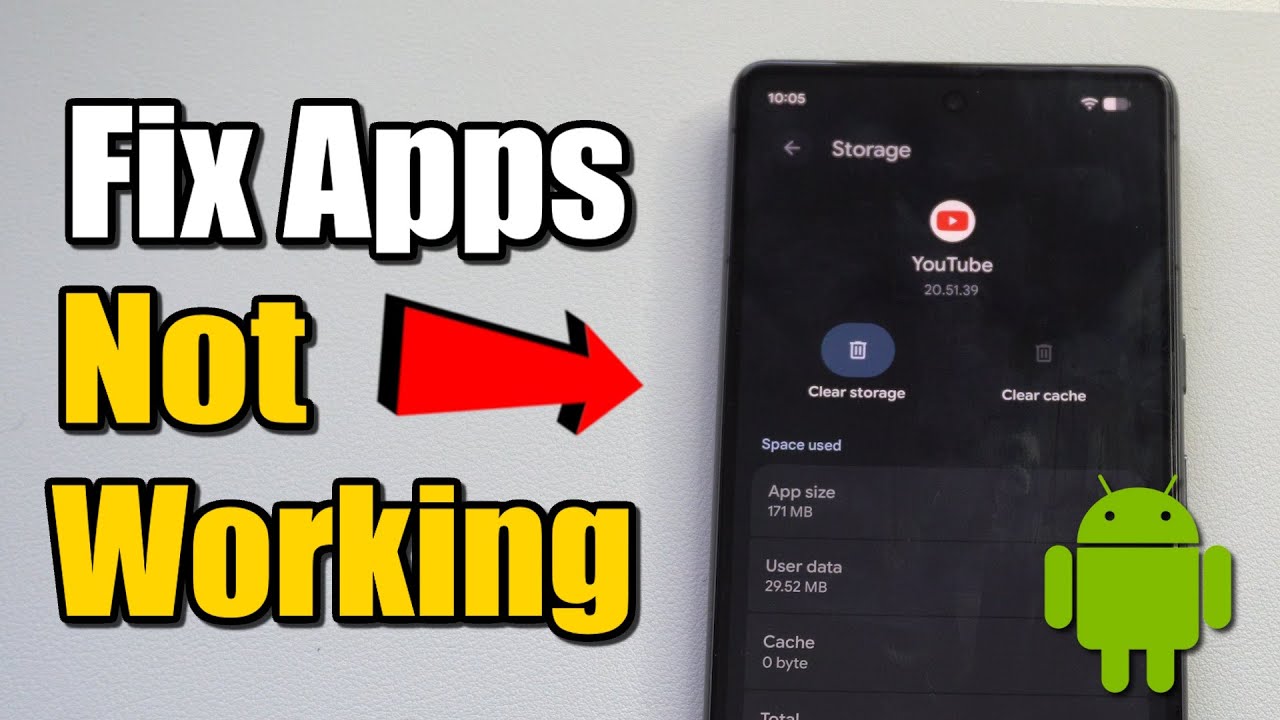
Fix 3: Clear the App Cache
Clearing the app cache is a go-to troubleshooting step when apps keep crashing or freezing on Android. Cached files are temporary files of important information the app stores to make loading faster, including login information and settings. These files can get corrupted and may cause the app to keep crashing. To clear the app cache: Settings → Storage → Other apps → (app name) → tap Clear cache. This can also be found at: Settings → Apps → See all apps → (app name) → Storage.
Fix 4: Update the App and Android OS
Sometimes app crashing is not caused by the phone but rather the app itself — an internal bug may have brought it down. If it's an error affecting various people, the app creators will usually realize the problem and publish an updated version soon. Go to the Google Play Store, tap the profile icon → "Manage apps and device" → tap "Update all."
To update Android: Settings → System → Software Update (or About Phone → System Update) → check for available updates.
Fix 5: Check Storage Space
If storage space is nearly full, apps may not be able to load required resources, leading to crashes. Go to Settings → Storage to see the phone's available storage. Always keep 15–20% of device storage free for apps to run properly.
Fix 6: Uninstall and Reinstall the App
If the crashing app is not important for daily use, simply delete and reinstall it. Go to Settings → Apps to open the App Info page of the problematic app → tap Uninstall → restart the phone → reinstall the app from Google Play and check if it works correctly.
Fix 7: Safe Mode — Diagnosing the Problem
Safe Mode is a built-in Android diagnostic tool that temporarily disables all third-party apps, helping identify whether a recently installed app is causing havoc with the device's performance.
Use the phone normally in Safe Mode and check if the problem goes away. If it does, an app is likely causing the problem. To exit Safe Mode, simply restart the phone normally.
How to enter Safe Mode: Press and hold the Power button until the power menu appears → long-press Power off → a message will appear asking to boot into Safe Mode → tap OK.
Fix 8: Wipe Cache Partition from Recovery Mode
Android maintains a system cache to speed up operations, but those files may become corrupted over time. Clearing the cache partition through recovery mode removes these temporary files without deleting personal data and frequently restores normal performance, especially after updates.
Turn off the device completely → enter Recovery Mode: the most common method is to press and hold Power + Volume Up simultaneously until the recovery menu appears (button combinations vary by model) → use the volume buttons to navigate and the power button to select → choose Wipe Cache Partition (do not select Wipe Data/Factory Reset as this will erase all data) → when done, select Reboot System Now.
Fix 9: Factory Reset (Last Resort)
If problems persist after all previous steps, a factory reset may be needed. Before proceeding, make a backup to save files. From Settings → General Management → Factory reset — all data, apps, and files will be deleted from the Android phone.
FAQs
CONTACT US
©2026 MobiTech Integrated Solutions. . All Rights Reserved