
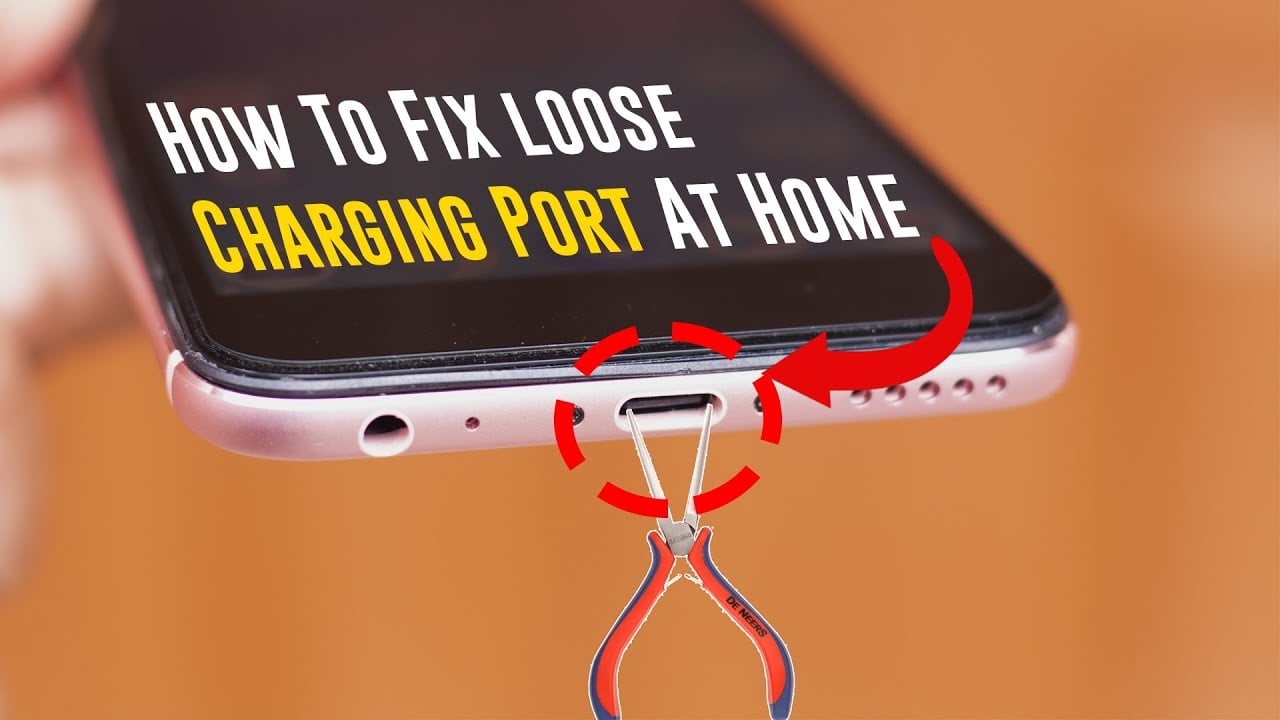
How to Fix a Faulty Phone Charging Port — Home Solutions, Causes of Damage, and When to See a Repair Shop
How to Fix a Phone Charging Port That's Not Working — Complete 2026 Guide
Phone refusing to charge despite connecting the cable? Only charges at a specific angle? The connection sound plays but charging doesn't start? Most of these problems have at-home solutions before considering a paid repair.
Why Does a Charging Port Stop Working?
Multiple causes exist: dust, lint, and debris accumulating in the port and blocking the connection; liquid damage in some cases; wear and tear from repeated plugging and unplugging making internal contacts unreliable; and occasionally a software bug interfering with how the phone recognizes the charging process even when hardware is functioning correctly.
Step One: Rule Out External Issues
Try a Different Cable and Charger
Start by checking charging accessories and the power source. Try a different cable and adapter to determine if the issue lies with the accessories. If possible, test the charger with another device — if that device also fails to charge, the charger itself is defective. Also confirm the wall outlet or USB port works by plugging the charger into a different socket.
Cheap or counterfeit cables sometimes fail to deliver consistent current, causing slow or intermittent charging.
Step Two: Clean the Charging Port
Use a flashlight to inspect for dust, lint, or debris blocking the connection. If you notice buildup, gently remove it with a toothpick, soft brush, or short bursts of compressed air.
Use compressed air in short bursts, a small anti-static brush, or a dry soft toothbrush for stubborn debris. Never use metal objects like needles or paperclips — they can damage the metal pins inside the port.
Step Three: Software Fixes
Restart the Phone
A simple restart can resolve software glitches interfering with the charging process — it refreshes the phone's charging management system.
Update the OS
Ensure the phone is running the latest software: Settings → System → Software Update. Firmware updates fix compatibility issues and can restore proper charging functionality.
Boot into Safe Mode
A third-party app can sometimes interfere with charging. Booting into Safe Mode disables all non-essential apps. If the phone charges normally in Safe Mode, an installed app is causing the issue — restart normally and uninstall recently added apps.
Step Four: Temporary Charging Alternatives
Wireless Charging
If you're experiencing ongoing issues with the charging port, a wireless charger keeps the device powered without needing a physical connection.
Charging via Computer
Connect the phone to a computer's USB or USB-C port with a working cable → wait 10–15 minutes → disconnect the cable from the phone and reconnect it within 10 seconds. If a battery icon appears within one minute, the phone is powered off and charging.
Step Five: When to Seek Professional Repair
If trying a different compatible cable doesn't fix the issue, the port is likely damaged or loose and will need to be repaired or replaced.
A damaged charging port is not a repair for the inexperienced — the port is usually soldered to the motherboard and the heat generated during improper work can cause further damage.
Professional repair costs between $50 and $150 depending on the model, and ensures a quality fix that eliminates the risk of future damage.
Preventing Charging Port Damage
Invest in reputable brands and avoid cheap, low-quality chargers and cables — they not only charge more slowly but can damage the port over time. Be gentle when inserting and removing the charging cable — avoid twisting or forcing the connector. Clean the charging port regularly with compressed air or a soft brush to prevent dust and lint buildup.
Always pull the cable straight out, not at an angle — twisting or angled pulling weakens internal connections over time.
FAQs
CONTACT US
©2026 MobiTech Integrated Solutions. . All Rights Reserved