
How to find out your RAM specifications, size, speed, and manufacturer — 4 methods (2026)
Knowing your RAM specifications is essential for performance assessment and upgrading decisions. Here are four ways to check your RAM details on Windows without or with third-party tools.
Method 1: Check RAM via Task Manager (No Software Needed)
Press Ctrl + Shift + Esc to open Task Manager → click the Performance tab → select Memory. You will see the total RAM size, current usage, available space, Speed (in MHz), and Slots used (e.g., 1 of 2 means one slot is occupied and one is free for upgrading).
Method 2: Check RAM via Command Prompt
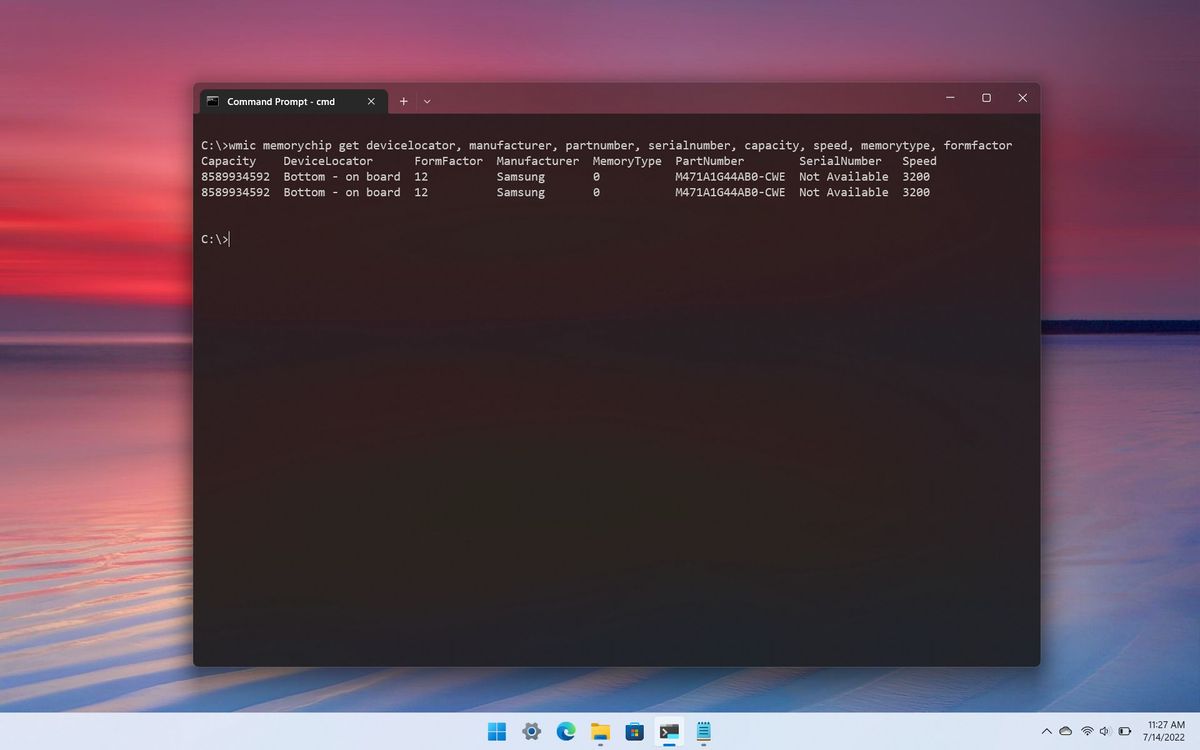
Press Windows + R, type CMD, press Enter. Then paste this command and press Enter:
wmic memorychip get manufacturer, capacity, partnumber, speed, memorytype, devicelocator, formfactor
This displays all RAM details including capacity, manufacturer, speed, model number, memory type, slot location, and form factor.
Method 3: RAMExpert (Free Dedicated Tool)
RAMExpert is a free lightweight program that shows complete RAM details including installed capacity, available slots, maximum supported RAM, and the manufacturer of each installed module. You can export all details to PDF or Excel.
Method 4: CPU-Z (Free Comprehensive System Tool)
Download and install CPU-Z from its official website. Open it and click the Memory tab to see the RAM type (DDR3/DDR4/DDR5), total size, channel mode (Single or Dual), and speed. Navigate to the SPD tab for details of each individual RAM module.
FAQs
CONTACT US
©2026 MobiTech Integrated Solutions. . All Rights Reserved