
How to Factory Reset a Windows PC 2026: 3 Methods (Win 10 & 11)
Three Ways to Reset a Windows PC to Factory Settings
A factory reset is the drastic solution to many Windows operating system problems. If your computer is running noticeably slower than before, or if it is infected with malware that cannot be removed, or even if you plan to sell it, a factory reset is the ideal choice. In this article, we will explain how to factory reset a computer running Windows 11, 10, or any older version. Always remember to make sure you keep a backup before resetting.
How Do You Reset Windows 10 or 11 With the Built-In Method?
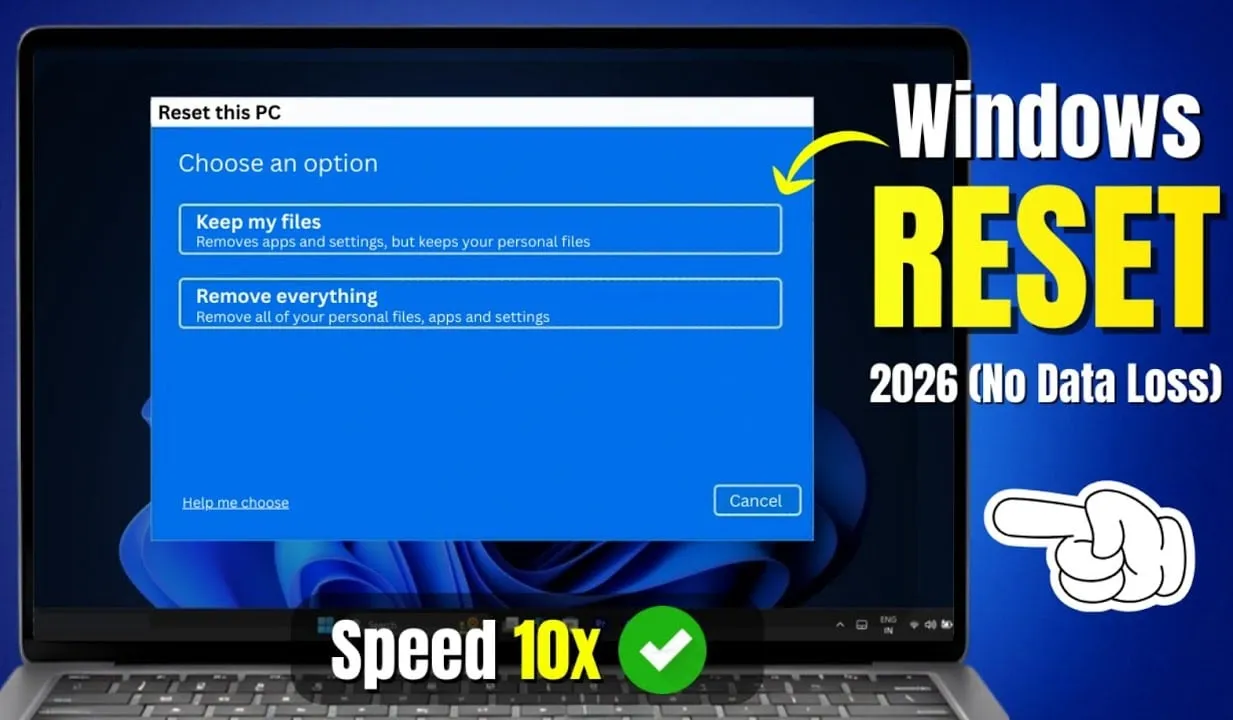
Resetting Windows used to be an uncomfortable process, but Microsoft introduced a much easier way to do it starting from Windows 8. Since it is also built into Windows 10 and 11, it is usually the best way to reset a Windows PC. To access the Windows reinstall option, go to Settings > Update & Security > Recovery. You will see the "Reset this PC" menu; click the "Get started" button. If you are using Windows 11, go to Settings > System > Recovery, and click "Reset PC" next to "Reset this PC" to begin. The steps here are the same for Windows 11 and Windows 10.
Keep My Files or Remove Everything?
You will have two initial options to choose from when resetting Windows 10 or 11: Keep my files or Remove everything. Choosing "Keep my files" returns the operating system options to default and removes all installed apps (like browsers, Office programs, and games), but keeps your files (like documents and music). As it sounds, "Remove everything" is a complete factory reset: it returns all options to factory defaults and removes your files and apps. After that, Windows will be as if it were on a brand-new computer. Although the "Keep my files" option retains your personal data, it is still better to make a backup before using it in case something goes wrong.
Cloud Download vs Local Reinstall?
You will then have to choose how you want to reinstall Windows, and there are two ways: Cloud Download or Local Reinstall. The Local Reinstall process uses the files currently present to create a new copy of Windows. While it saves you from needing to download any files from the internet, it will not work if your Windows installation is corrupted. With Cloud Download, the process will instead download a new copy of Windows from Microsoft online. This reinstalls the version of Windows 10 or 11 you are currently using (plus any minor updates), so it will not upgrade you to a newer feature update. Downloading Windows requires several gigabytes of data, so be careful if your connection is limited. If you have a fast internet connection, this option may be faster than Local Reinstall because it does not need to sort through as much data.
What Are the Additional Reset Options?
You will see an Additional settings menu with a Current settings section showing a summary of your choices, plus a Change settings link for more options. If you chose "Keep my files" earlier, you will have two options under Change settings: "Download Windows?" to switch between cloud and local reinstall, and "Restore preinstalled apps?" — turning this off means the reset will not include any apps bundled with the initial setup, which is a good way to avoid the device manufacturer's bloatware. There are additional options when choosing Remove everything: "Clean data?" will wipe everything on the drive to reduce the chance of recovering it later, which takes some time but should be used if you are getting rid of your PC (not necessary if you are keeping it), and "Delete files from all drives?" wipes everything on all connected drives, including external hard drives and recovery drives, so use it only if you want to permanently erase everything associated with your PC.
How Do You Confirm the Reset?
Click Confirm when you are satisfied with the options above. The last screen before the factory reset begins is titled "Ready to reset this PC." You will see a list of the actions the process will perform. Click "View apps that will be removed" if you want to double-check the affected programs. Finally, confirm the process by clicking "Reset," then wait for it to complete. If you are factory-resetting a laptop, make sure it is plugged in to avoid losing power during the process. You will need to go through the Windows setup procedure again once it is finished.
How Do You Reinstall Windows Manually With Installation Media?
If you are not using Windows 10 or 11, or want to reset Windows to factory settings without the Settings menu, or do not want to use the other methods for some reason, you can always reset Windows to factory settings using installation media. This lets you install a fresh copy of Windows on your PC and wipe everything currently on it. Just insert the USB drive or disc containing your installation media, then boot from the removable device. You will be greeted by the Windows setup screen, which you can proceed through to install a clean copy. Remember that doing this will remove everything currently on the drive where you install Windows. Note that since Windows 7 has not been supported for years, Microsoft no longer offers an official download for it; we recommend upgrading to a modern version and not downloading Windows 7 from a random website, as it may contain malware. The methods in section 1 above let you reinstall Windows the same way without manually creating a USB install tool, so they are more convenient.
How Do You Reset Windows 10 or 11 From Boot Using Advanced Methods?
Although the methods above will work for most users, there are some advanced ways to reset Windows if you need them. To run a Windows factory reset from boot (in case you cannot get into Windows normally, for example), you can start it from the Advanced Startup menu. If Windows is working correctly, on Windows 10 go to Settings > Update & Security > Recovery, and under Advanced startup, click Restart now. On Windows 11, go to Settings > System > Recovery and click Restart Now next to Advanced Startup. Alternatively, open the Start menu, expand the power menu, and hold Shift while clicking Restart. If you cannot do either, try pressing F11 during startup, which opens Advanced Startup on some systems. If that fails, Windows will launch Advanced Startup on its own after three failed boots, letting you reset from boot if there is a big problem. Once Advanced Startup is open, choose Troubleshoot, then select Reset This PC to follow roughly the same factory reset procedure as in section 1. You can also choose Advanced options for more options, but none of them let you reset Windows 10 or 11 unless you have a saved system image.
Alternatively, you may be able to boot into the BIOS and directly load the recovery partition from your hard drive, when your PC manufacturer includes one. However, resetting this way will reinstall all the manufacturer's bloatware; it is not ideal, but it can work if you have no other options. You can also type "create a recovery drive" in the Start menu to access a tool that lets you create your own drive, though this requires good space and must be done before you run into a problem. To cover all bases: there is no way to factory reset Windows from the BIOS. While you can reset the BIOS to its defaults, you cannot reset Windows itself through the BIOS. There is also no way to factory reset a PC without turning it on, since you need power to perform all the operations above.
What If You Use an Older Version of Windows 10?
Microsoft used to offer an option called Fresh Start to reset a Windows 10 PC. Starting with Windows 10 version 2004, this option was replaced by the process described above. To check whether you are on an older version, go to Settings > Update & Security > Recovery, which will open the Windows Security app showing the Fresh start option; click Get started to proceed. If you are on a version of Windows 10 that still offers this option, you should install the latest version of Windows as soon as possible to keep your PC secure.
FAQs
CONTACT US
Download the app


CONTACT US


Payment Methods










Shipping with

©2026 MobiTech Integrated Solutions. . All Rights Reserved
©2026 MobiTech Integrated Solutions. . All Rights Reserved