
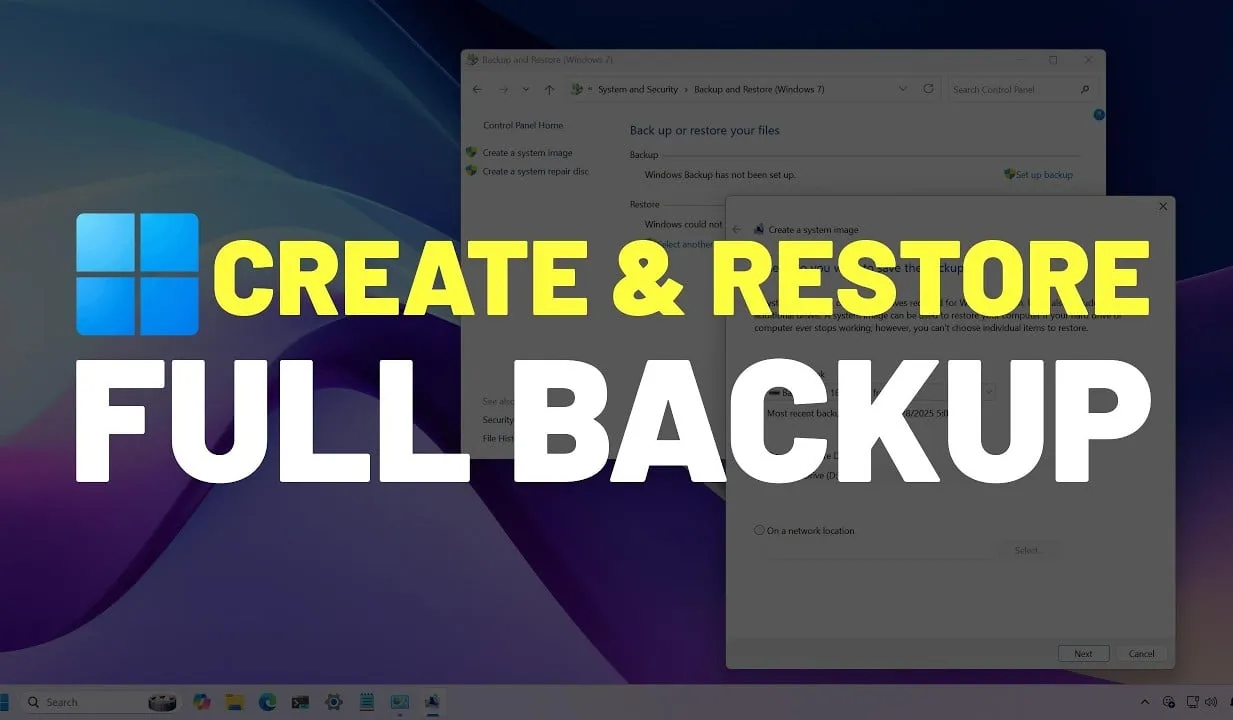
How to Create a Full Backup in Windows 11 (2026): System Image Guide
How to Create a Full Backup of Your PC in Windows 11
If you want to keep and protect your files, it is best to keep a full backup. Instead of relying on a third party to solve this problem, Windows 11 includes the "Backup and Restore" feature, which offers the option to create a system image of the computer on an external USB. The system image also describes a full backup, as it includes an identical copy of the Windows installation, in addition to your settings and apps, and most importantly, your files. Usually, you will find this backup method more suitable for reverting to a previous version if there are problems after upgrading to a new version of Windows, restoring the system after replacing the hard drive, or in case of a critical failure.
How Do You Create a Backup in Windows 11?
This guide will walk you step by step through creating a full backup of your custom settings, apps, files, and Windows 11 setup files using the Backup and Restore feature.
First, press Start, search for "Control Panel," and choose the first result. Click System and Security, then click the Backup and restore button. Click Create a system image backup. Click the "On a hard disk" option, then select the drop-down menu under "On a hard disk" and choose the destination for the Windows 11 full backup. Click Next. Optionally, you can add any other hard drive to include it in the backup, then click Next. Press Start the backup. Once done, you can press Close.
Note: You will also receive a message to create a system repair disc, but you can skip it. If you need to revert to a previous installation, you can use the USB installation media to access the recovery settings.
Once the steps are complete, a backup of the entire system will be created with everything on the primary hard drive and any other drives you may have selected. The tool uses the Shadow Copy feature to back up files even if they are open and apps are running, meaning you can continue working during this process. After the backup process is complete, disconnect the drive and store it safely.
How Do You Restore the Backup in Windows 11?
In case of hardware failure or system issues, you can use a previous backup to restore the device's installation. When restoring a backup, avoid interrupting the process, as this will cause the backup to fail and the computer will no longer boot. To avoid problems, it is recommended to keep a laptop connected to a power source and a desktop connected to an uninterruptible power supply (UPS).
To restore a Windows 11 backup, connect the drive with the backup and a bootable Windows 11 USB flash drive, then follow these steps. Turn on the computer. When the startup message appears on the bootable USB, press any key to continue.
Quick tip: If the computer does not start into the Windows Setup wizard, you will need to access the UEFI to change the boot order settings. However, since these steps differ by manufacturer and device model, it is recommended to check the manufacturer's support site for more specific details.
On the "Windows Setup" page, click Next. Click "Repair your computer" from the bottom-left corner of the screen. Click Troubleshoot, then click System image recovery. Select the Windows 11 option. On the "Re-image your computer" page, select "Use the latest available system image."
Quick tip: Use the "Select a system image" option to restore an older version of the system (if possible).
Click Next. Optionally, select "Format and repartition disks" before restoring the backup. Quick tip: If you choose this option, use the "Exclude disks" option to prevent formatting secondary drives that may contain data; you usually only want to use this option on new drives. Optionally, select "Only restore system drivers." Click Next, then Finish, then Yes.
After the steps are complete, the restore process will begin, and the restore time will depend on the amount of data and the device's hardware configuration. Once the backup is applied, the device may be missing some updates, so it is good to open Settings > Windows Update and click "Check for updates" to update the system and drivers.
When Should You Use System Image Backup?
Although you can find many alternative solutions, there are still benefits to using the Windows 11 system image backup feature. For example, when you need a system backup before upgrading to a new version, when you have to make system changes and want a quick way to roll back, or when you need to replace the hard drive or need a quick way to transfer the installation and files without reinstalling.
It is also always good to make periodic backups of your PC to have a fresh copy to return to in case an unexpected problem occurs, such as a system or hardware failure, malware, ransomware, or hacker attacks. Remember that this feature is designed to restore the entire system, not individual files. If you want to back up your files, you should use OneDrive or File History. Also, you must be active in creating backups, because you can only restore items up to the timestamp of the last backup; nothing after the backup can be restored.
FAQs
CONTACT US
Download the app


CONTACT US


Payment Methods










Shipping with

©2026 MobiTech Integrated Solutions. . All Rights Reserved
©2026 MobiTech Integrated Solutions. . All Rights Reserved