
How to Connect to a Hidden Wi-Fi Network — Android, iPhone & Windows Guide
How to Add and Connect to a Hidden Wi-Fi Network — All Devices
If you want to connect to a hidden Wi-Fi network near you — whether using an Android phone, an iPhone, or a Windows computer or laptop — you're in the right place. The importance of hidden Wi-Fi networks lies in the fact that they prevent anyone from seeing your network when searching for nearby Wi-Fi. This provides a significant level of privacy and stops others from attempting to access your connection. If someone searches for available Wi-Fi networks nearby, hidden networks simply won't appear — and to connect to one, you must add it manually.
This guide covers three device types: Android phones, iPhones, and Windows laptops and computers running Windows 7, 10, or 11.

What You Need Before Connecting to a Hidden Network
Before starting, make sure you have the following information:
- The network name (SSID) exactly as it's saved — including uppercase and lowercase letters and any spaces.
- The security/encryption type used (WPA/WPA2 or WPA2/WPA3).
- The network password — correct and complete.
Without all three, the connection will not succeed regardless of which device you're using.
Step One: Adding a Hidden Wi-Fi Network on Android
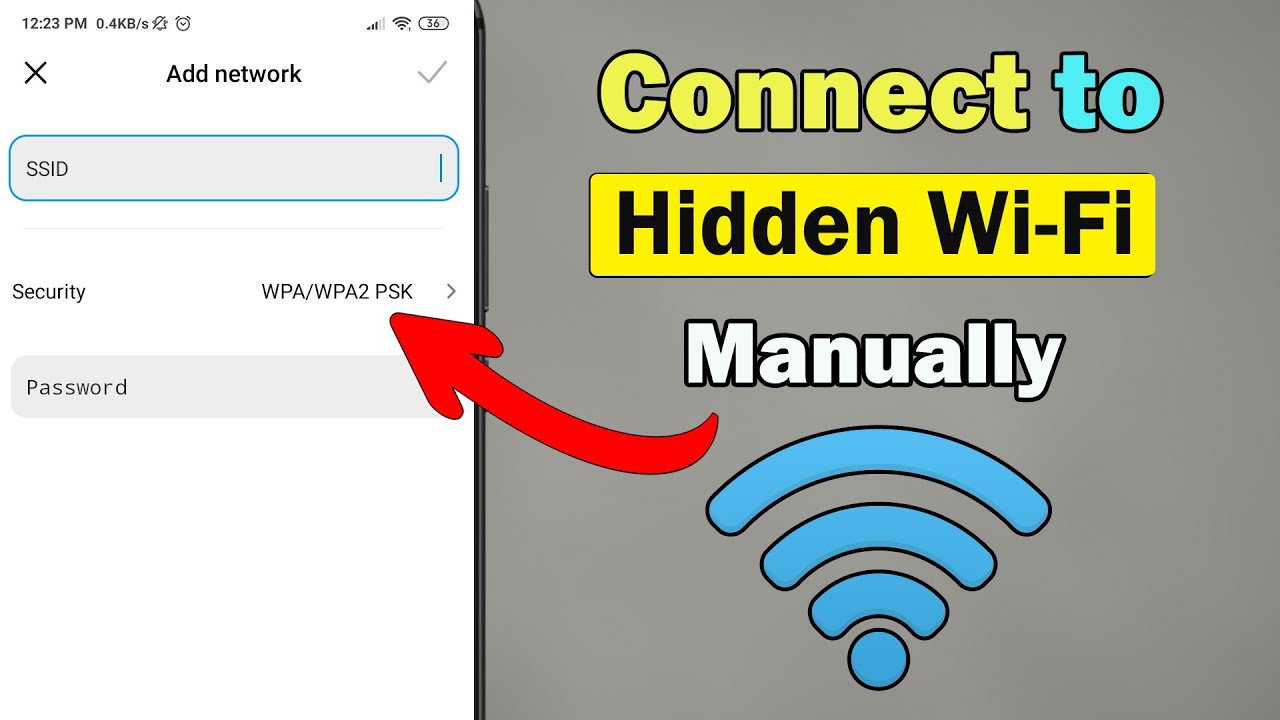
Start by enabling Wi-Fi on your Android phone using the Wi-Fi icon in the top notification bar — press and hold it to open Wi-Fi settings — or go to Settings, then Connections, then Wi-Fi. The exact path may differ depending on your phone model, whether it's Samsung, Huawei, Xiaomi, Realme, Vivo, Oppo, or any other brand. The key is reaching the Wi-Fi settings page.
Steps:
Tap Add network. On the next page, type the name of the hidden Wi-Fi network you want to connect to — make sure it's spelled exactly correctly. Under Security, select WPA/WPA2-Personal. Then enter the password of the hidden Wi-Fi network. Finally, tap Save at the bottom — the device will immediately connect to the internet through the added network and the hidden Wi-Fi will become accessible.
Step Two: Adding a Hidden Wi-Fi Network on iPhone
If you're using an iPhone and want to connect to a hidden Wi-Fi network, open your Wi-Fi settings, then tap Other, then type the network name in the Name field, and tap Security.
Under Security, make sure to select WPA2/WPA3, then type the Wi-Fi password in the Password field, and tap the Join button at the bottom of the screen. The iPhone will connect to the hidden Wi-Fi network and it will become active on your device.
Step Three: Adding a Hidden Wi-Fi Network on a Laptop or PC (Windows 7, 10 & 11)
The process is just as simple as on mobile devices. Start by clicking the internet icon in the bottom-right corner of the taskbar. A list of all nearby Wi-Fi networks will appear — scroll down until you find Hidden Network and click on it, then click Connect.
Next, type the exact name of the hidden Wi-Fi network you want to connect to — be careful with letter case and spacing — then click Next.
Now type the Wi-Fi network password in the designated field and click Next. Wait a few seconds while the system connects to the Wi-Fi network, and you'll then be able to use the internet on your device.
💡 Important tip: Always type the network name exactly as it is — the same uppercase letters, lowercase letters, and spaces. A single character difference will prevent the connection entirely.
Why Might the Connection to a Hidden Network Fail?
If you followed all the steps correctly but still can't connect, check these common causes:
- Wrong network name: Make sure the SSID is typed exactly as stored in the router settings, including case sensitivity.
- Wrong password: Re-enter the password carefully and double-check each character.
- Wrong security type: Try a different encryption option such as WPA2 or WPA3.
- Out of range: Make sure you're physically close enough to the router broadcasting the hidden network.
Final Thoughts
Connecting to a hidden Wi-Fi network is no more complicated than connecting to a regular one — the only difference is that you must manually enter the network name, password, and security type instead of just tapping the network name. Whether you're on an Android phone, an iPhone, or a Windows computer of any version, the steps are straightforward and fully covered in this guide.
FAQs
CONTACT US
©2026 MobiTech Integrated Solutions. . All Rights Reserved