
How to Check Your iPhone Warranty and What It Covers — Apple Limited Warranty and AppleCare+ 2026
How to Check Your iPhone Warranty Status and What It Covers — Complete 2026 Guide
Whether you bought a new iPhone or a used one, knowing your warranty status and what it covers is essential before any repair or purchasing additional protection.
Types of Apple Warranty Coverage
Apple Limited Warranty Every new iPhone includes a one-year limited warranty covering manufacturing defects in materials and components. It does not cover damage from misuse such as drops, cracks, or liquid contact.
AppleCare+ A paid extended protection plan that extends coverage to two years from the purchase date and adds protection for accidental damage — like drops, screen cracks, and liquid damage — with significantly reduced repair fees. Available as an annual payment or on an ongoing monthly basis.
How to Check Your Warranty Status
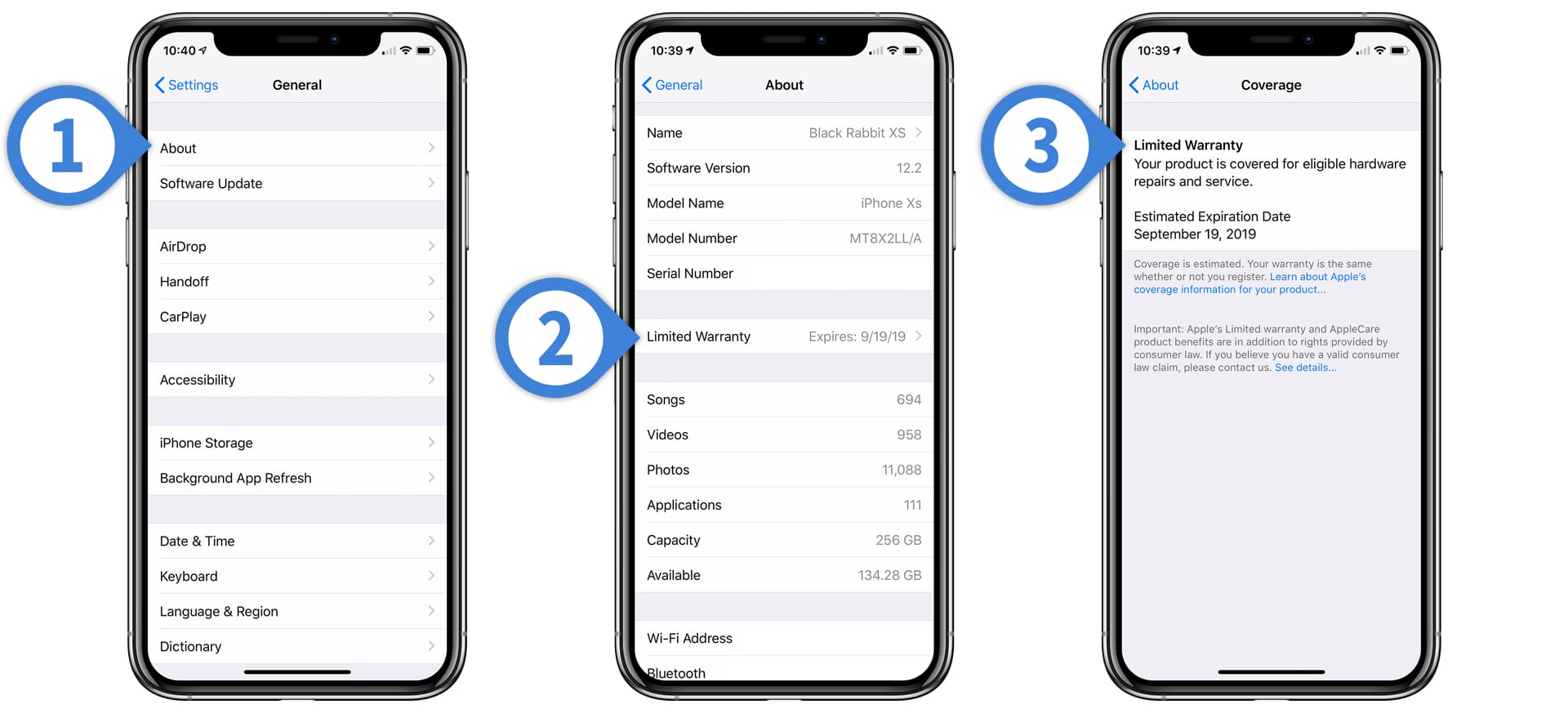
Method 1: Directly from the iPhone
- Open Settings
- Tap General
- Tap About
- Scroll down and find Serial Number — copy it
- Go to checkcoverage.apple.com
- Paste the serial number and enter the verification code
- Your full warranty coverage status will appear
Method 2: Via Apple's Website
Open in any browser: checkcoverage.apple.com → enter the device serial number → complete the CAPTCHA → tap Continue.
The page displays:
- Limited warranty status (Active / Expired)
- AppleCare+ status if purchased
- Coverage expiry date
- Telephone technical support eligibility
Method 3: At an Apple Store or Authorized Service Center
Bring the device to the nearest Genius Bar at an Apple Store or an Apple Authorized Service Provider, and the team will verify warranty status directly.
How to Find the Serial Number Without Opening Settings
If the phone is unresponsive or won't power on:
- Original packaging: The serial number is printed on the external label
- Via iTunes or Finder: Connect the phone to a computer → open iTunes (Windows) or Finder (Mac) → click on the device name → device details including the serial number will appear
What the Warranty Covers and What It Doesn't
Apple Limited Warranty covers:
- Manufacturing defects in materials and components
- Battery defects (if capacity drops below 80% within the warranty year)
- Screen and camera defects caused by manufacturing
- Button and connector defects caused by manufacturing
Apple Limited Warranty does NOT cover:
- Accidental damage, drops, and cracks
- Liquid damage (even water-resistant models have limits)
- Cracked screens
- Damage resulting from unauthorized repair
- Theft and loss
What AppleCare+ adds:
- Two incidents of accidental damage coverage every 12 months (screen cracks, liquid damage)
- Significantly reduced repair fees compared to full-price repairs
- Priority access to Apple technical support
Tip When Buying a Used iPhone
Before purchasing any used iPhone, check its warranty status at checkcoverage.apple.com and also verify:
- The device is not reported stolen via imei.info
- Activation Lock is not enabled — perform a factory reset check to confirm it doesn't prompt for a previous Apple ID
FAQs
CONTACT US
©2026 MobiTech Integrated Solutions. . All Rights Reserved