
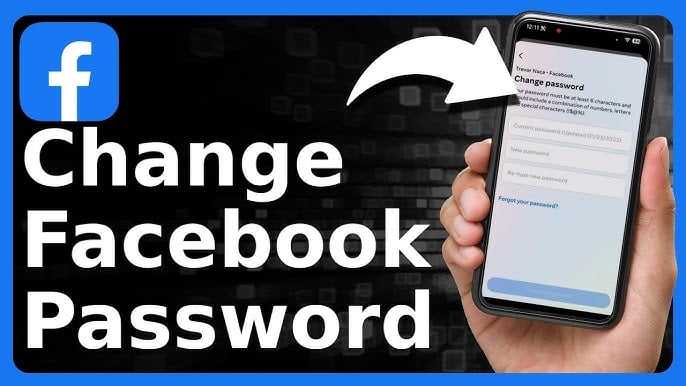
How to Change Your Facebook Password | A Complete Step-by-Step Guide
Protecting your Facebook account is no longer a luxury — it's a necessity in today's era of growing digital threats. One of the most important steps you can take to safeguard your data is changing your password regularly, whether as a preventive measure or because you suspect your account may have been compromised. In this guide, we'll walk you through how to change your Facebook password on both desktop and mobile, and what to do if you've forgotten your current password.
Why Should You Change Your Facebook Password Regularly?
Before diving into the steps, let's understand why this matters:
- Protection against hacking: Cybercriminals frequently target Facebook accounts because they contain a wealth of personal information, including photos and contact details.
- Security on shared devices: If you've ever logged into Facebook on a device that isn't yours, changing your password ensures no one else retains access.
- Routine security hygiene: Digital security experts recommend changing your password at least every three months.
- Response to suspicious activity: If you notice any unusual behavior on your account, change your password immediately.
How to Change Your Facebook Password on Desktop
If you access Facebook through a browser on your computer, follow these steps:
- Open your browser, go to facebook.com, and log in to your account.
- Click on the downward arrow icon (or your profile picture) in the top-right corner of the page.
- From the dropdown menu, select "Settings & Privacy", then click "Settings".
- In the left-hand menu, choose "Security and Login".
- Under the "Login" section, click "Edit" next to "Change password".
- Enter your current password in the first field.
- Type your new password in the second field and confirm it in the third.
- Click "Save Changes" — and you're done!
Tip: After changing your password, Facebook will ask whether you'd like to log out of other devices. We strongly recommend doing so to ensure complete account security.
How to Change Your Facebook Password on Android
- Open the Facebook app on your phone.
- Tap the three horizontal lines (☰) at the top of the screen.
- Tap the gear icon or scroll down to "Settings & Privacy", then tap "Settings".
- Select "Security and Login".
- Tap "Password and Security", then "Change Password".
- Enter your current password, then type and confirm your new password.
- Tap "Save Changes".
How to Change Your Facebook Password on iPhone (iOS)
The process is very similar to Android:
- Open the Facebook app.
- Tap the three horizontal lines in the bottom-right corner (or top, depending on your app version).
- Scroll down and tap "Settings & Privacy", then "Settings".
- Select "Security and Login", then "Change Password".
- Enter your current password, then your new password twice.
- Tap "Save Changes".
How to Change Your Facebook Password If You've Forgotten It
Forgotten your current password? No problem — here's what to do:
- Go to the login page at facebook.com.
- Click "Forgotten password?".
- Enter the email address or phone number linked to your account.
- Facebook will send you a 6-digit verification code via email or SMS.
- Enter the code, then create and confirm a new password.
- Click Continue — and you're back in!
Important note: If you no longer have access to the registered email or phone number, select "I no longer have access to these" and follow Facebook's alternative identity verification steps.
Tips for Creating a Strong Facebook Password
Once you've changed your password, keep these best practices in mind:
- Make it long: Aim for at least 8 characters — the longer, the better.
- Use variety: Combine uppercase and lowercase letters, numbers, and special characters (e.g., @, #, $).
- Avoid personal information: Don't use your name, birthday, or phone number.
- Use a unique password for each account: Never reuse the same password across multiple platforms.
- Consider a password manager: Apps like LastPass or Google Password Manager can securely store complex passwords so you never forget them.
Can You Change Your Facebook Password Without Knowing the Current One?
Yes — by using the "Forgotten password?" feature as described above. Alternatively, if that option doesn't work, you can report a potential account breach via facebook.com/hacked. Facebook will then walk you through the process of resetting your password directly.
Final Thoughts
Changing your Facebook password is a quick and simple process, yet its impact on your account's security is significant. Whether you're doing it as part of a regular security routine or responding to a suspected breach, the steps covered in this guide apply to both desktop and mobile users. Stay safe, and make password updates a regular habit.
FAQs
CONTACT US
©2026 MobiTech Integrated Solutions. . All Rights Reserved