
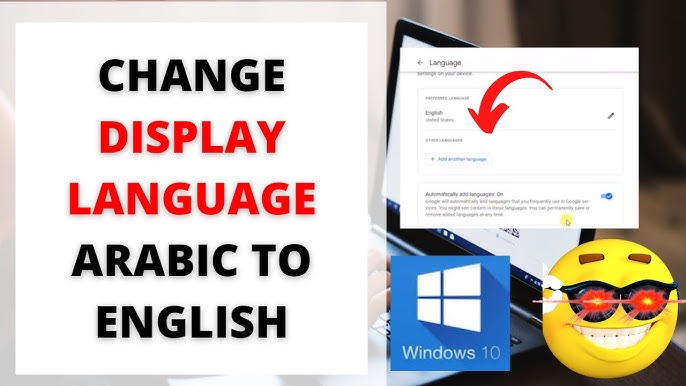
How to Change Windows 10 Language to Arabic — Step-by-Step Guide Without Software
How to Change the Windows 10 Language to Arabic
Unlike previous operating systems, Windows 10 makes changing the display language very straightforward — no third-party software is needed. The only requirement is an internet connection to download the language pack. After changing the language, you can easily revert to the previous language at any time.
Step 1: Add the Arabic Language
After installing an English version of Windows 10 and wanting to write in Arabic or change the interface language, go to Settings, press Time & language, then from the left menu press Language, then press Add a language.
Search for "Arabic" in the language list, select the Arabic variant you want along with the appropriate country (e.g., Arabic — Saudi Arabia or Arabic — Egypt), then press Next and Install.
Step 2: Download the Arabic Language Pack
Microsoft provides language packs for many languages including Arabic. Installing these packs allows you to switch the Windows display language with ease — and the Arabic language pack can be set as the default language on your device.
Scroll down, click on the Arabic language and country name, then press the Options button.
On the language options page, click the Download button next to Download language pack and wait for the download to complete — this step requires an internet connection.
Step 3: Set Arabic as the Windows Display Language
After the Arabic language pack finishes downloading, go back to the previous window. From the dropdown menu for selecting the display language, choose Arabic — this option will now appear after downloading the Arabic pack.
You'll then be prompted to restart the device to activate the new language. After your device restarts, you'll notice that Windows 10 has changed from English to Arabic.
Switching Between Keyboard Languages
In Windows, you can switch between keyboard input languages using the shortcut Alt + Shift on the keyboard.
You can also press Windows + Space to quickly cycle through the installed keyboard languages.
Changing Windows 10 Language Back from Arabic to English
Some users may want to switch Windows 10 language from Arabic back to English. The process is very simple and can be done through Windows Settings in just a few steps. The same method applies for switching from French to English or any other language.
You'll be taken to a new page where you click on the language from the right side. Then select English from the "Windows Display Language" option. A message will appear confirming that English will become the system display language after the next restart. After restarting, Windows 10 will display in English.
Important Notes
Windows 10 uses the default language setting determined during initial setup. However, this doesn't mean you're stuck with that language. Using Windows Settings and Control Panel, you can change the entire system language to a different one at any time without reinstalling Windows 10.
Summary of Steps
First — Open Settings, then Time & language, then Language. Second — Click Add a language, search for Arabic, and add it. Third — Click on Arabic, then Options, then download the language pack. Fourth — Go back and select Arabic from the Windows Display Language dropdown. Fifth — Restart your device for the new language to take effect.
Final Thoughts
Changing the Windows 10 display language is a very simple process that requires no third-party software or system reinstallation — all you need is an internet connection to download the language pack and a few minutes of your time. The process is fully reversible, meaning you can switch back to the previous language at any time using the exact same steps.
FAQs
CONTACT US
©2026 MobiTech Integrated Solutions. . All Rights Reserved