
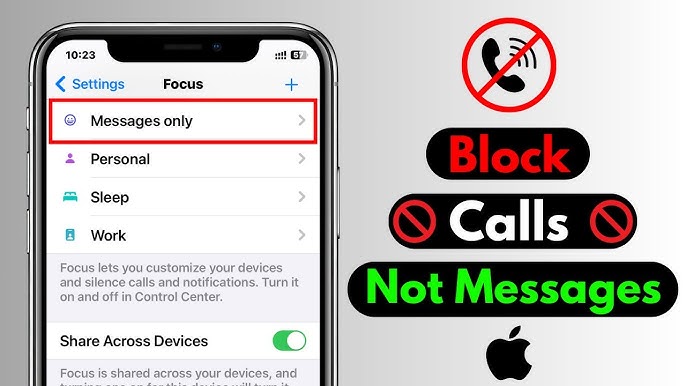
How to Block Calls on iPhone — A Comprehensive Guide for iOS 26 and iOS 18 in 2026
How to Block Calls on iPhone — Complete 2026 Guide
When a phone number or contact is blocked on iPhone: calls from that number go straight to voicemail without the phone ringing or vibrating, text messages are blocked, FaceTime calls are blocked, and the blocked contact doesn't get a notification that the call or message was blocked.
Method 1: Block a Specific Number from Recent Calls
Open the Phone app → tap Recents → find the number to block → tap the info (i) icon next to it → scroll down → tap Block Caller (iOS 18) or Block Contact (iOS 26) → tap Block Contact to confirm.
Faster alternative: In the Recents list, swipe left on the number to block → three icons appear: an orange hand, a blue clock, and a red trash can → tap the orange hand to block the number directly from the recent call log.
Method 2: Block a Number from Contacts
Open the Phone app → tap Contacts → tap the desired contact → scroll down → tap Block Contact.
Method 3: Block a Number Directly from Settings
Open Settings → Privacy & Security → Blocked Contacts → Add Blocked Contact → select a contact or enter the number manually → Block Contact.
Method 4: Silence Unknown Callers
When this feature is enabled, incoming calls from numbers not saved in contacts are automatically silenced and sent to voicemail. Silenced calls don't ring or show a notification; they only appear in the Recents list.
On iOS 18: Settings → Apps → Phone → Silence Unknown Callers → toggle on.
On iOS 26: Settings → Apps → Phone → Screen Unknown Callers → select Silence to silence unknown numbers and send them to voicemail.
Method 5: Call Screening — New in iOS 26
Settings → Apps → Phone → Screen Unknown Callers → select Ask Reason for Calling. With this option on, calls from unknown numbers are intercepted automatically and the caller is asked to state their name and reason for calling. The response is transcribed into text and shown, then a decision can be made whether to answer or not.
With Call Screening enabled, spam calls stop triggering ringtones and notifications. Legitimate calls from unknown numbers still appear, but only after the caller provides context.
Method 6: Call Filtering — iOS 26
Settings → Apps → Phone → Call Filtering → enable Unknown Callers: missed calls and voicemails from unsaved numbers are moved to a separate list. Enable Spam: calls identified as spam or fraud by the carrier are silenced, sent to voicemail, and moved to the Spam list.
Method 7: Focus Mode to Block Unknown Numbers
Settings → Focus → select Do Not Disturb → Allow Notifications → People → Allow Calls From → choose All Contacts or Contacts Only. This way, only calls from people saved in contacts will come through. This mode can be scheduled automatically during sleep or work hours.
Method 8: Third-Party Blocking Apps
iPhone offers a Call Blocking & Identification feature that allows additional apps to stop spam calls. Settings → Apps → Phone → Call Blocking & Identification.
Reliable apps available on the App Store include: Truecaller (large caller identification database), RoboKiller (blocks robocalls), Hiya (caller ID and threat blocking).
How to Unblock a Number
Settings → Privacy & Security → Blocked Contacts → Edit → tap the delete button next to the contact to unblock → Unblock.
FAQs
CONTACT US
©2026 MobiTech Integrated Solutions. . All Rights Reserved