
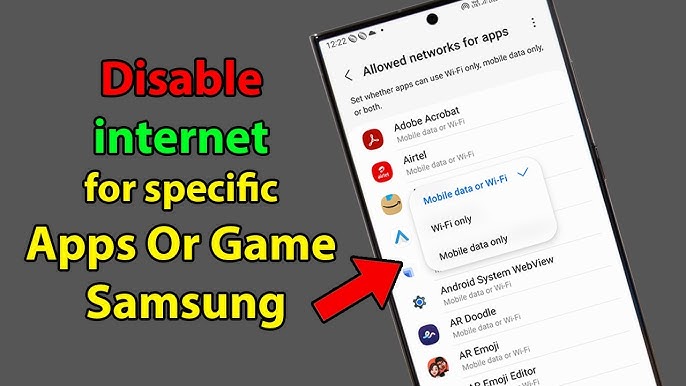
How to Block Apps from Using the Internet — Android, iPhone, and NetGuard 2026
How to Prevent Apps from Using the Internet on Android and iPhone — Complete 2026 Guide
Controlling cellular data usage on your phone helps you save money by stopping unnecessary spending on your data plan, improve battery life as background apps drain power, and enhance privacy since some apps may use your personal data without your knowledge.
Why Do Apps Use the Internet Without You Using Them?
Social apps like Facebook, TikTok, Twitter, and Instagram tend to be the worst offenders for background data consumption because immediate updates and personal data collection are essential for these platforms to deliver value. Streaming apps like Spotify are also in perpetual refresh mode to ensure instant responses.
Method 1: Block a Specific App from Mobile Data (Android)
Go to Settings → Network & Internet → Data Usage (or Connections → Data Usage depending on the device). The amount of data used will appear at the top of the page.
To stop a specific app from using background data: long-press the app icon and tap "App Info" → select "Data Usage" → disable "Background Data." To block internet access completely even when the app is open, enable "Disable Wi-Fi" and "Disable Data Usage."
On Samsung specifically: Settings → Connections → Data Usage → Mobile Data Usage → tap the specific app → toggle off "Allow Background Data Usage."
On Xiaomi/MIUI: Open the App Info page → select "Restrict Data Usage" → uncheck "Wi-Fi" and "Mobile Data" options → tap OK.
Method 2: Enable Data Saver Mode (For All Apps at Once)
Settings → Network & Internet → Data Saver → toggle on "Use Data Saver" to stop all apps from using background data when not in use. Tap "Unrestricted Data" to allow specific apps to continue background access even with Data Saver active.
Once enabled, go to "Unrestricted Data" and scroll through the list of apps, turning the option off for any app you don't want using your data.
Method 3: Block Apps from Using the Internet on iPhone
On iPhone, control each app's cellular network access:
Settings → Cellular → scroll down to see all apps listed → toggle off the switch for any app you don't want using cellular data.
To stop background app refresh on iPhone: Settings → General → Background App Refresh → disable it globally or for specific apps individually.
Method 4: NetGuard App (Firewall Without Root)
NetGuard is a firewall app that prevents apps from using cellular data and can also stop them from connecting over Wi-Fi. It lets you choose which apps can connect to the internet and which can't. Beyond saving data, it reduces bandwidth usage, saves battery, and can help prevent app notifications, pop-ups, and ads.
After installing: the app lists all installed apps alphabetically. Next to each app are responsive icons for Wi-Fi and mobile data. Tap the Wi-Fi icon to block an app from Wi-Fi, tap the mobile data icon to restrict it from cellular, or tap both to cut off its internet access entirely.
Set Monthly Data Limits with Alerts
Set a data warning and usage limit as well: in the phone's Settings menu, tap Connections or Network & Internet and look for the option to set data limits, filling in your preferred weekly or monthly usage thresholds.
FAQs
CONTACT US
©2026 MobiTech Integrated Solutions. . All Rights Reserved