
How to Block Ads on Your Android Phone Easily (2026)
How to Block Ads on Your Android Phone Easily
Ads on Android aren't just annoying — they consume your mobile data, drain your battery, slow down your phone, and some of them contain malware or secretly collect your personal data. The good news is there are highly effective ways to block most ads without needing to root your device at all.
Method One: Chrome's Built-In Settings
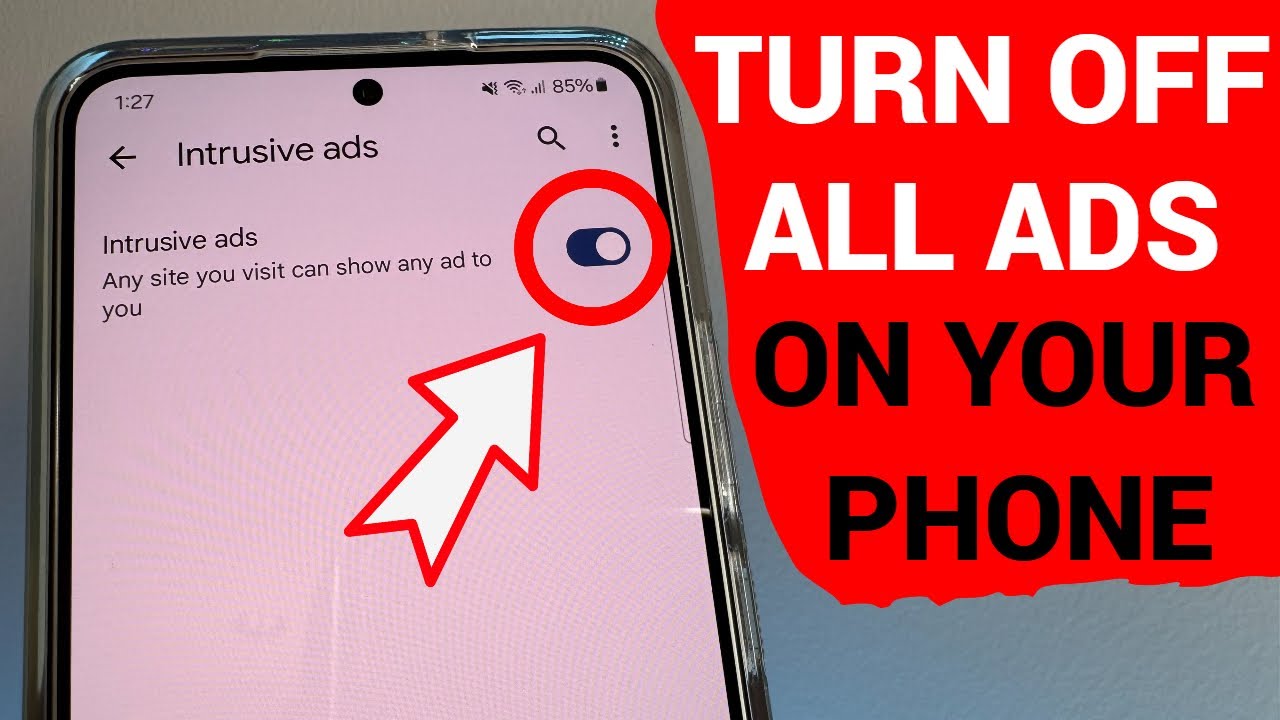
Start with the simplest step — activating Chrome's built-in ad blocker. Open Chrome, tap the three dots in the top right corner, go to Settings, then Site Settings. From there, find Pop-ups and redirects and turn it off, then go back and find Intrusive ads and turn that off too. This alone stops a significant number of pop-ups and intrusive ads across websites.
Method Two: Private DNS for Network-Wide Ad Blocking
This is one of the most powerful and straightforward methods available. A Private DNS blocks ads before they even reach your device, at the network level — meaning it affects all apps and browsers at once. Go to your phone's Settings, then Network and Internet, then Private DNS, select Private DNS provider hostname, and enter dns.adguard.com or nextdns.io, then save. From that point on, most ads across all your apps will be blocked automatically.
Method Three: AdGuard App for Comprehensive Blocking
AdGuard is the most powerful ad-blocking solution on Android because it works at the system level — blocking ads inside apps, games, and websites all at once. It also protects against malicious sites and trackers. The app isn't available on Google Play, but you can download it directly from the official AdGuard website. The basic version is free and more than sufficient for everyday use.
Method Four: Switch to Brave or Firefox Instead of Chrome
If you want a completely ad-free browsing experience, the easiest solution is switching your browser. Brave blocks ads and trackers automatically from the moment you open it with no extra setup required. Firefox on Android supports extensions, so you can install uBlock Origin or Ghostery for professional-grade ad blocking. Both browsers are free and available on the Google Play Store.
Method Five: Revoke the "Display Over Other Apps" Permission
If you're seeing ads appearing on your home screen or floating over other apps, a specific app has been granted the "Display over other apps" permission and is abusing it for advertising. Identify the responsible app, long-press its icon, open App Info, go to Permissions, find Display over other apps, and turn it off. If you don't need the app at all, uninstall it entirely.
Method Six: Disable Personalized Ads in Google Settings
This won't stop all ads but will stop targeted ads that use your data to follow you around. Go to Settings, then Google, then All Services, then Privacy and Security, then Ads. From there, you can disable app-suggested ads and delete your advertising ID. This limits how much advertisers can track your activity across different apps.
FAQs
CONTACT US
©2026 MobiTech Integrated Solutions. . All Rights Reserved