
How to Back Up Your Android Phone's Apps and Files (2026)
How to Back Up Your Android Phone's Apps and Files
Most people only think about backups after something goes wrong — a broken screen, a stolen phone, or an accidental factory reset. By then, it's too late to recover years of photos, conversations, and app data. Regular backups aren't optional; they're essential. And on Android, there are easy methods to automate the whole process so you never have to think about it again.
Method One: Automatic Backup via Google
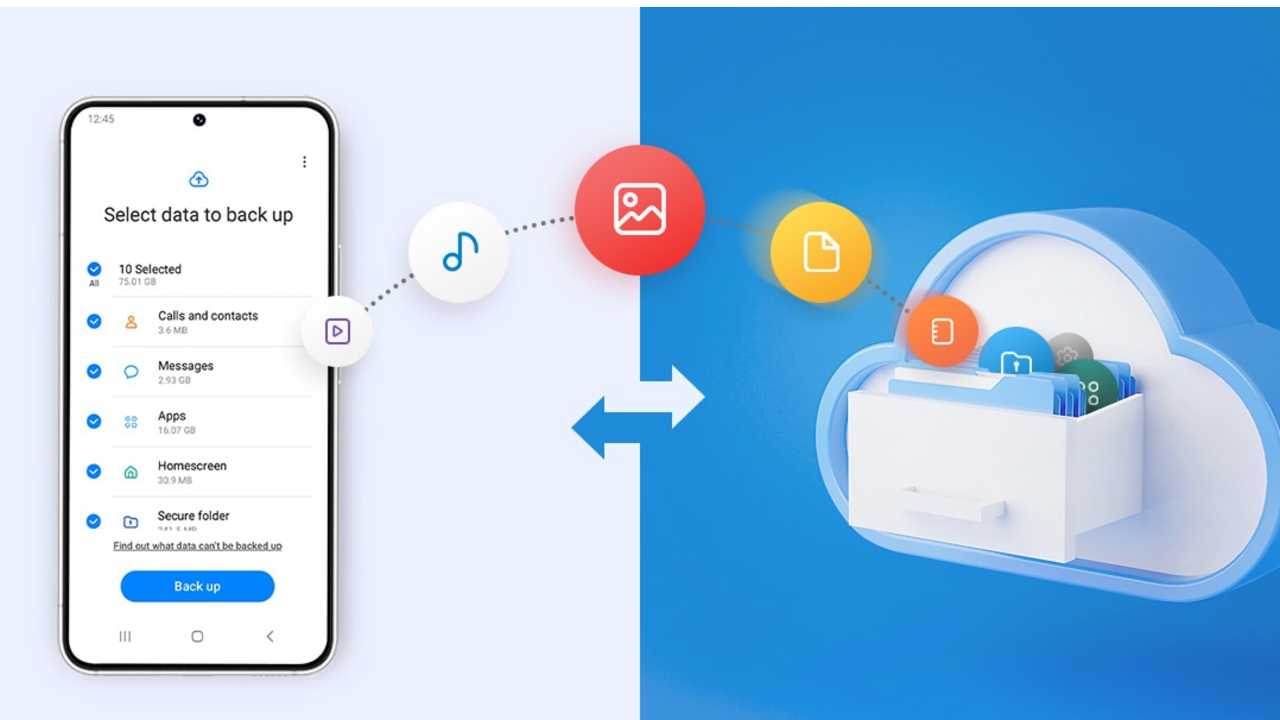
This is the easiest and fastest method, and it's completely free and built into every Android phone. Go to your phone's Settings, tap Google, then Backup, and enable Back up to Google One. Google will automatically back up your contacts, messages, app data, phone settings, and call history. The backup runs automatically whenever your phone is connected to Wi-Fi and charging, so you won't even notice it happening. The free storage is 15GB shared across Drive, Gmail, and Photos.
Method Two: Back Up Photos and Videos via Google Photos
Photos and videos usually take up the largest share of your storage and are the most painful to lose. Open Google Photos, go to Settings, and enable Backup. The app will automatically upload every photo and video you take to the cloud, accessible from any device at any time. If free storage runs low, you can switch to Storage Saver quality to compress photos and save space.
Method Three: Back Up Files Manually to Google Drive
Important files like documents, PDFs, and personal files don't always get backed up automatically. The solution is to upload them manually to Google Drive, or use the Autosync app which automatically syncs specific folders on your phone with Drive on a schedule. Set up organized folders in Drive and move your important files there so they're always accessible from any device.
Method Four: Back Up to Your Computer via USB Cable
This is an excellent method if you want a local backup without relying on the internet. Connect your phone to your computer with a USB cable and select Transfer Files from the notification that appears on your phone. Your phone will appear as a drive on your computer. Navigate to the DCIM folder for photos, the WhatsApp folder for chats and media, and the Download folder for downloaded files, then copy them to your computer. On Mac, you'll need to download the Android File Transfer app first.
Method Five: Back Up WhatsApp Data
WhatsApp data needs special attention because it can be easily lost during a phone change or reset. WhatsApp automatically backs up to Google Drive — make sure this is enabled by going into WhatsApp Settings, then Chats, then Chat Backup. Set the backup frequency to Daily for best protection, and choose whether to include or exclude videos based on your available storage.
Method Six: Swift Backup App for Advanced Backups
If you want a more comprehensive backup that includes app data, SMS messages, and call history in an organized way, Swift Backup is one of the best options available on the Google Play Store without rooting. It lets you choose exactly what to back up, where to save it — either on your phone or Google Drive — and schedule automatic backups on a regular basis.
FAQs
CONTACT US
©2026 MobiTech Integrated Solutions. . All Rights Reserved