
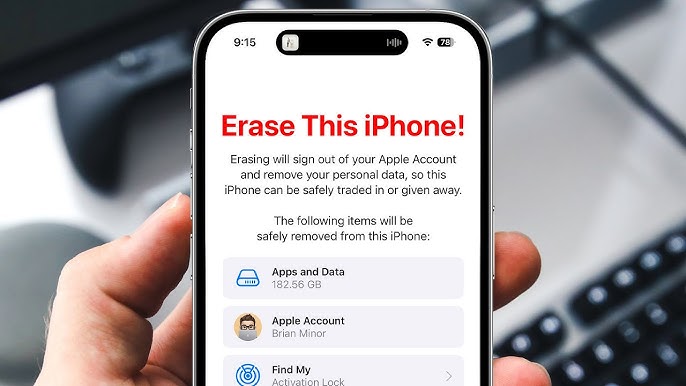
Format iPhone Completely 2026 — Two Methods: Without Computer From Settings and With Computer via iTunes, With Differences Between Format, Restore, and Factory Reset
What Does iPhone Formatting Mean?
iPhone formatting means completely erasing everything on the device — photos, videos, contacts, apps, games, and all settings — and returning the device to its original state as if it were a brand new phone. The result is a completely clean device with no trace of previous data.
When Do You Need to Format the iPhone?
When selling or transferring the device — to protect your privacy and ensure no one can access your data after selling the device. To solve advanced iPhone problems — such as severe device slowness, Home button not responding to fingerprint, persistent internet problems, battery percentage not changing, or any problem that other methods haven't solved.
The Difference Between Format, Restore, and Factory Reset
Many people confuse these three terms — understanding them correctly helps you choose the right option:
Format (Erase All Content): All personal content and data is erased, but the iOS system remains as is without updates or changes. This is the option when selling.
Restore: Content is erased and iOS is completely removed, then the latest version of iOS is downloaded fresh. This option solves deep system problems. Requires a computer and iTunes.
Factory Reset: Returns settings to default without necessarily erasing all data — depends on the selected option (erase settings only, or settings and content).
Before Formatting — Precautions Not to Ignore
First: Make a backup. Before any format make sure to back up your data via either iCloud or iTunes. The backup allows restoring contacts, photos, and app data after formatting.
Second: Charge battery above 50%. Power interruption during formatting can cause serious device problems. Make sure the charge level exceeds half or connect the device to a charger during formatting.
Method 1 — Format iPhone Without Computer
This method is directly from device settings — no computer or internet connection needed. All data is erased while keeping the same iOS version.
Steps: Open Settings ← tap General ← tap Transfer or Reset iPhone (in modern iOS) or Reset in older versions ← tap Erase All Content and Settings ← tap Continue ← enter the device passcode if prompted ← tap Erase iPhone for final confirmation.
The device will start erasing and restart itself. The process takes 5 to 20 minutes depending on data quantity. After completion the device shows the welcome screen as if it were a new device.
Method 2 — Format iPhone From Computer (via iTunes)
This method is more powerful and solves deep iPhone problems because it completely erases iOS and downloads the latest version fresh.
Step 1 — Prepare the Computer
Make sure iTunes is installed on the computer and is updated to the latest version. Connect the iPhone to the computer via USB cable.
Step 2 — Enable Airplane Mode
Before starting enable Airplane Mode on the iPhone to prevent any call from interrupting the formatting process.
Step 3 — Turn Off "Find My iPhone"
iTunes will ask you to turn off "Find My iPhone" before proceeding. To turn it off: go to Settings ← tap your Apple ID or name ← tap iCloud ← tap Find My iPhone ← turn off the toggle. Enter your Apple account password if prompted.
Step 4 — Start Restore from iTunes
In iTunes tap the phone icon at the top left of the screen. From the sidebar tap Summary. Tap Restore iPhone. A confirmation message will appear — tap Restore to proceed. iTunes will start downloading the latest iOS version (may take time depending on internet speed), then install it on the device. Don't disconnect the cable during the process.
FAQs
CONTACT US
©2026 MobiTech Integrated Solutions. . All Rights Reserved