
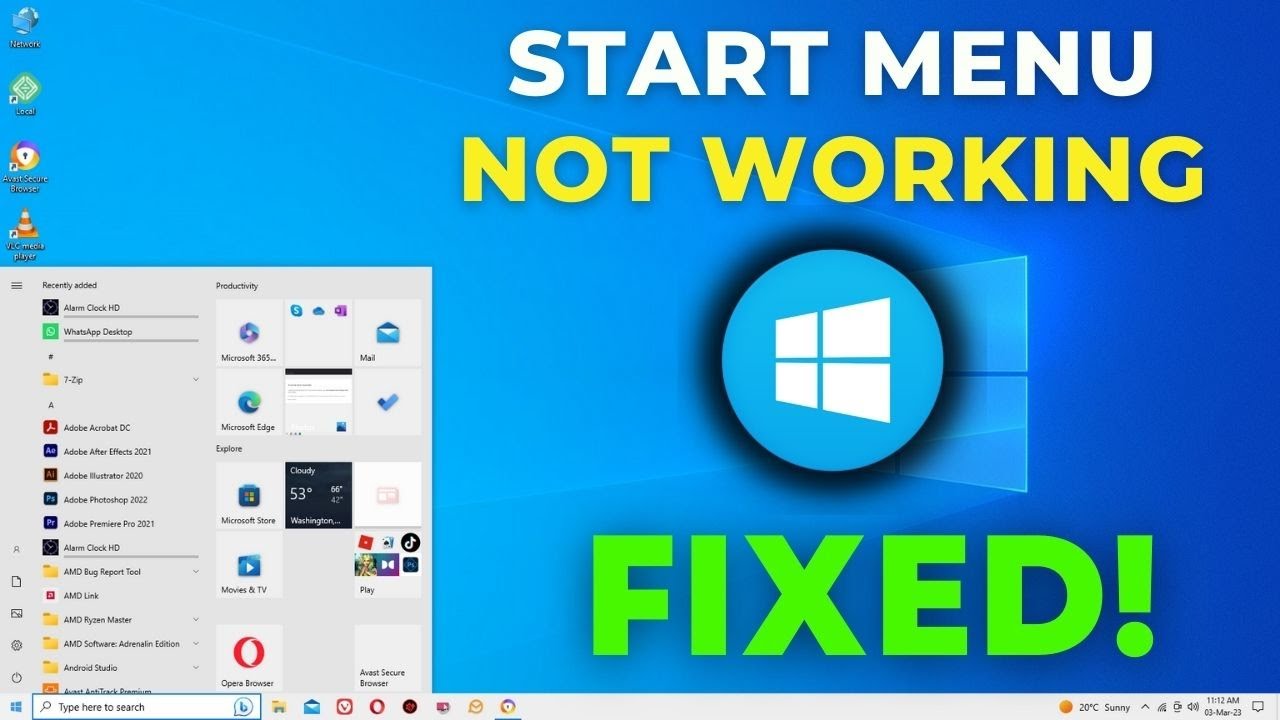
Fix Windows 10 Start Menu Not Working — 3 Effective Solutions
Fix Windows 10 Start Menu Not Working
The Windows 10 Start Menu not opening is one of the most common issues users encounter. The Start Menu is one of the most important elements of Windows 10, providing quick access to the system's contents, settings, files, and everything you need to reach.
What Causes the Start Menu to Stop Working?
The Start Menu failure in Windows 10 typically occurs when some files and settings have become corrupted — usually caused by installing or uninstalling certain programs that leave behind cached files and folders.
Common symptoms you may encounter include the Start Menu not opening when pressing the Windows key, the menu appearing but no items being clickable, the Start Menu disappearing entirely, or a Critical Error message related to the Start Menu.
Solution 1: Restart Windows Explorer
The simplest first fix is to restart the Windows Explorer process — which is responsible for the Start Menu and other desktop elements. If there's any glitch, error, or fault, restarting it will almost certainly resolve it.
Steps:
Right-click on the taskbar at the bottom of the screen and choose Task Manager from the menu. In the window that appears, click More to view all processes currently running in the background.
Find Windows Explorer in the process list, right-click it, and select Restart. Wait a moment and the Start Menu should return to normal operation.
Solution 2: Scan System Files Using SFC
The second solution is to scan for Start Menu errors by checking system files for corrupted files and fixing them correctly — as corrupted files are a common cause of the Start Menu disappearing or failing to work properly in Windows 10.
Steps:
Press the Windows key + R on your keyboard, type CMD in the Run window, and press ENTER. A black Command Prompt window will appear.
Type the following command and press ENTER:
sfc /scannow
Windows will then scan all system files looking for any corrupted ones, and if it finds a corrupted file, Windows will automatically repair it. After the scan completes, in most cases you'll find that the Start Menu has returned to working properly.
If SFC doesn't fix it, try the DISM command to repair the system image:
DISM /Online /Cleanup-Image /RestoreHealth
This will download files from Windows Update to replace any corrupted files, and may take some time to complete.
Solution 3: Use the Start Menu Troubleshooter
The third solution is to use the built-in maintenance tool called Start Menu Troubleshooter, developed specifically by Microsoft to handle various Start Menu issues — including when it disappears, fails to appear, or stops working.
Steps:
Check the box next to Apply repairs automatically and the tool will run several checks and repair attempts for the Start Menu issue you're experiencing, fixing it automatically. Afterward, you can view full details of the issue by clicking View detailed information.
Solution 4: Start the Application Identity Service
To start this service, press Win + R, type services.msc, then in the Services window right-click Application Identity and click Start. Restart your computer and the Start Menu should open again.
Solution 5: Create a New User Account
If reinstalling Windows apps doesn't fix the Start Menu issue, creating a new user account is typically the next step. If you're currently using a Microsoft account, your settings will transfer to the new account once it's upgraded from a local account.
To create a new user via Command Prompt:
net user NewUsername NewPassword /add
Recommended Order for Trying Solutions
Try the solutions in this order — from simplest to most thorough:
First — Restart Windows Explorer from Task Manager. Second — Run sfc /scannow from an elevated Command Prompt. Third — Use the Start Menu Troubleshooter tool. Fourth — Start the Application Identity service from Services. Fifth — Create a new user account if all previous solutions fail.
Final Thoughts
The Windows 10 Start Menu issue can feel very frustrating, but it's almost always fixable using the simple methods above — without needing to reinstall the entire operating system. Always start with the simplest fix first — restarting Windows Explorer — and if that doesn't work, move on to the SFC file scan, which resolves the issue in the vast majority of cases.
FAQs
CONTACT US
©2026 MobiTech Integrated Solutions. . All Rights Reserved