
Fix Windows 10 Sound Not Working — 4 Effective Solutions Without Software
Fix Windows 10 Sound Not Working
After installing Windows 10 you may encounter some problems — one of the most common being sound not working and a red X appearing on the sound icon. This guide covers all the proven methods to fix the Windows 10 sound problem. The issue often traces back to installed Windows 10 drivers that are incompatible with certain computer or laptop components, causing hardware like the sound card to malfunction. The methods here rely on tools built into the system, and if those don't work, we'll move on to downloading compatible sound drivers for your specific Windows 10 installation.
Before starting, always make sure your system is up to date through Windows Update from the Start menu — Microsoft's updates address most problems that users encounter.
Fix 1: Audio Troubleshooter
Start by using the Audio Troubleshooter built into Windows 10 — it scans the system, identifies the cause of the problem, and fixes it automatically without any manual intervention. Access it by right-clicking the sound icon at the bottom of the screen and selecting Troubleshoot sound problems. Follow the prompts, and the tool will identify and resolve the issue.
Fix 2: Repair the Sound Driver in Device Manager
This step should fix the sound problem on your device if the troubleshooter fails — by repairing the sound driver installed in Windows 10.
Update the sound driver:
Open the Start menu, search for Device Manager, then find the sound driver under Sound, video and game controllers. Right-click the sound driver and select Update driver from the options that appear. Make sure you're connected to the internet before starting so the update can complete successfully.
Reinstall the sound driver:
If updating didn't fix the Windows 10 sound problem, go back to Device Manager to reinstall the sound driver. Repeat the previous step but this time click Uninstall device instead of Update driver. A small window will appear — click Uninstall. Windows will ask you to restart the device. Agree to restart, and when the device opens again the sound problem should be resolved.
Fix 3: Check the Default Playback Device
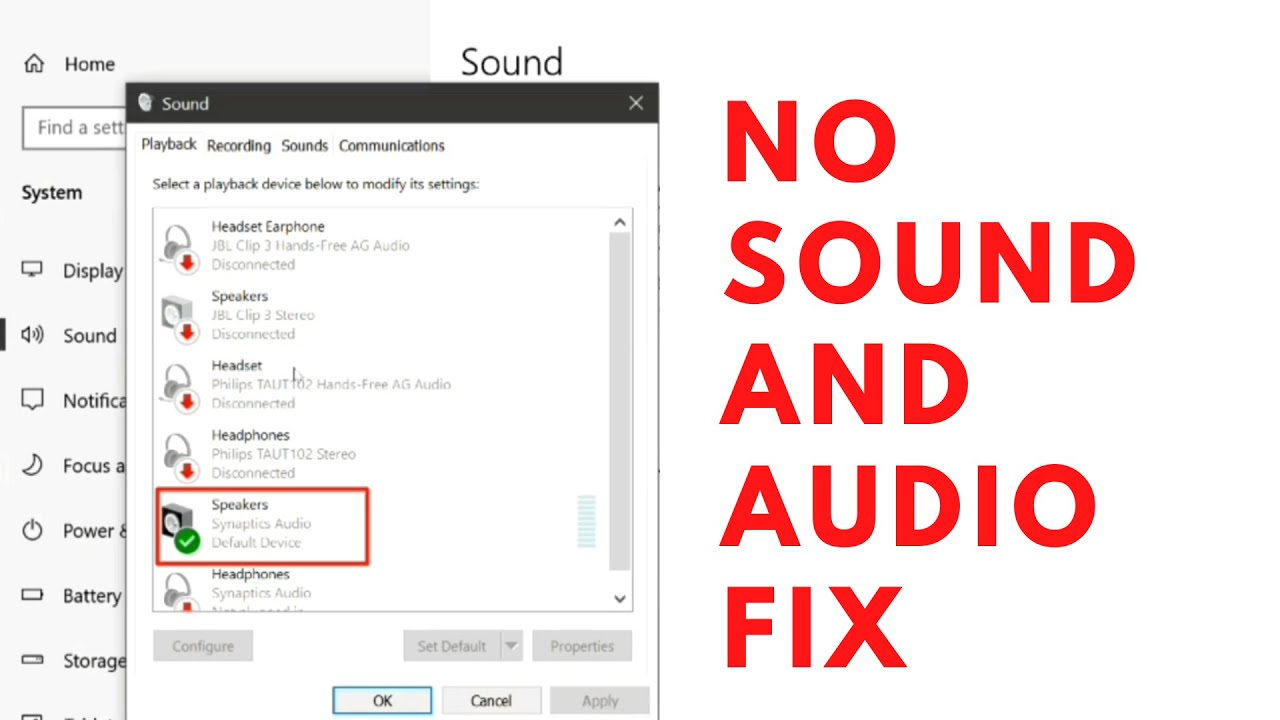
Another important step is checking the Default device setting. Click the sound icon at the bottom of the screen and select Sound. In the Sound window, click the Playback tab and make sure Speakers shows Default device below it. Then click the Recording tab next to it and repeat the same check.
If Speakers is not set as the default device, right-click it and choose Set as Default Device, then click OK.
Fix 4: Manually Download and Install the Sound Driver
If the previous steps haven't worked, you'll need to update the sound card driver by downloading it from the internet and installing it on your device — making sure to download the driver that matches your specific device.
To find your sound card name: open Device Manager → Sound, video and game controllers and note the card name listed there (e.g., Realtek High Definition Audio or Intel HD Audio). Search for that name online with "driver download" to find the official driver from the manufacturer's website.
Check Microphone Settings
Finally, verify the microphone status in Windows Settings by going to Settings → Privacy → Microphone from the left sidebar → click Change and make sure it is set to On.
Solutions in Order — Simplest to Deepest
First — Run the Audio Troubleshooter from the sound icon. Second — Verify the correct Default device in Sound settings. Third — Update the sound driver from Device Manager → Update driver. Fourth — Reinstall the driver from Device Manager → Uninstall device, then restart. Fifth — Manually download the correct driver from the manufacturer's official website.
Final Thoughts
The Windows 10 sound not working issue is most often resolved either by the built-in Audio Troubleshooter or by reinstalling the sound driver from Device Manager — both are simple and require no additional software. Try the solutions in order from simplest to deepest and the problem will typically be resolved well before reaching the advanced steps.
FAQs
CONTACT US
©2026 MobiTech Integrated Solutions. . All Rights Reserved