
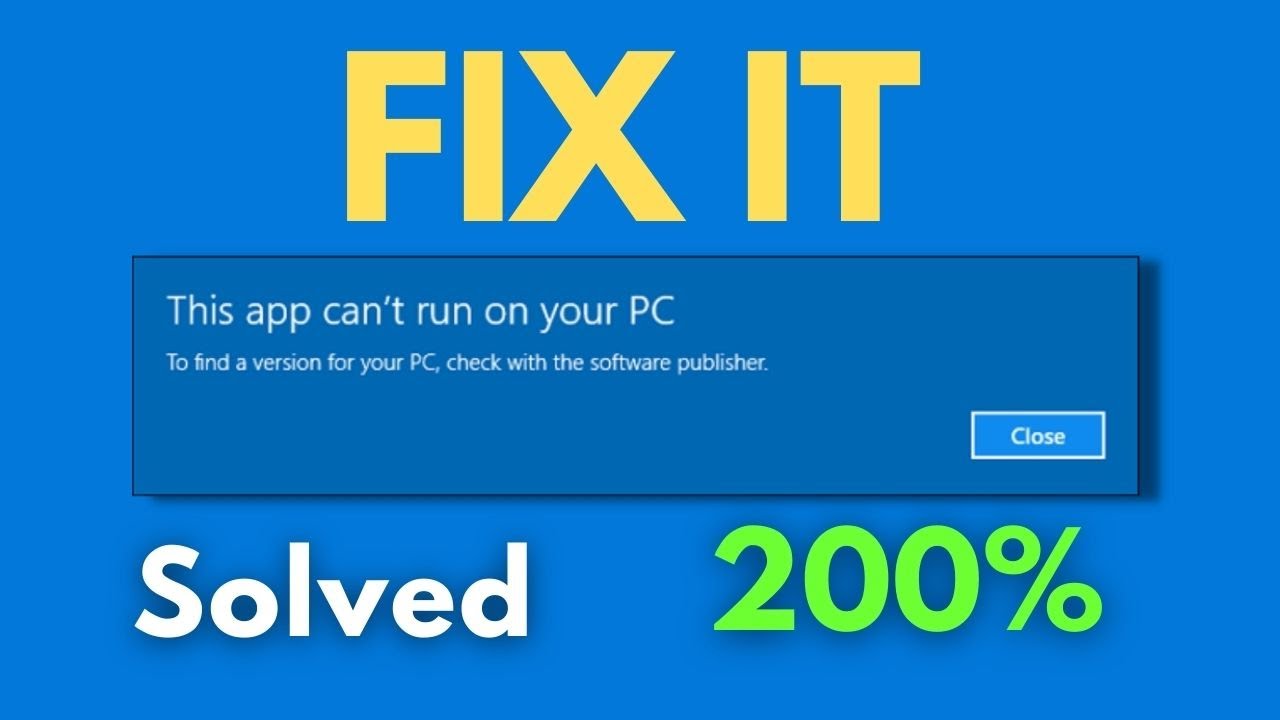
Fix "This App Can't Run on Your PC" Error in Windows 10 — 3 Effective Solutions
Fix "This App Can't Run on Your PC" Error in Windows 10
Although Windows 10 is the best operating system Microsoft has produced, users can still encounter some problems during use — one of them being the "This app can't run on your PC" error. This problem appears when attempting to run a new program on the device, preventing it from opening and launching. There are many reasons for this error: some programs require specific permissions not available to a standard user account — these permissions are only available when using the device as an Admin. The error can also appear because the program itself is not compatible with Windows 10.
Causes of the Error
This error appears for various reasons — the program needs special permissions that require Admin access, or the program is fundamentally incompatible with the operating system. If you're running a 32-bit version of Windows 10 and trying to install a 64-bit version of a program, this message will inevitably appear — and the reverse is equally true.
Fix 1: Run the Program as Administrator
If you're not logged into the Windows Administrator account and this problem appears, close the error window, log into the Administrator account, and try installing or running the program again.
If you're already on an administrator account but the problem persists, try right-clicking the program's icon and selecting Run as administrator to launch it with elevated privileges.
Fix 2: Disable Windows SmartScreen
The second solution is to disable Windows SmartScreen, which analyzes and checks programs before allowing them to run on the device. To do this, go to Control Panel, search for Security and Maintenance, open it, then click Change Windows SmartScreen settings on the left side. A new window will open — select Don't do anything (turn off Windows SmartScreen), then click OK at the bottom. After that, try installing or running the program and the problem should largely be resolved.
Fix 3: Change Compatibility Settings
If the previous fix didn't work, change the Compatibility settings for the program you're trying to run — essentially tricking Windows into thinking the program is running on Windows 7 or 8 instead of Windows 10. To do this, right-click the program's launch icon, then click Properties to open a small window. Click the Compatibility tab, check the box next to Run this program in compatibility mode for, then from the dropdown below select the Windows version — either Windows 7, 8, or another option. Finally click OK and try running the program again.
Fix 4: Download the Correct 32-bit or 64-bit Version
If you're running a 32-bit version of Windows 10 and trying to install a 64-bit program — or the reverse — the only solution is to find and install the correct version of the program that matches your Windows edition. You can do this easily by visiting the program's official website and navigating to the download page, where you'll find separate links for the 32-bit and 64-bit versions.
To check your system type: press Windows + I → System → About and look under System type for whether the device is 32-bit or 64-bit.
Solutions Summary
First — Run the program as Administrator. Second — Disable Windows SmartScreen from Control Panel. Third — Enable Compatibility Mode and select Windows 7 or 8. Fourth — Download the correct 32-bit or 64-bit version of the program matching your system.
Final Thoughts
After following these steps and solutions, the "This app can't run on your PC" error in Windows 10 will be resolved in the vast majority of cases. Always start with running the program as administrator — it's the fastest and most commonly successful fix.
FAQs
CONTACT US
©2026 MobiTech Integrated Solutions. . All Rights Reserved