
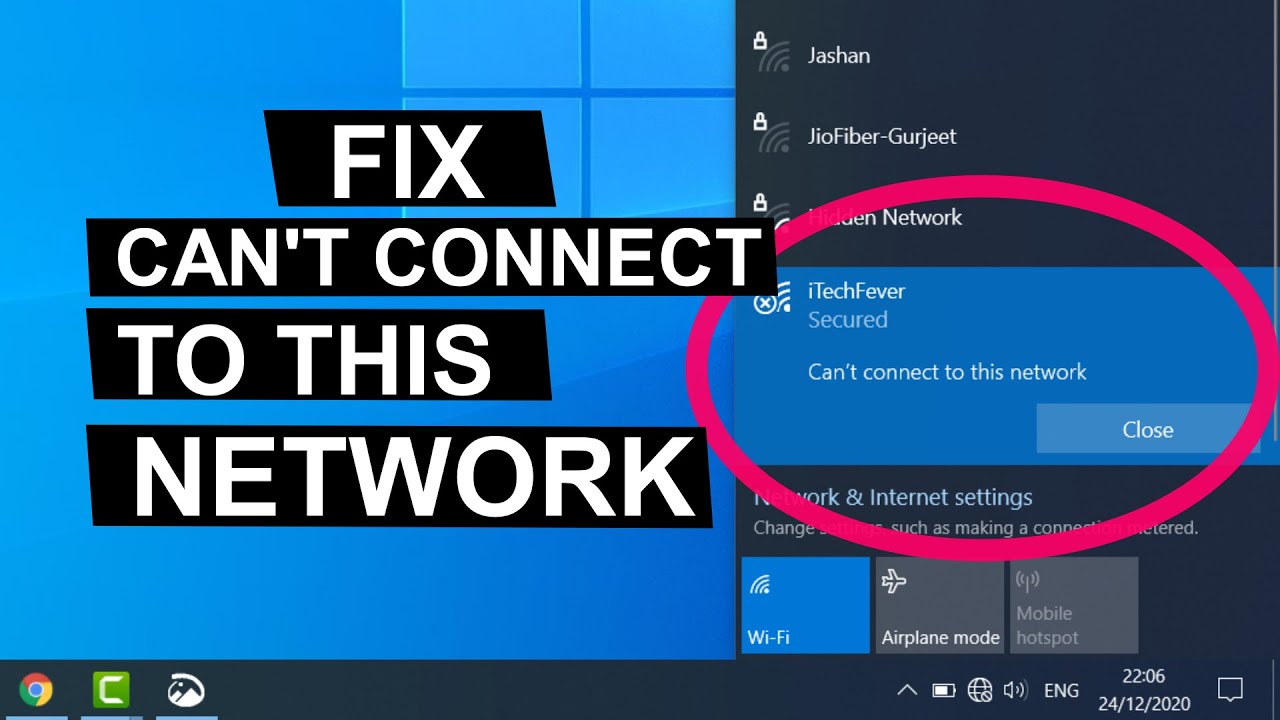
Fix "Can't Connect to This Network" on Windows 10 — 4 Effective Solutions
Fix "Can't Connect to This Network" Error on Windows 10
The "Can't connect to this network" error in Windows 10 is a common issue where users are unable to connect to the internet after opening their computer. A message appears indicating that you cannot connect to the network — particularly when attempting to use Wi-Fi. The problem typically occurs on desktop computers and laptops specifically when trying to connect to the internet using Wi-Fi.
Solution 1: Forget the Wi-Fi Network and Reconnect
This solution fixes most internet connectivity problems on laptops — most notably the "Can't connect to this network" message. Go to Windows 10 Settings, navigate to Network & Internet, click Wi-Fi from the left sidebar, then click Manage known networks on the right.
On the next page, click on the Wi-Fi network you're trying to connect to and press the Forget button. Then go back and reconnect to the internet by clicking the network and entering the password. This step often resolves the connection problem and eliminates the "Can't connect to this network" message.
Solution 2: Uninstall and Reinstall the Network Adapter Driver
If the first method doesn't work, the next step is to delete the Network Adapter driver from your device so that the system can reinstall it fresh with correct settings. To do this, open Device Manager by pressing Windows + X and selecting Device Manager from the menu that appears.
Find Network Adapters and expand it to show the network drivers. Right-click on the driver and select Uninstall device to fully remove the network driver from your device. Then restart your computer. Once Windows reloads, it will automatically reinstall the network driver with the correct settings, and the problem will be resolved permanently.
💡 Another possible cause of this problem is that the Network Adapter driver needs an update. You can do this by downloading the Wi-Fi driver from another device connected to the internet and downloading the driver compatible with your device.
Solution 3: Manually Connect to the Network
This is the final option you can try to fix the "Can't connect to this network" error. Open Windows Settings, go to Network & Internet, then click Network and Sharing Center.
In the new window that opens, click Set up a new connection or network, then in the next window select Manually connect to a wireless network and click Next. You'll then enter some details such as the Network name and Security type, and finally click Next. Windows will then resolve the issue and connect to the internet.
Solution 4: Restart the Router
The most intuitive first step for this type of connectivity problem is to restart the router. Press the power button on the back of the router, leave it off for about one minute, then press the power button again to turn it back on. In a large number of cases, the inability to connect to the network will be resolved after this simple step.
Additional Solutions
Flush DNS Cache: Accumulated data in the DNS cache can sometimes cause internet connectivity issues. Running a DNS cache flush on Windows is recommended.
Open Command Prompt as Administrator and run these commands one by one:
netsh winsock reset
ipconfig /release
netsh int ip reset
ipconfig /renew
ipconfig /flushdns
Network Troubleshooter: Open Settings, go to Network & Internet, scroll down and click Network troubleshooter. The troubleshooter will automatically check for any network connection issues and follow the on-screen instructions to resolve the problem.
Airplane Mode toggle: Sometimes toggling Airplane Mode can reset the wireless connection — simply enable Airplane Mode and then disable it after a few seconds.
Recommended Order for Trying Solutions
Try the solutions in this order for the fastest resolution: first restart the router and wait a minute before turning it back on; second, toggle Airplane Mode on and off to reset the wireless connection; third, forget the Wi-Fi network from network settings and reconnect; fourth, uninstall the Network Adapter driver and restart the device; fifth, try manually connecting to the network through Network and Sharing Center; sixth, run network reset commands from an elevated Command Prompt.
Final Thoughts
The "Can't connect to this network" error in Windows 10 is a common issue with multiple possible causes, but in most cases it's resolved simply by forgetting the network and reconnecting, or by uninstalling the network adapter driver and allowing Windows to reinstall it fresh with correct settings.
FAQs
CONTACT US
©2026 MobiTech Integrated Solutions. . All Rights Reserved