
Contacts Disappeared from Android — 7 Guaranteed Solutions to Recover Them (2026) (Samsung and All Phones)
Android Contacts Disappeared — All Causes and Complete Solutions 2026
Opened your Contacts app only to find some or all contacts have vanished? In most cases the contacts haven't actually been deleted — they're hidden or out of sync. This guide covers every cause and every fix step by step.
Why Do Contacts Disappear on Android?
Contacts disappearing can stem from various causes: sync disruptions with Google accounts, incorrect display settings in the Contacts app, contacts being stored on the wrong location (internal storage vs SIM vs cloud), removing a linked account, software updates or factory resets affecting visibility, and third-party apps interfering with the Contacts app.
Fix 1: Check Display Settings (Most Common Cause)
In many cases contacts haven't been deleted — they've simply been hidden. To check: open the Contacts app → tap the Menu icon in the top corner → select "Contacts to Display" → choose "All Contacts." This will reveal any hidden contacts.
On Samsung specifically: open Contacts → tap the three vertical dots → select "Customize View" → ensure both "Contacts from all accounts" and "All Contacts" are selected.
Fix 2: Enable Google Contacts Sync
Go to Settings → Accounts → [your Google account] → Account sync, and turn on the Contacts toggle.
On Samsung: Settings → Accounts and Backup → Manage Accounts → Google → Sync Account. Confirm sync is active and check when contacts were last synced.
Fix 3: Restore via Google Contacts "Undo Changes" (Within 30 Days)
Google Contacts' Undo Changes feature allows you to restore your contact list to any state within the past 30 days. Steps: Sign into contacts.google.com with the Google account linked to your phone → click the gear icon → select "Undo changes" → choose an appropriate restoration point → click "Undo" to restore.
For Samsung Galaxy users, this can be done directly from the Contacts app: tap the three horizontal lines → Settings → Undo Changes → select a time period and confirm.
Fix 4: Restore from Google Drive Backup
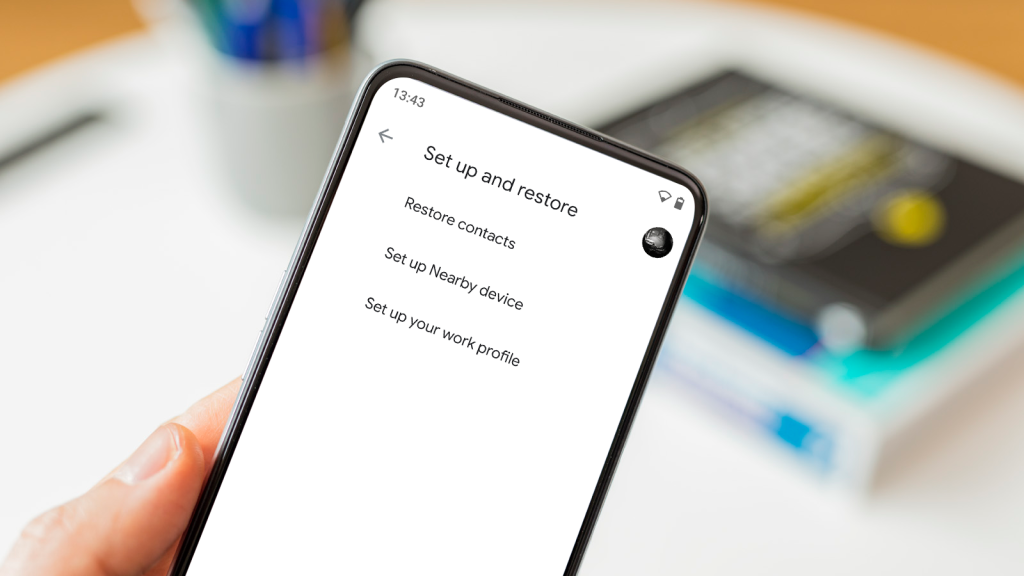
If Google Drive backup was enabled when setting up the phone: Settings → Set up & Restore → Restore Contacts → select the Google account used for backup → choose the old device → tap Restore. A "Contacts restored" confirmation will appear when complete.
Fix 5: Clear the Contacts App Cache
If the issue lies within the Contacts app itself: Settings → Apps → find Contacts → Storage → Clear Cache → restart the phone. Clearing the cache does not delete any actual contacts — it only removes temporary files.
Fix 6: Remove and Re-Add the Google Account
If the above steps haven't worked, try removing the Google account from the phone and adding it back. Removing the account will delete locally stored contacts, but they will sync back once the account is re-added. Steps: Settings → Accounts → tap the Google account → Remove Account → restart the phone → add the Google account again.
Fix 7: Import Contacts from SIM Card or SD Card
If contacts are stored on an SD card: insert the card into the phone → open Contacts → Menu → Settings → Import/Export → Import → select "SD Card" as the import source. For SIM card import: Contacts → Menu → Settings → Import → From SIM Card.
FAQs
CONTACT US
©2026 MobiTech Integrated Solutions. . All Rights Reserved