
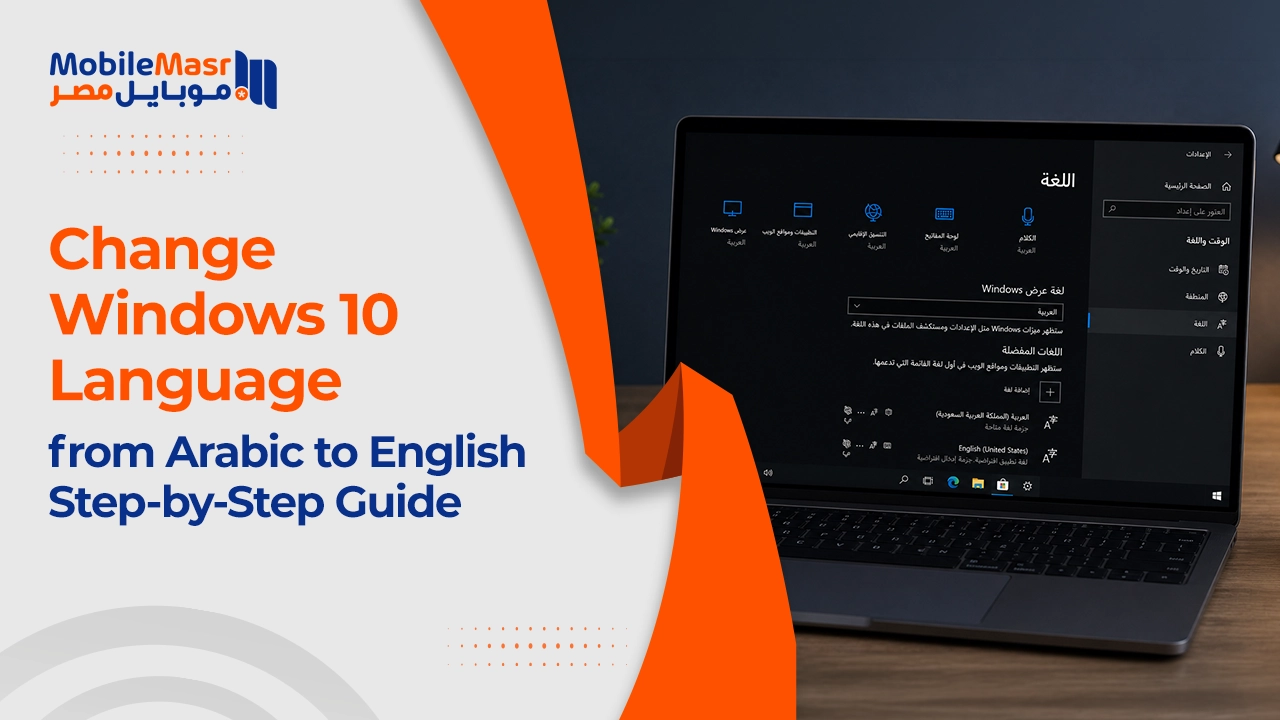
Change Windows 10 Language from Arabic to English — Step-by-Step Guide
Change Windows 10 Language from Arabic to English
Some users want to change Windows 10 language from Arabic to English. The process is very simple — you can change the display language through Windows Settings in just a few steps. The same method applies if you want to switch from French to English or change to any other world language.
Steps to Change Windows 10 Language from Arabic to English
Step 1: Open Language Settings
If you're running Windows 10 in Arabic and want to switch the display language to English, open Windows Settings by pressing the Windows key + I simultaneously. Then click on the Time & Language section.
Step 2: Select the Display Language
You'll be taken to a new page — click on the language option on the right side. Then select English from the "Windows display language" dropdown. A message will appear confirming that English will become the system display language after restarting the computer. After restarting, you'll find that Windows 10 is now displayed in English.
What If English Isn't Listed as an Option?
If you don't see English in the display language list, it means the language pack hasn't been downloaded yet. Here's how to add it: from the Language settings page, click Add a language, search for English and choose the appropriate variant (e.g., English — United States), click Next then Install. After the download completes, return to the Language page and you'll find English available in the Windows display language dropdown.
How to Switch Between Keyboard Languages
In addition to changing the interface language, you can easily switch between keyboard input languages. Press Alt + Shift to quickly toggle between installed keyboard languages, or press Windows + Space to cycle through available keyboard options. You can also click the language indicator in the taskbar next to the clock to switch manually.
Changing Keyboard Language Independently from Display Language
You can use a different display language from your keyboard input language — for example an English interface while still typing in Arabic. To do this: go to Settings → Time & Language → Language, click on English, then Options, and add Arabic keyboard under the Keyboards section. You can then switch between typing languages at any time using Alt + Shift.
Important Notes
Single Language edition: Some Windows 10 versions called Single Language only support one display language and cannot be changed. If this is your case, the display language option won't appear.
Internet connection: To add a new language and download its pack, you'll need an internet connection to download the language package from Microsoft.
Restart required: Changing the display language requires restarting the device to apply changes — it cannot take effect immediately without a restart.
Final Thoughts
Switching Windows 10 language from Arabic to English — or vice versa — is a very simple process that takes no more than two minutes. All you need to do is go to the Time & Language settings and choose your desired language from the display language dropdown. If the language isn't already installed, you'll need to download its pack first by adding a new language.
FAQs
CONTACT US
©2026 MobiTech Integrated Solutions. . All Rights Reserved