
Blocking a program from connecting to the internet in Windows — without programs and free software 2026
How to Block a Program from Accessing the Internet in Windows — Complete Guide 2026
There are many reasons to block a program from accessing the internet on Windows: preventing auto-updates that consume your limited data, protecting privacy from apps that may send your data to external servers, or restricting certain programs on shared computers. Windows provides a built-in method to do this without any third-party software.
Method 1: Block a Program via Windows Defender Firewall (No Software Required)
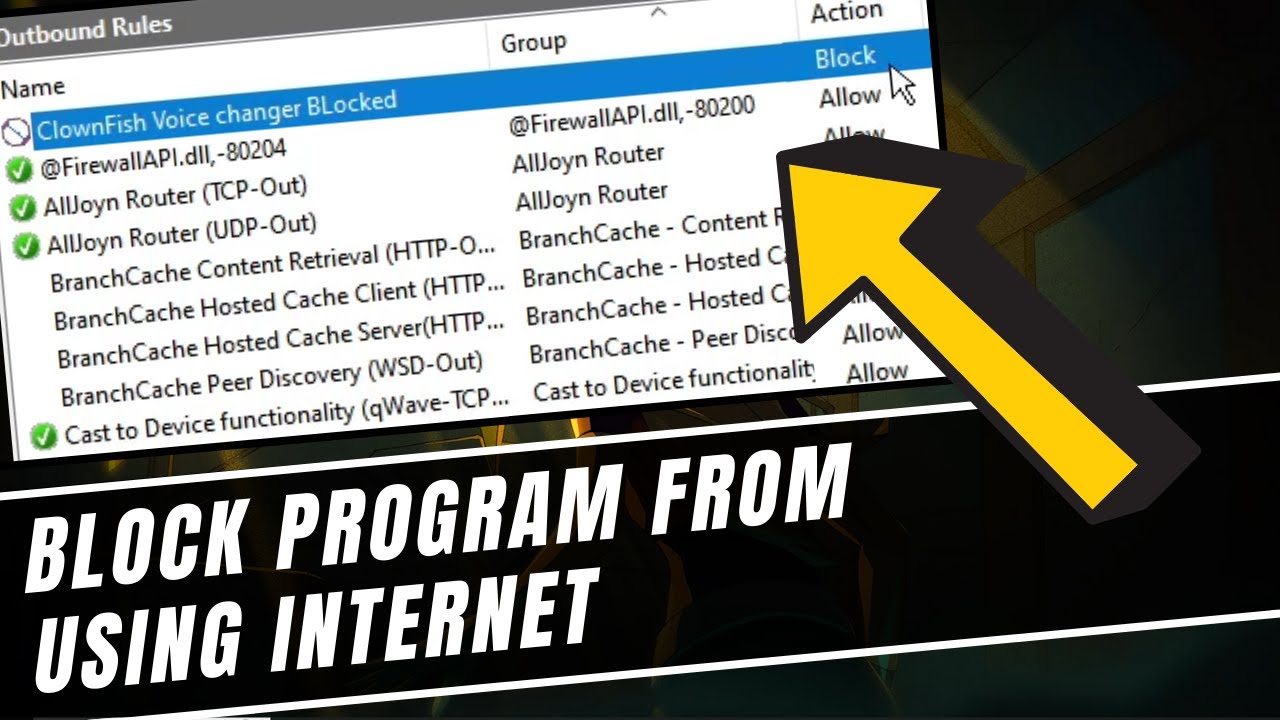
Search for Windows Defender Firewall with Advanced Security in the Windows search bar and open it. Click Outbound Rules in the left panel, then click New Rule in the right panel. Select Program and click Next. Click Browse, navigate to the program's .exe file (usually in C:\Program Files or C:\Program Files (x86)), select it, and click Next. Select Block the connection and click Next. Leave all options as-is on the next screen and click Next. Give the rule a recognizable name and click Finish. The program is now blocked from the internet immediately.
To unblock: return to Outbound Rules, find the rule you created, right-click it, and choose Delete to remove it permanently or Disable Rule to pause it temporarily.
Method 2: Block Using Firewall App Blocker (Easier One-Click Method)
Firewall App Blocker is a free lightweight utility that acts as a simple interface over Windows built-in firewall, allowing you to block or unblock any program with a single click by dragging its .exe file into the program's window. No complex steps required. It supports all Windows versions.
FAQs
CONTACT US
©2026 MobiTech Integrated Solutions. . All Rights Reserved